Install launchroom
One command on a Linux server with Docker. launchroom is Docker containers and one folder, and nothing is written outside that folder.
launchroom installs with one command on any Linux server that runs Docker. After a few minutes:
- the dashboard runs on its own HTTPS address,
- the server can build and run your apps,
- you create the owner account in the browser.
Every install follows two rules:
- It's Docker containers and a folder. Everything launchroom needs lives in one folder,
./launchroomby default. - Nothing is written outside the folder. The installer installs no packages, writes nothing to
/etc, creates no systemd units and never edits Docker'sdaemon.json. Outside the folder, launchroom only creates Docker objects (containers, images, volumes, networks) labelledlaunchroom.managed=true.
Requirements
| What | Needed |
|---|---|
| Operating system | Linux, x86_64 or arm64. Debian and Ubuntu are first-class; any distribution with a recent Docker Engine should work. |
| Docker | Docker Engine 24 or newer with the compose plugin. Docker installed from snap is not supported. |
| User | root, or a user in the docker group. |
| Memory | 2 vCPU and 2 GB RAM for the control plane, small apps and builds on the same server. 1 GB works when builds run on a separate build server. |
| Ports | 80 and 443 (TCP) free and reachable from the internet, plus 443/UDP for HTTP/3. UDP 3478 helps other servers connect directly once you add them. |
| Outbound | HTTPS to GitHub (the release bundle) and to the container registries the images come from. |
If Docker is missing, the installer prints the link to Docker's official install instructions and stops. It never installs Docker for you. If the server has less than 2 GB of RAM, it warns and continues.
Run the installer
curl -fsSL https://launchroom.vantezzen.io/install | shThe folder is created where you run the command. Run it in the directory you want launchroom/ to live in, for
example your home directory.
Your own domain or the automatic address
Without options, the dashboard gets an automatic address built from the server's public IP:
https://203-0-113-10.sslip.io for a server at 203.0.113.10. It has a real certificate and needs no DNS.
If you already have a name for the dashboard, pass it with --domain and point an A (or AAAA) record at the server
first:
curl -fsSL https://launchroom.vantezzen.io/install | sh -s -- --domain dash.example.comUse a stable name if you have one. If the server has to be rebuilt from a backup, you only change DNS and every other server reconnects by itself. You can also move the dashboard to a domain later, from the dashboard, without reinstalling. See Dashboard domain.
What the installer does
Checks the server
It checks for:
- Linux
- Docker Engine 24 or newer, not from snap
- the compose plugin
- at least 2 GB of RAM (warning only)
- ports 80 and 443 are free
Downloads and verifies the release
It downloads the release bundle (compose file, helper script, image pins), checks its checksum and verifies its signature against the launchroom release on GitHub. A bundle whose signature does not verify is never installed.
Creates the folder and its secrets
It creates launchroom/ with compose.yml, .env (mode 0600) and data/, and generates:
- the application key
- database and cache passwords
- the key that encrypts your stored secrets
- the signing key servers trust
Starts the control plane
Postgres and Valkey start first, then the dashboard (which runs its database migrations on first start), background workers, realtime server, scheduler, image registry and private network coordinator.
Connects this server
The installer starts launchroomd on this server and connects it to the dashboard with the roles Run apps,
Serve traffic and Build. From here on this server serves the dashboard over HTTPS too.
Prints your links
It prints the dashboard address, a one-time setup link valid for 60 minutes and a reminder to back up two things.
Back up .env and data/keys/
launchroom/.env and launchroom/data/keys/ decrypt every secret launchroom stores. Copy them somewhere safe right
after the install. Setting up backups in the dashboard also produces a recovery kit that covers them.
Create the owner account
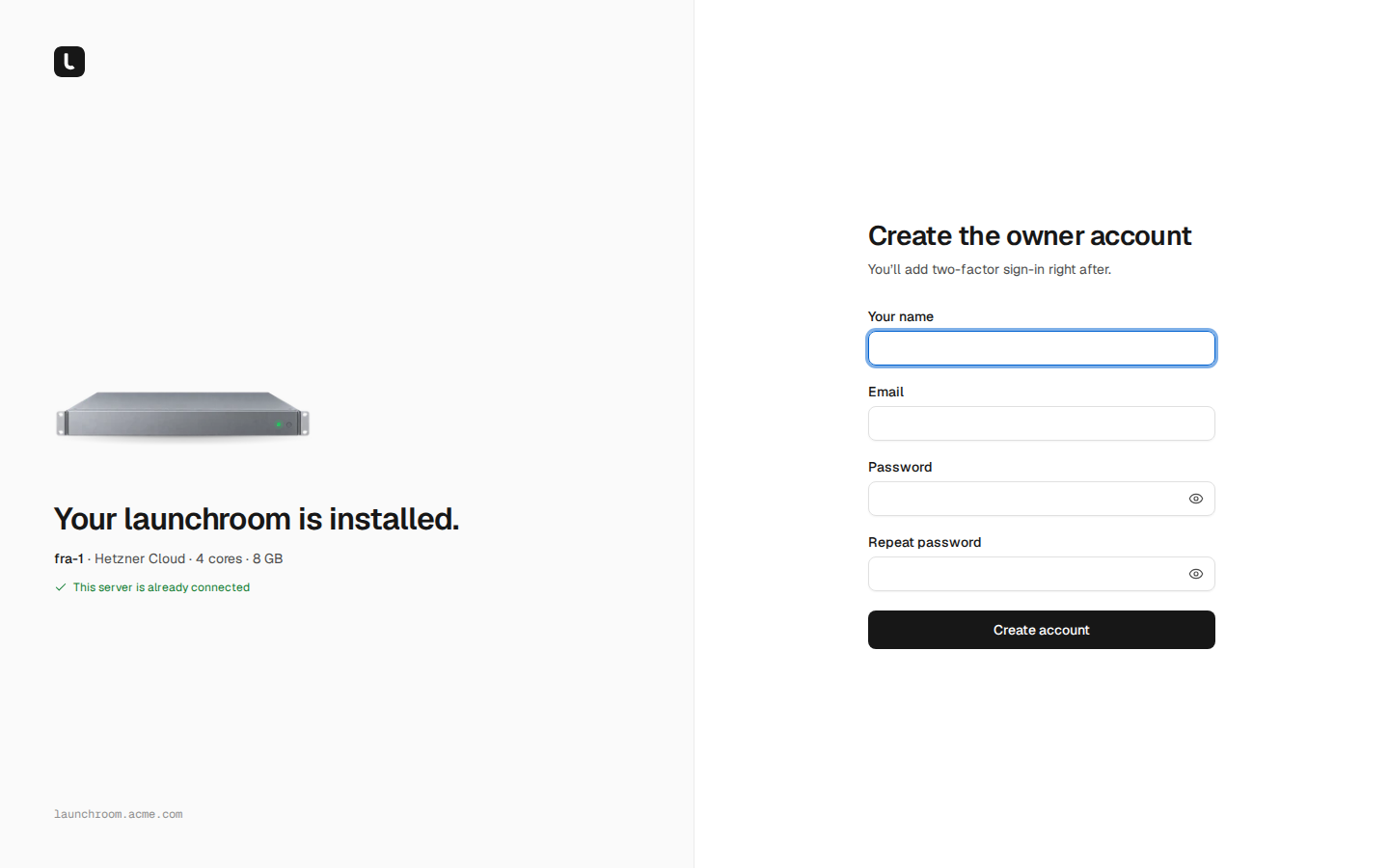
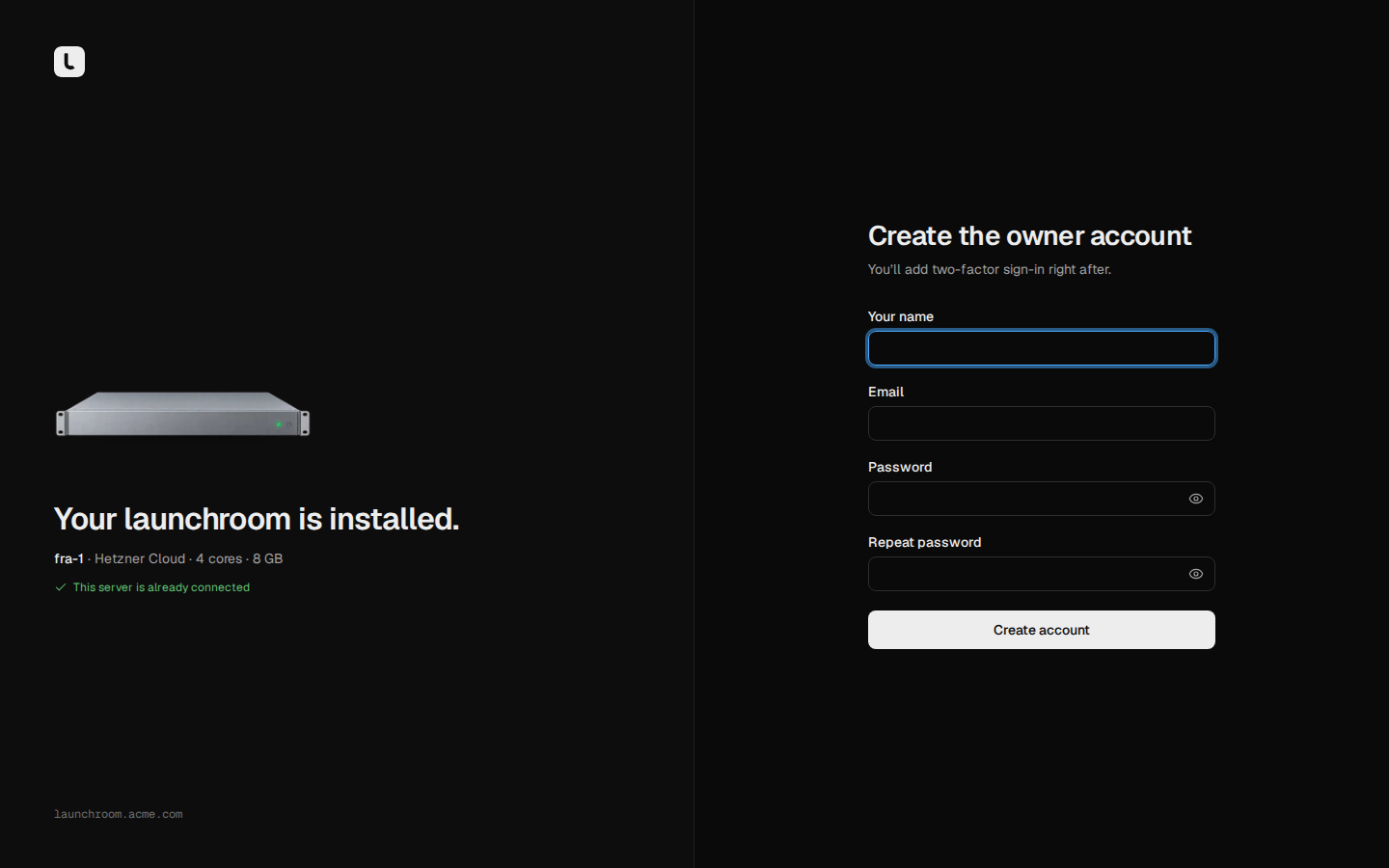
Open the setup link the installer printed (https://<your dashboard>/setup?token=…). The first-run screen confirms the
install and asks for your name, email and a password. This account becomes the instance owner.
If the setup link expired, run ./launchroom setup-token in the install folder for a new one.
After sign-in, Get started guides you through the remaining steps:
- Connect GitHub.
- Set an address for your apps.
- Deploy the first app.
- Set up backups.
Get started also recommends two-factor authentication. It is optional.
The install folder
launchroom/
├── compose.yml              managed: replaced on upgrade (do not edit)
├── compose.override.yml     yours: optional overrides (ports, resource limits)
├── .env                     generated secrets, settings and image pins (0600)
├── launchroom               helper script
├── guard/                   the pinned release identity for updates
└── data/
    ├── keys/                encryption and signing keys
    ├── postgres/  valkey/   control-plane state
    ├── zot/                 the image registry's config and storage
    ├── headscale/           the private network's coordination state
    ├── daemon/              launchroomd's identity, last desired state, cached proxy config
    └── backups/             control-plane backups to a local destination
Put local changes to the stack in compose.override.yml. compose.yml is replaced on every upgrade.
The ./launchroom helper
Run these from inside the install folder.
| Command | What it does |
|---|---|
./launchroom status | The dashboard address, every container's state and whether this server's launchroomd is connected. |
./launchroom logs [service] | Follow the logs of all services, or one (dashboard, horizon, launchroomd, …). |
./launchroom update | Pull the images pinned in .env again, restart and migrate. A new release comes from re-running the installer. |
./launchroom backup | Take a control-plane backup now. |
./launchroom restore | Restore the control plane from a backup. |
./launchroom registry show / apply | Show the registry config with credentials hidden, or write it and restart the registry. |
./launchroom setup-token | A new one-time setup link. |
./launchroom reset-owner-2fa EMAIL | Remove an instance owner's two-factor authentication after a typed confirmation. They set it up again at the next sign-in. |
./launchroom dashboard-domain-reset | Go back to the install address when the dashboard's own domain locks you out. |
./launchroom uninstall | Remove launchroom from this server. |
Installer options
| Option | What it does |
|---|---|
--dir DIR | Install folder. Default: $LAUNCHROOM_DIR, else ./launchroom. |
--domain HOST | Dashboard host name. Default: <public-ip>.sslip.io. |
--version V | Release to install. Default: the latest. |
--unstable | Install the newest release, including pre-releases, and offer pre-releases as updates. |
--bundle DIR | Use an unpacked bundle instead of downloading one. Not signature-verified: for air-gapped installs and testing. |
--no-public-ip-detect | Never contact IP echo services. Needs --domain. |
--skip-port-check | Install even though 80 or 443 are taken. The dashboard is then only reachable on 127.0.0.1:8000, for example through an SSH tunnel. |
--allow-unsigned | Accept a downloaded bundle without a signature (development builds only). A signature that is present but does not verify is always refused. |
--restore | Rebuild the control plane from a backup. See Restore and disaster recovery. |
--recovery-kit FILE | The recovery kit for --restore (implies --restore). |
--restore-allow-http | Accept a plain-HTTP backup endpoint for --restore (LAN or test storage only). |
Pass options after sh -s --, for example curl -fsSL https://launchroom.vantezzen.io/install | sh -s -- --dir /srv/launchroom.
Upgrading is re-running the installer
Running the same command again is safe. It is how you move to a new release:
.envand everything indata/are kept.compose.yml, the helper script and the image pins are replaced.- The stack is brought up to date, and this server's launchroomd stays connected.
Run it from the same directory, or pass --dir to point at the existing folder.
You can also update from the dashboard. Settings → Updates takes a backup, updates the control plane and then every server, and rolls back if the new version doesn't come up. See Updates.
Uninstall
./launchroom uninstallThe command asks twice:
- Type
uninstallto stop the stack, remove launchroomd's firewall rules and remove every container and network labelledlaunchroom.managed=true, including your deployed apps, Caddy and BuildKit. - Type
deleteto also remove the labelled volumes (your databases and app data), the images those containers used and the folder. Skip this step and your data stays on disk.
Other servers you added have their own small install folder. See Uninstalling a server.