Updates
One guided flow updates the control plane and then every server, with a backup first and an automatic rollback if anything fails.
Settings → Updates installs a new launchroom release in one flow. It takes a backup, updates the control plane, then rolls the new version out to your servers one at a time. If a step fails, launchroom puts the previous version back. Your apps keep running throughout.
Updates are managed by instance owners. Starting one or changing update preferences asks for your password.
Update now
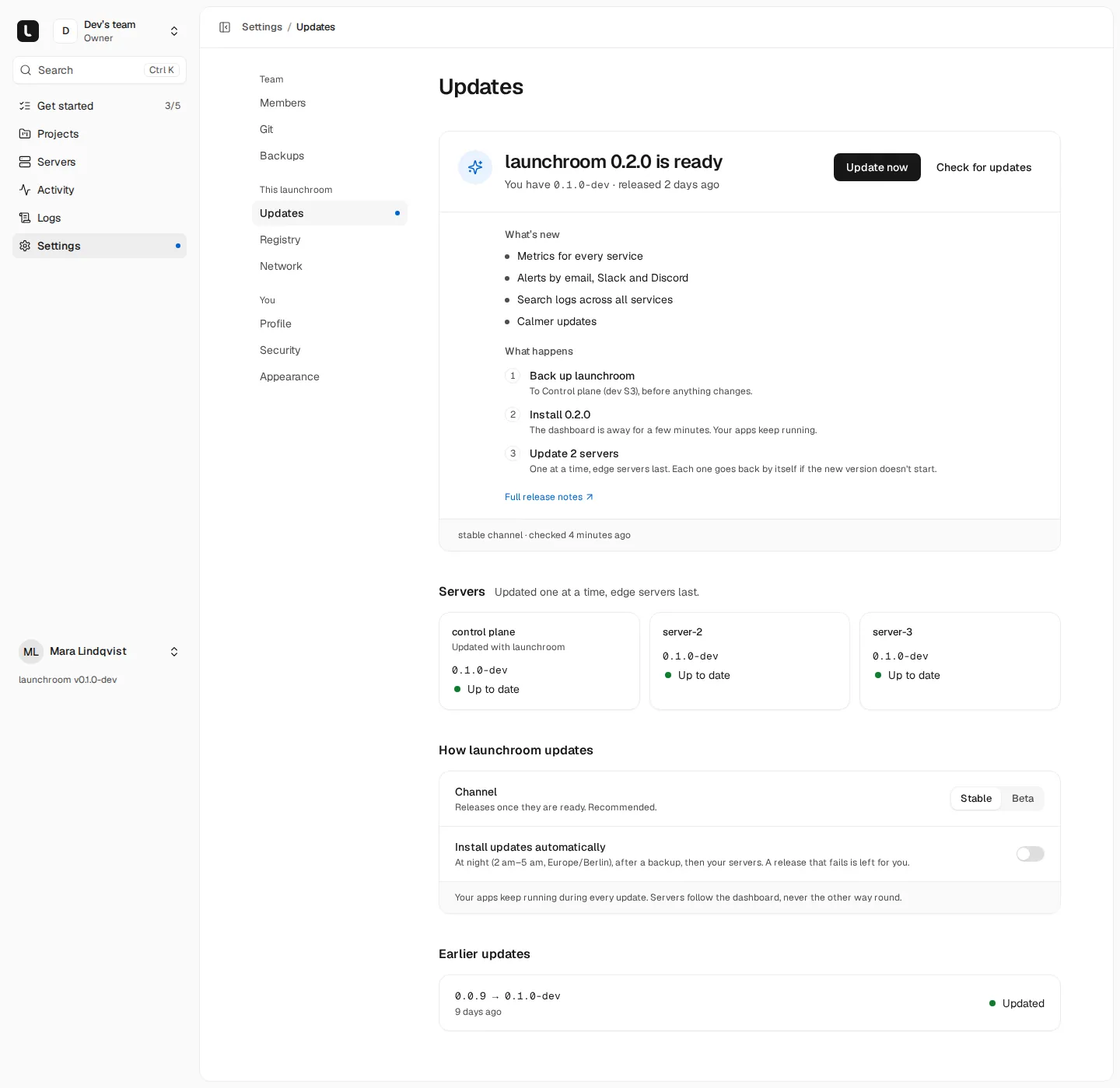
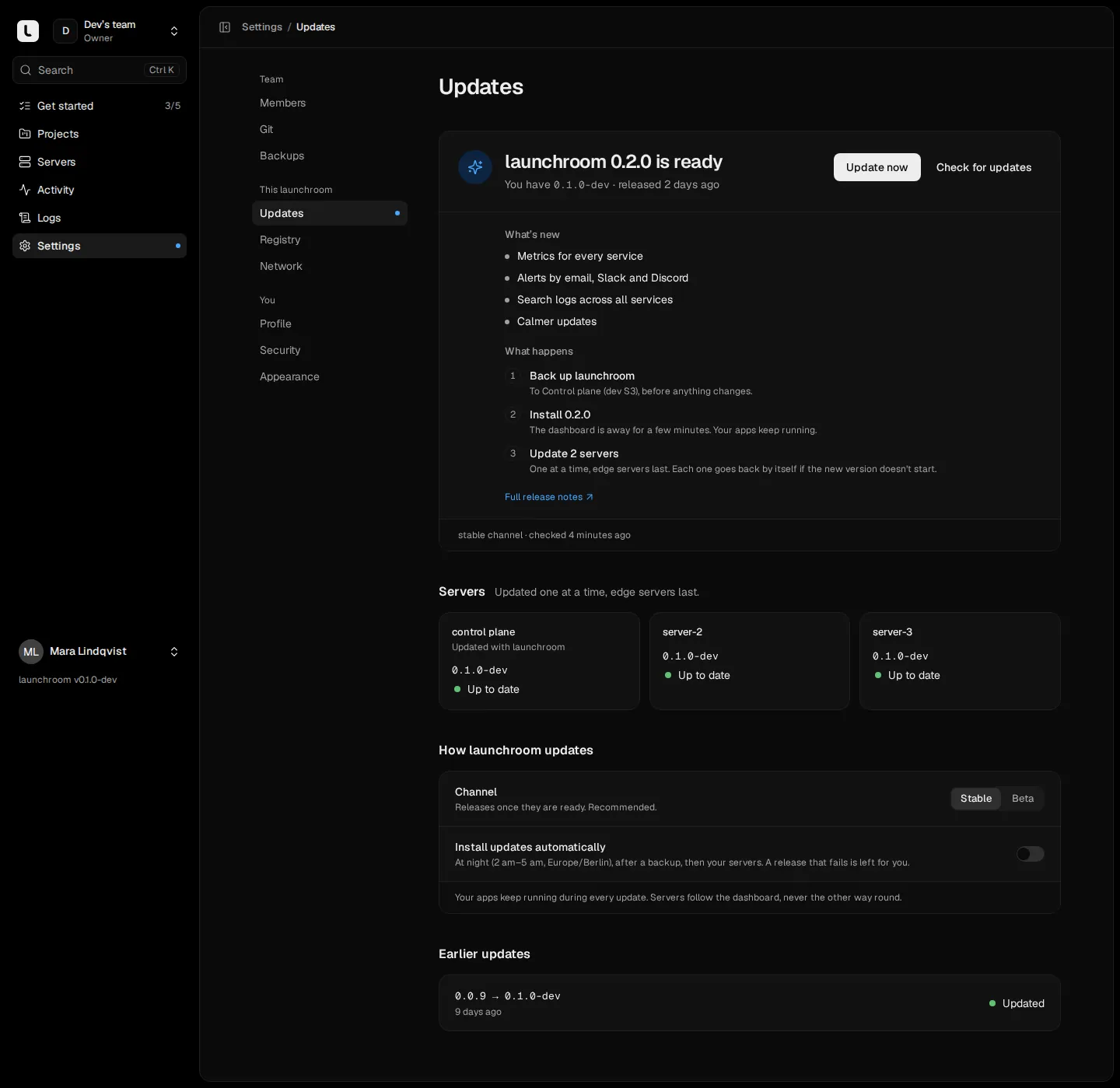
When a release is available, Settings → Updates shows launchroom x.y.z is ready with what's new, the three steps it will take, a link to the full release notes and Update now. The sidebar shows a dot on Updates too.
Backup
launchroom backs up the control plane (database, settings and keys) to your off-site backup destination before anything changes. If the backup fails, the update stops and nothing changes.
Control plane
The control plane's launchroomd downloads the release bundle, verifies its signature, pulls every image before changing anything, then installs the new version. Database migrations run as the dashboard starts. The dashboard restarts during this step, and the page resumes when it's back.
Servers
Then update N servers, one at a time is ticked by default. Once the new control plane runs, it updates the other servers one by one, with servers that serve traffic last. The rollout stops at the first failure, so a problem affects only one server.
You can leave the page while it runs. The step list shows Queued, Backing up, Updating, Updated, Failed or Rolled back, with the latest progress line.
Without an off-site backup
If you haven't set up a control-plane backup destination, the update dialog asks you to tick Update without an off-site backup. A local database dump is still taken on the control-plane server for the rollback, but there is no copy elsewhere. Set up a destination under Backups to make updates safer.
When something fails
Every update can roll back:
- On the control plane, launchroom restores the previous configuration and the pre-update database dump and starts the old version again. Changes made in the dashboard during the update window are undone.
- On a server, the previous launchroomd configuration is restored and the old version restarted.
The Updates page then shows an amber card with what happened, step by step, and what to do:
| Outcome | What to do |
|---|---|
| Rolled back | Nothing to fix. You're on the previous version. Try again when you're ready, or wait for the next release |
| Backup failed | Nothing changed. Check Settings → Backups, then try again |
| Failed | Run ./launchroom status on the control-plane server and keep the pre-update backup at hand. See Troubleshooting |
If a server's update fails, the rollout stops and the Servers section explains which server went back to its previous version, with Try again.
Server versions
The Servers section lists every server with its launchroomd version. Badges point out servers that are Outdated (older than the dashboard), Newer than the dashboard, or have an Incompatible protocol. The dashboard works with servers one protocol version behind, so servers can catch up gradually. Update N servers brings the rest to the dashboard's version.
Servers are updated only to the dashboard's own version. They are never updated past it or downgraded.
Update channel
Under How launchroom updates, Channel is Stable (default) or Beta. Beta includes pre-releases.
Automatic updates
Turn on Install updates automatically to have launchroom update itself at night. It's off by default. Automatic updates:
- Start only between 02:00 and 05:00 in the control-plane server's time zone (UTC if it can't tell).
- Need an off-site backup destination. Without one, the switch is disabled with a link to set one up.
- Run the same flow as Update now, backup first, servers included.
- Install only releases that haven't been tried before. A version that failed or was rolled back waits for a person.
- Don't start while something else is running or while launchroom is in recovery mode.
Turning automatic updates on or off is recorded in the audit log.
Signed releases
Every release is signed with Sigstore's cosign, keylessly, from launchroom's release workflow on GitHub (vantezzen/launchroom, tags v* only). What gets verified:
- The installers (
install.shfor the control plane,server.shfor servers) verify the release bundle's signature against the exact release identity for that version before running anything. A missing signature stops the install. An invalid signature always stops it. - launchroomd pins the release identity when it is installed and never lets the dashboard change it. For each update it downloads the bundle itself, verifies the signature, the transparency log entry and the checksum, refuses any version that isn't strictly newer than its own, and takes every image digest from the verified bundle.
- The update itself is carried out by a short-lived helper that verifies the release once more, against a copy of the pin that launchroomd can't write. A compromised launchroomd therefore can't install a release of its choosing.
- Images are pinned by digest in the release, so what runs is what was signed.
Update manually
Re-running the installer is the manual upgrade path. It keeps your .env and data and writes the new release's compose file and image pins.
curl -fsSL https://launchroom.vantezzen.io/install | shPass -s -- --dir /path/to/launchroom if you installed into another folder, and --version x.y.z to pick a specific release.
On the control plane, ./launchroom update re-pulls the images already pinned in .env and restarts. It doesn't move to a new release.
No backup or rollback by hand
The manual path doesn't take a pre-update backup and doesn't roll back. Take a backup first (./launchroom backup) and prefer the guided flow when you can.
After updating the control plane by hand, update your servers from Settings → Updates.
Security model
No SSH, no host shell, signed desired state, a local policy floor on every server and secrets that are encrypted, sealed and never logged.
Dashboard domain
Move the dashboard from its install address to your own domain with HTTPS. launchroom verifies the domain before the switch, and the old address keeps forwarding.