Deploy your first app
Deploy a live app with Postgres on a fresh install: connect GitHub, import a repository, check the plan, connect a database and deploy.
This page walks you through deploying an app with its own database and an HTTPS address on a fresh install. It takes a few minutes, most of them waiting for the first build. Each step links to the page with the details.
The Get started page in the dashboard follows the same order and shows how far you are.
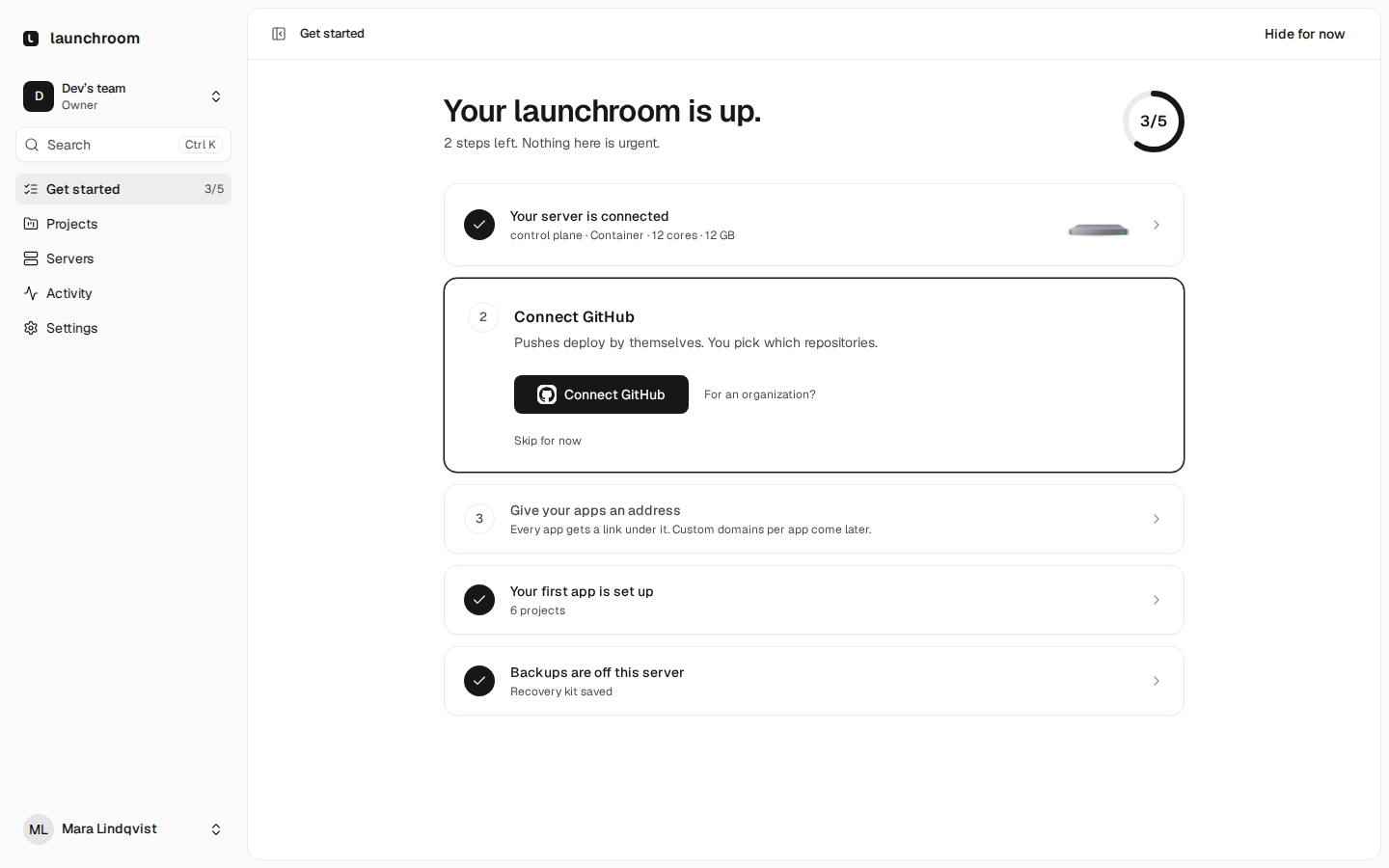
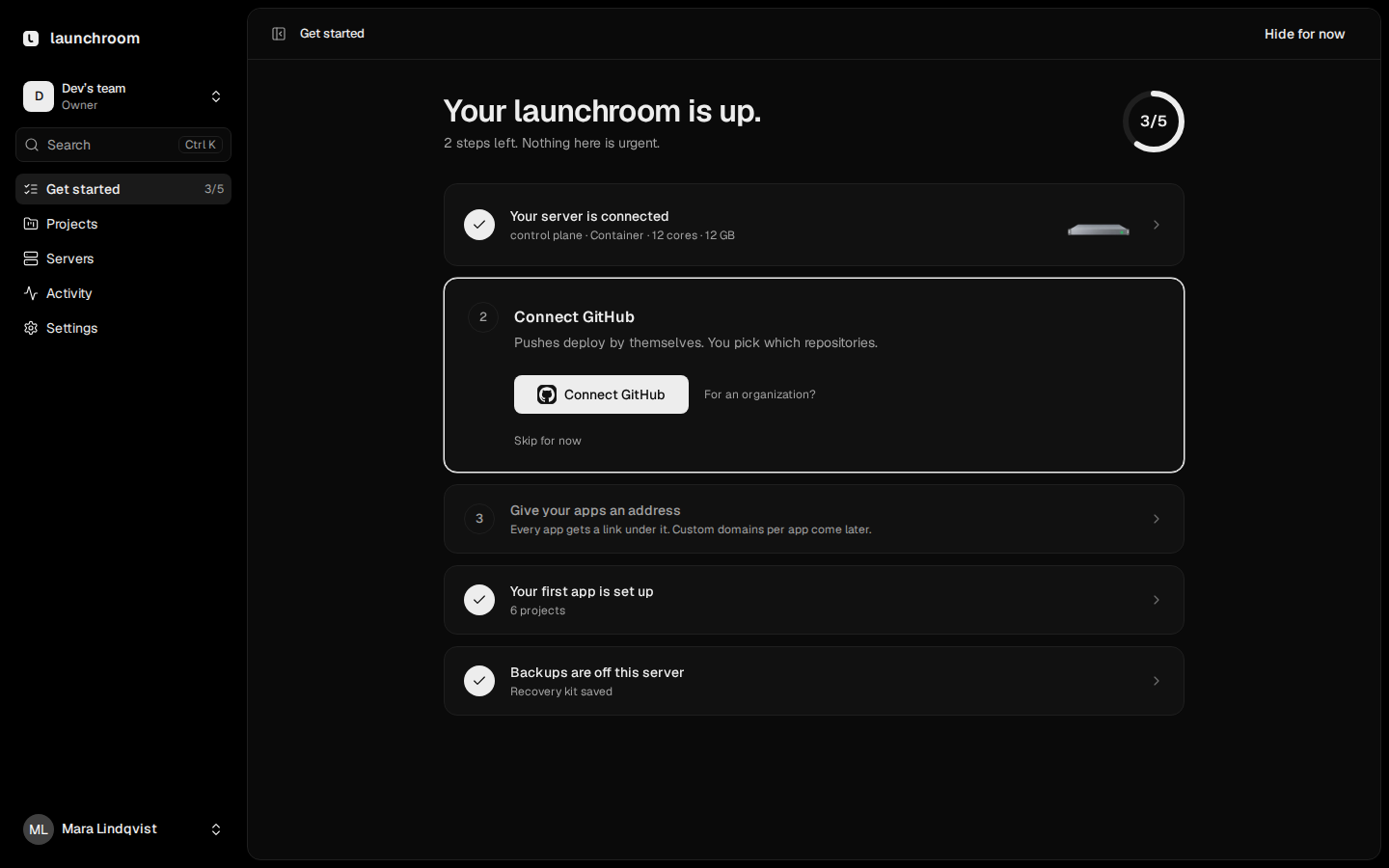
1. Connect your git provider
launchroom builds from your repositories, so it needs access to them first. Open Settings → Git and pick a provider.
GitHub
launchroom uses GitHub's app manifest flow. GitHub creates a GitHub App with the permissions launchroom needs and sends its credentials back to your dashboard. You don't copy keys by hand.
- Click Connect GitHub. For an organization, or for GitHub Enterprise Server, open the optional details and fill in the organization or server URL first. Left empty, the app belongs to your personal account.
- GitHub asks you to confirm creating the app. Confirm, and you land back in launchroom.
- Install the app on your account and pick the repositories launchroom may deploy. You can change that selection on GitHub at any time.
After that, pushes deploy automatically. Pull requests get a preview, check runs and a comment with the preview URL.
Dashboard not on the public internet
If your dashboard runs on localhost or a LAN name, GitHub can't deliver webhooks to it. launchroom then creates the
app without a webhook and checks your branches every minute instead; pull request previews need the webhook.
GitLab, Gitea, Forgejo or any git server
GitLab (gitlab.com or self-managed), Gitea and Forgejo connect with an OAuth application or an access token. Any other git server works one repository at a time, over SSH with a deploy key launchroom generates, or over HTTPS for public repositories. See Git providers.
2. Give your apps an address
Every web service gets a generated address. Until you set a domain, the address is built from your server's IP, such
as web-production-shop.203-0-113-10.sslip.io, and works without DNS setup.
For projects you keep, set a platform domain in Get started (Domain for your apps). Point one wildcard DNS record
such as *.apps.example.com at your server, and every service gets an address like
web-production.shop.apps.example.com. You can add custom domains per service on top. See Domains and TLS.
3. Import a repository
Go to Projects and start a new project from Import a repository. Pick a repository from the list. launchroom
clones it and reads files such as package.json, composer.json and a Dockerfile.
It then shows what it found:
- The apps in the repository. A plain repository is one app. In a monorepo, each workspace app is listed and you pick the ones to deploy.
- Extra processes. For example a queue worker and a scheduler for a Laravel app. Add them with one click. They share the app's image, so one build covers all of them.
- Databases. If the code or
.env.exampleexpects Postgres, MySQL or Redis, launchroom suggests the database, connected to the app.
Name the project and click Deploy. You can also start from a template or a Compose file. See Templates and Compose.
What launchroom detects
Before the first build, launchroom works out a build plan and shows it:
- the framework and its version
- the package manager
- the runtime version and where each value came from (for example
.nvmrc) - the install, build and start commands
- the port
- the variables the build needs
How launchroom picks the builder:
- A
Dockerfilein the repository wins. launchroom builds with it and says so. - Otherwise launchroom builds with Railpack plus its own framework presets (Next.js, Laravel, Django, Rails, static sites and more). The presets add production defaults such as a release command for migrations.
- launchroom never switches builders silently. If it can't plan the app, it shows why. You can then set commands, pick a template Dockerfile or, if turned on, generate one.
Details in How builds work and Generate a Dockerfile.
4. Add a Postgres database
If the import didn't add a database, open the project's canvas, click Add a service and choose Database. Pick PostgreSQL (or MySQL, Redis, Valkey, MongoDB, ClickHouse), a version and a name.
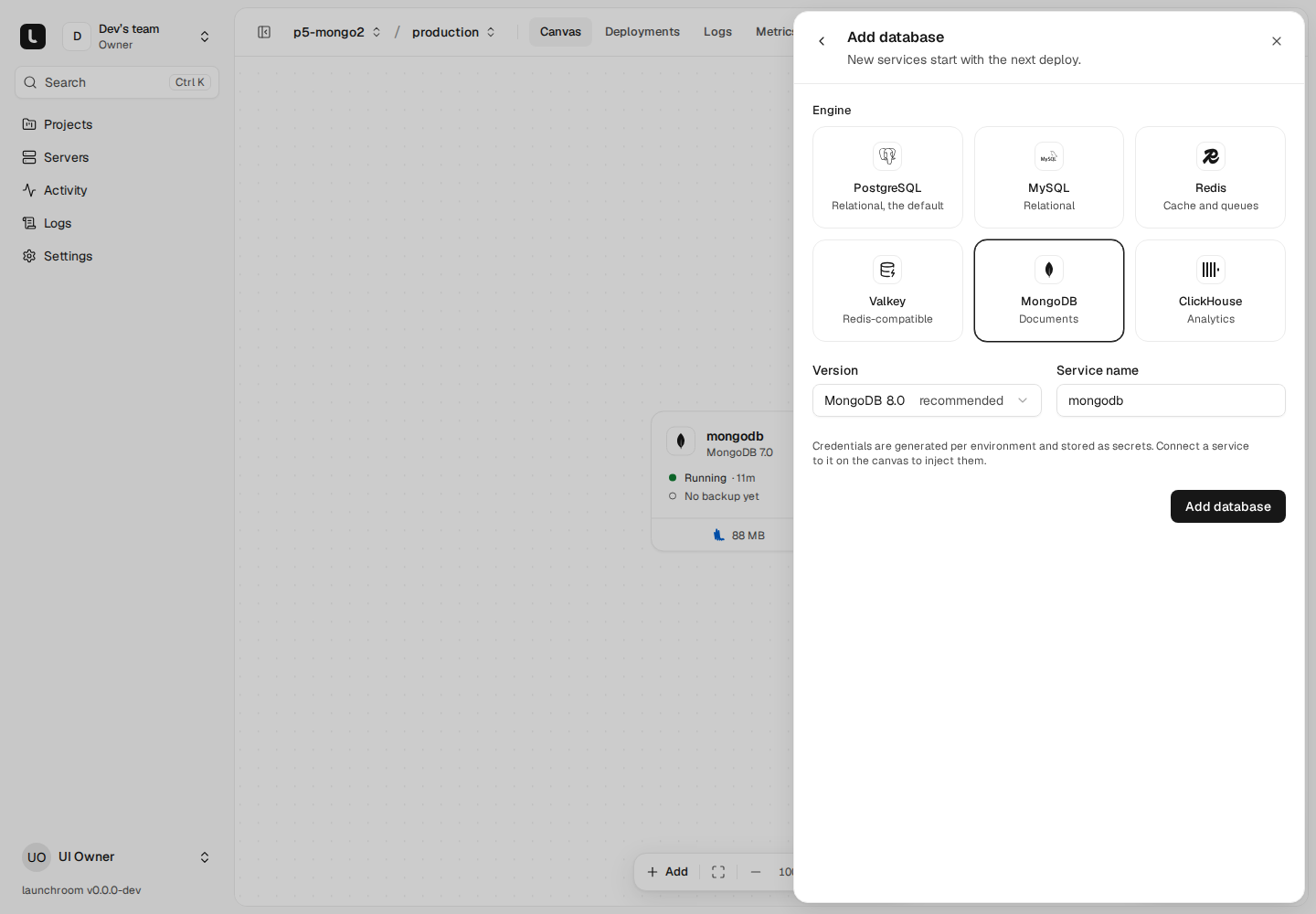
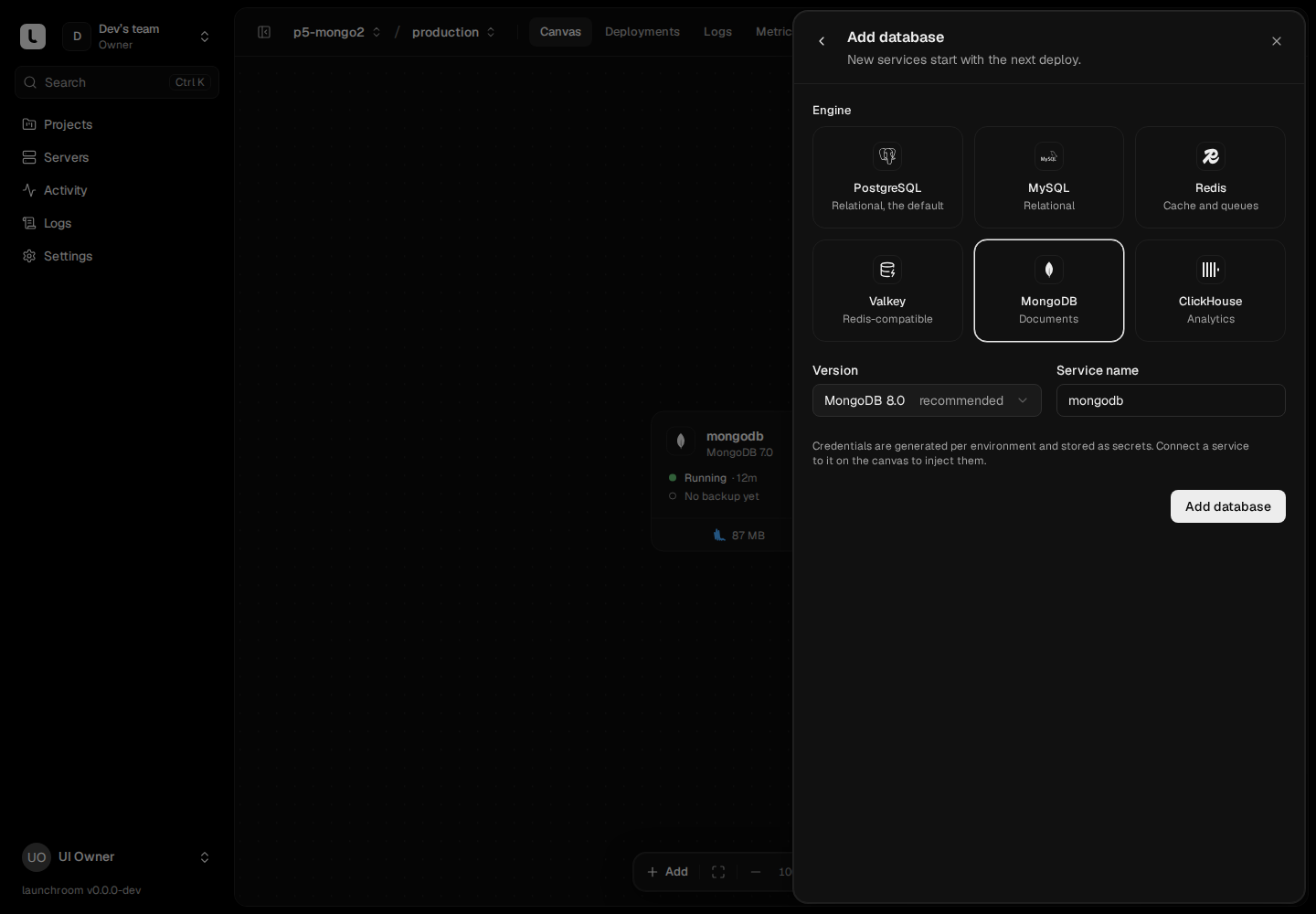
launchroom generates the credentials, stores them encrypted and runs the database with a volume for its data. More in Managed databases.
5. Connect the app to the database
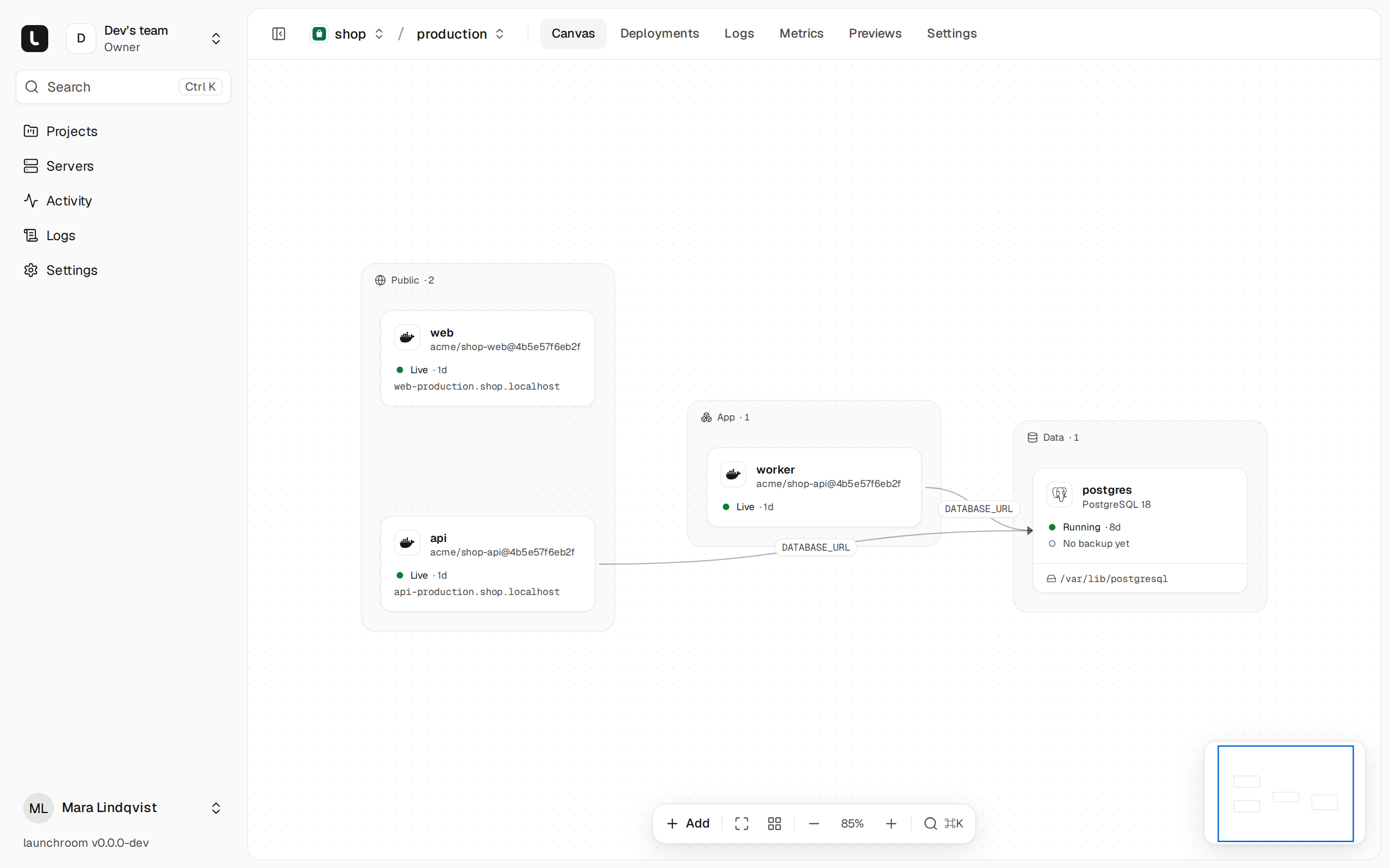
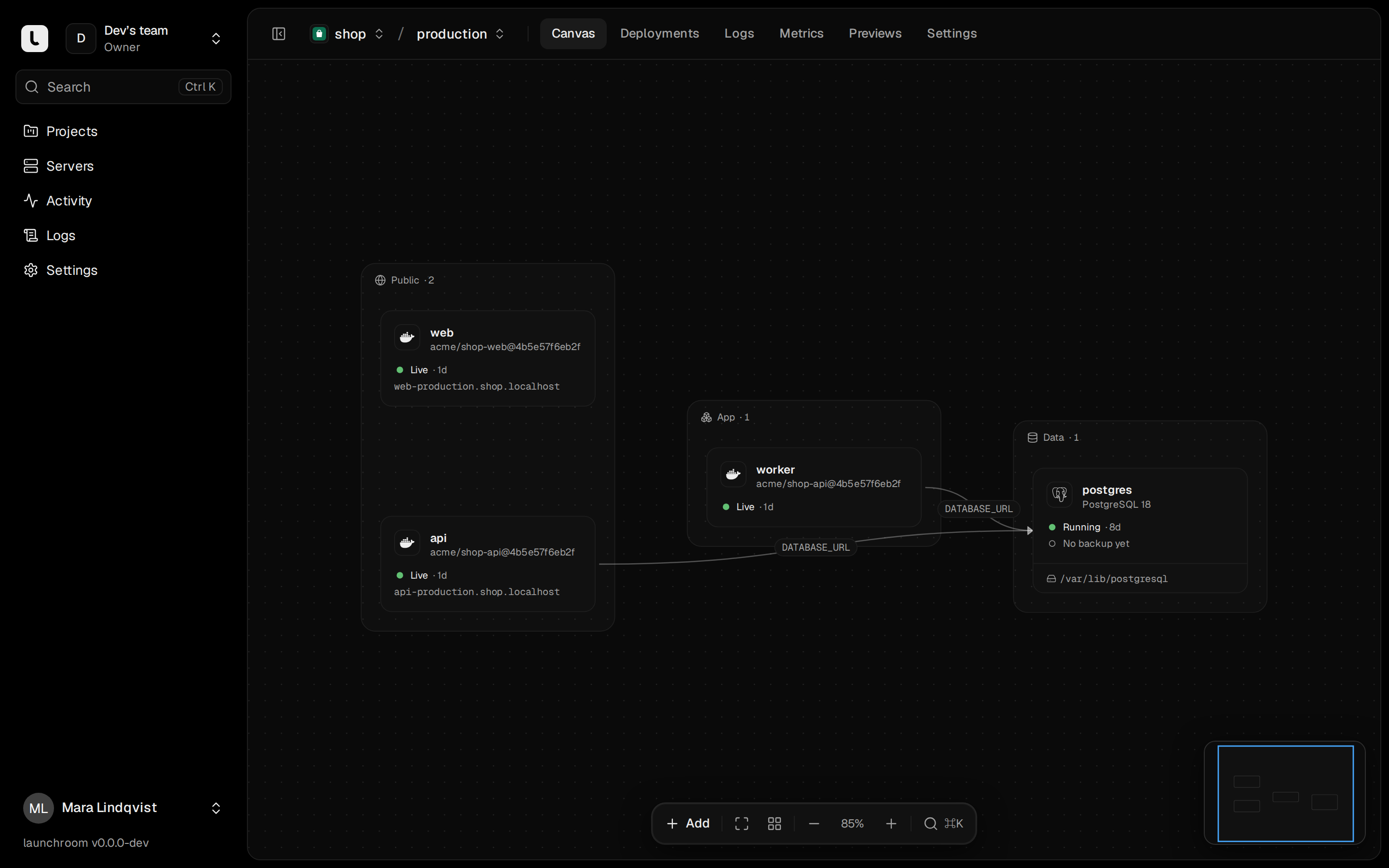
On the canvas, drag a connection from your app to the database. The Connect popover previews the variables it will add, with the names your framework expects:
DATABASE_URLfor Node, Prisma and Django;DB_CONNECTION,DB_HOST,DB_PORT,DB_DATABASE,DB_USERNAME,DB_PASSWORDfor Laravel;REDIS_URLfor Redis.
The variables are references such as ${{postgres.DATABASE_URL}}, not copies of the password. launchroom resolves them
when the app deploys, and deleting the connection removes them. Your app reaches the database by its name,
postgres:5432, on the environment's private network. See Variables.
6. Review & deploy
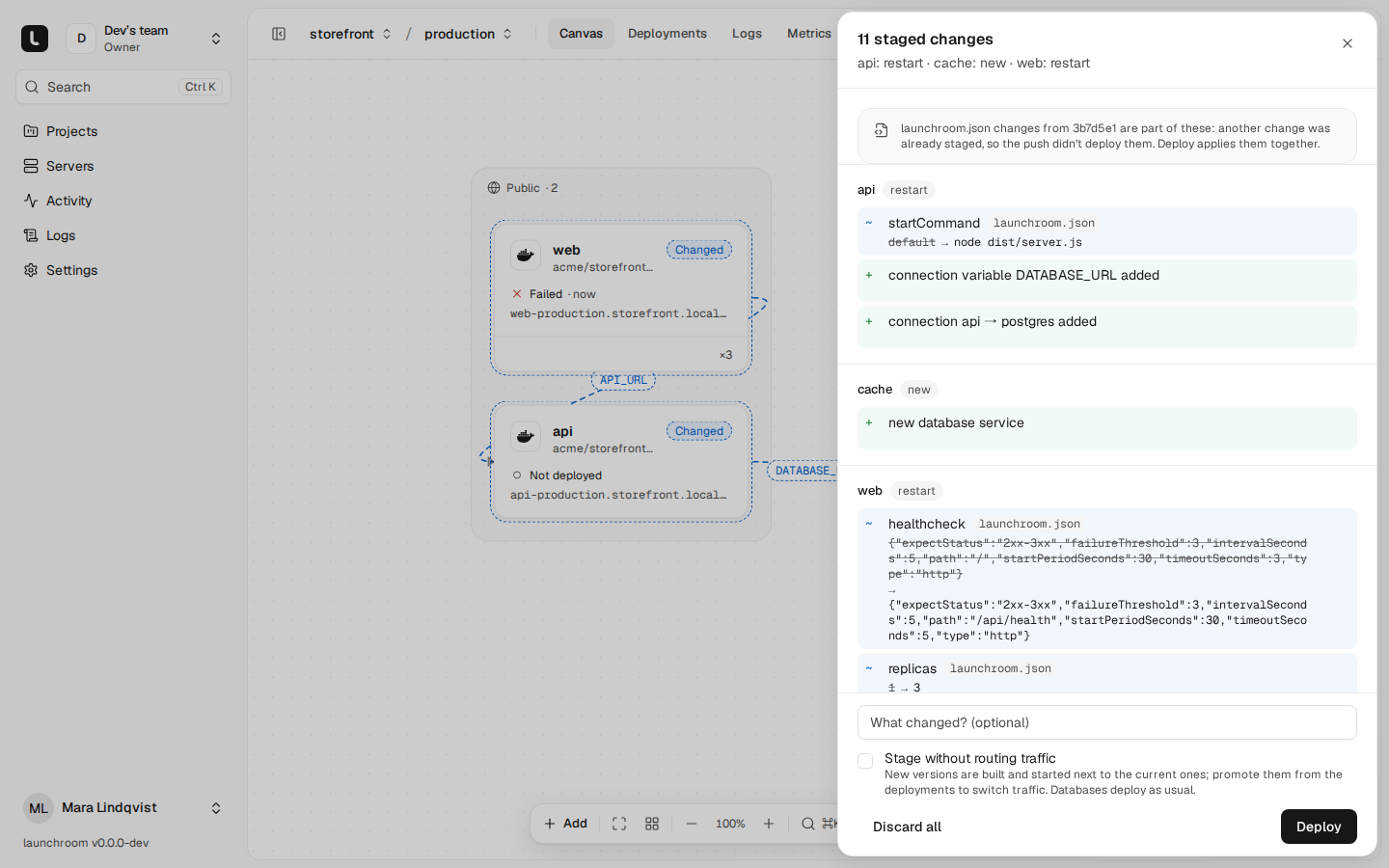
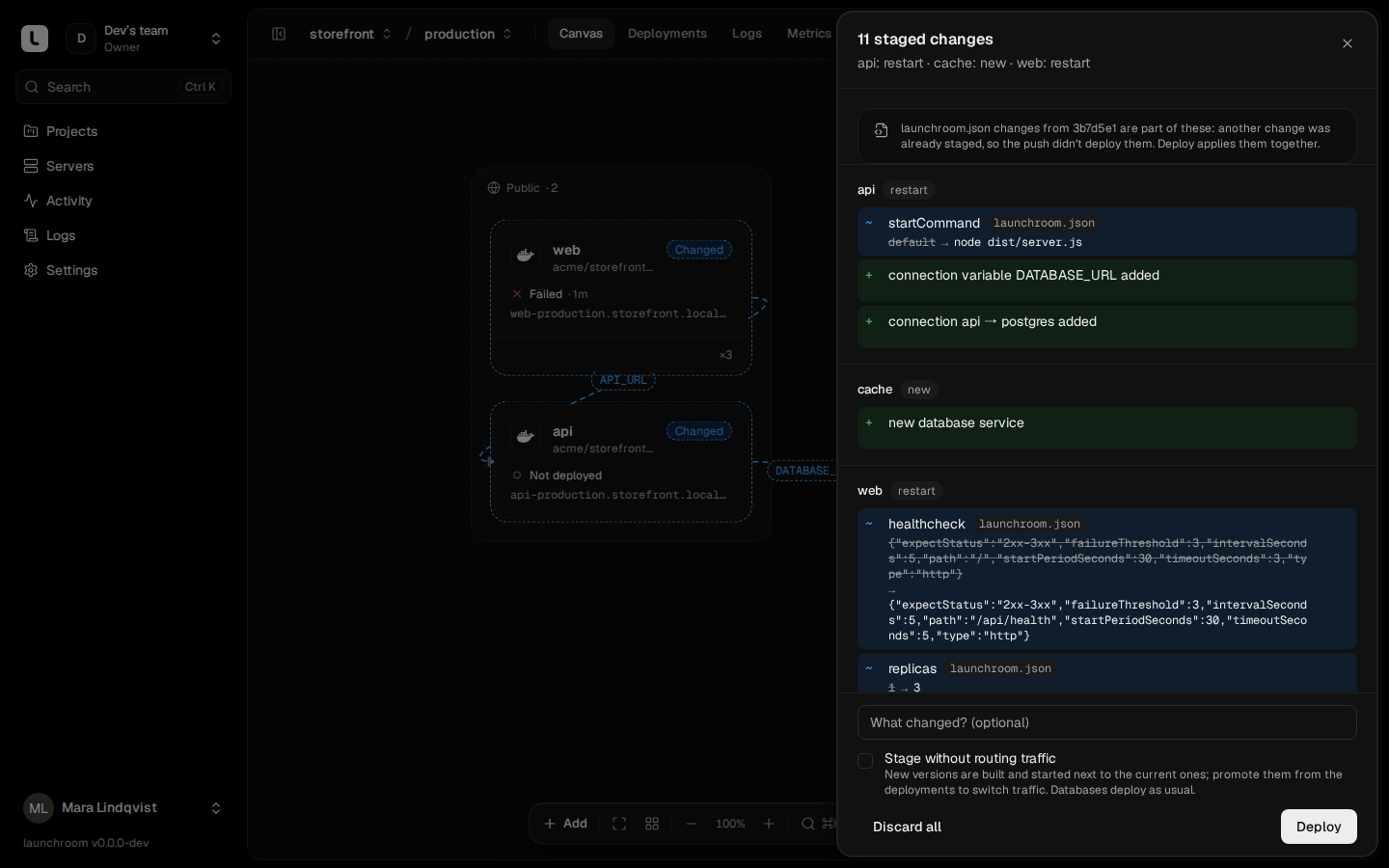
Edits on the canvas don't go live one by one. They collect as staged changes, and the canvas toolbar shows how many are waiting ("3 changes · Review & deploy"). Open it to see each change with its effect (new service, rebuild or restart), add an optional message and click Deploy.
Each deployment runs through its steps: Plan, Build, Roll out, Health check and Switch traffic. The new version starts next to the old one and is checked from outside its container. Only then does it receive traffic. If any step fails, the previous version keeps serving and the deployment page shows why.
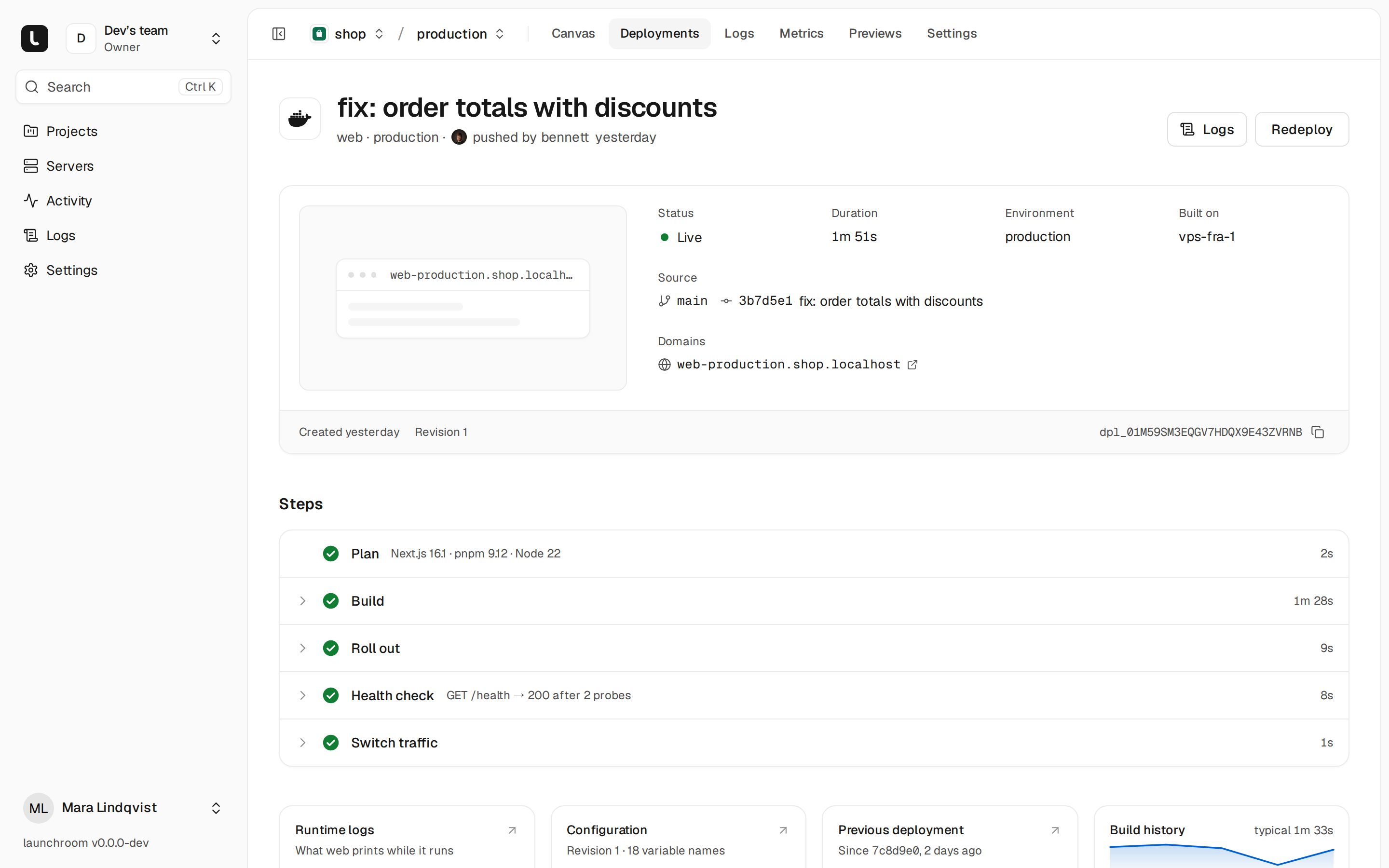
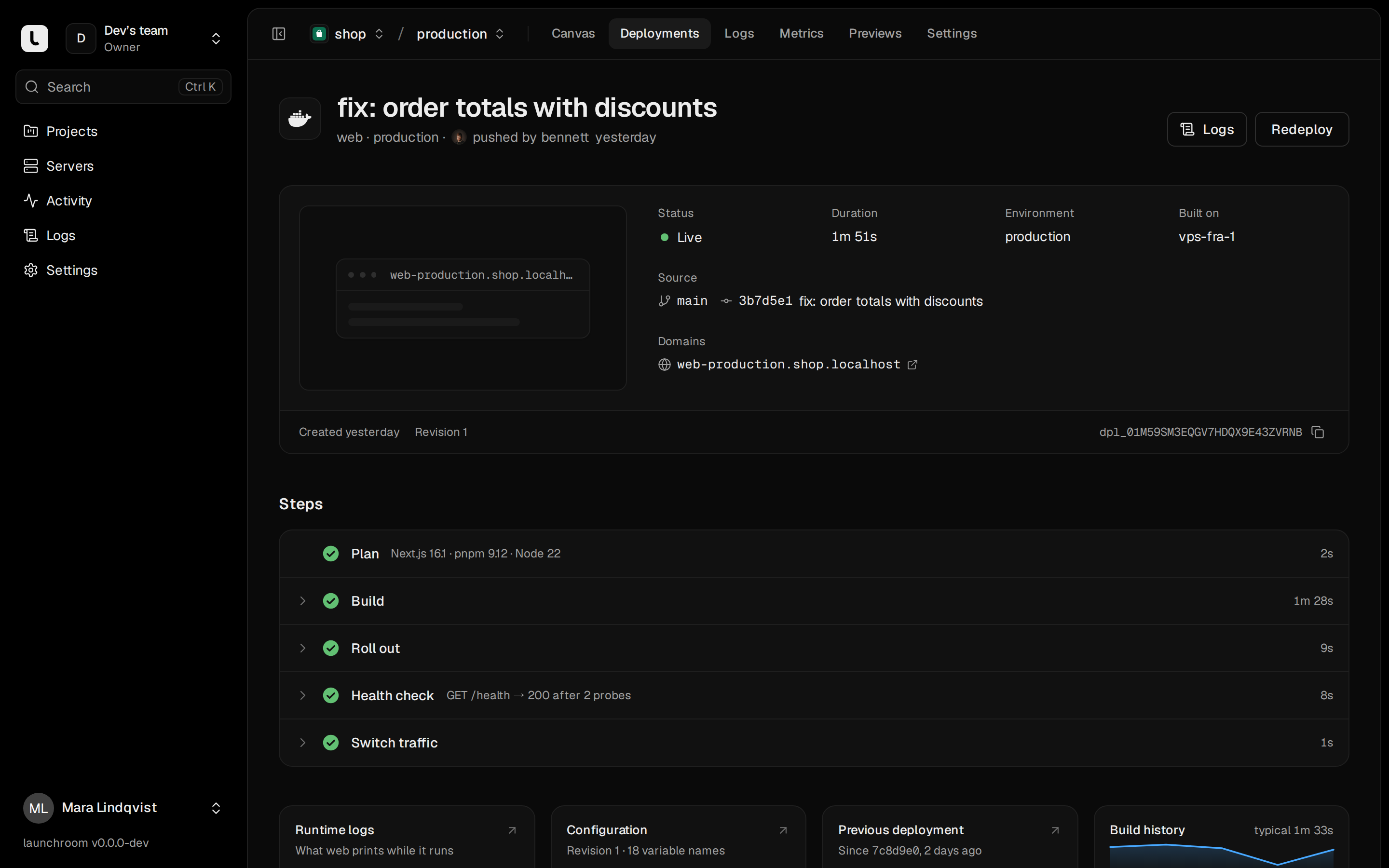
After this, every push to the tracked branch deploys automatically.
7. Open your app
When the deployment is Live, open the service on the canvas. Its address is in the panel and in Settings → Domains. launchroom sets up its HTTPS certificate automatically.
To use your own domain, add it under the service's domains. launchroom shows the DNS records to create and checks them live. Domain changes apply immediately, without a deploy. See Domains and TLS.