Restore and disaster recovery
Restore one database or volume in a few clicks, or bring back a whole launchroom on a new server with one command and a guided checklist.
Restoring a database takes a few clicks. By default the restore goes next to the original, where you check it and then swap it in. If the main server is gone, one command on a new server brings back the dashboard with its settings and secrets, and a checklist guides you through the rest.
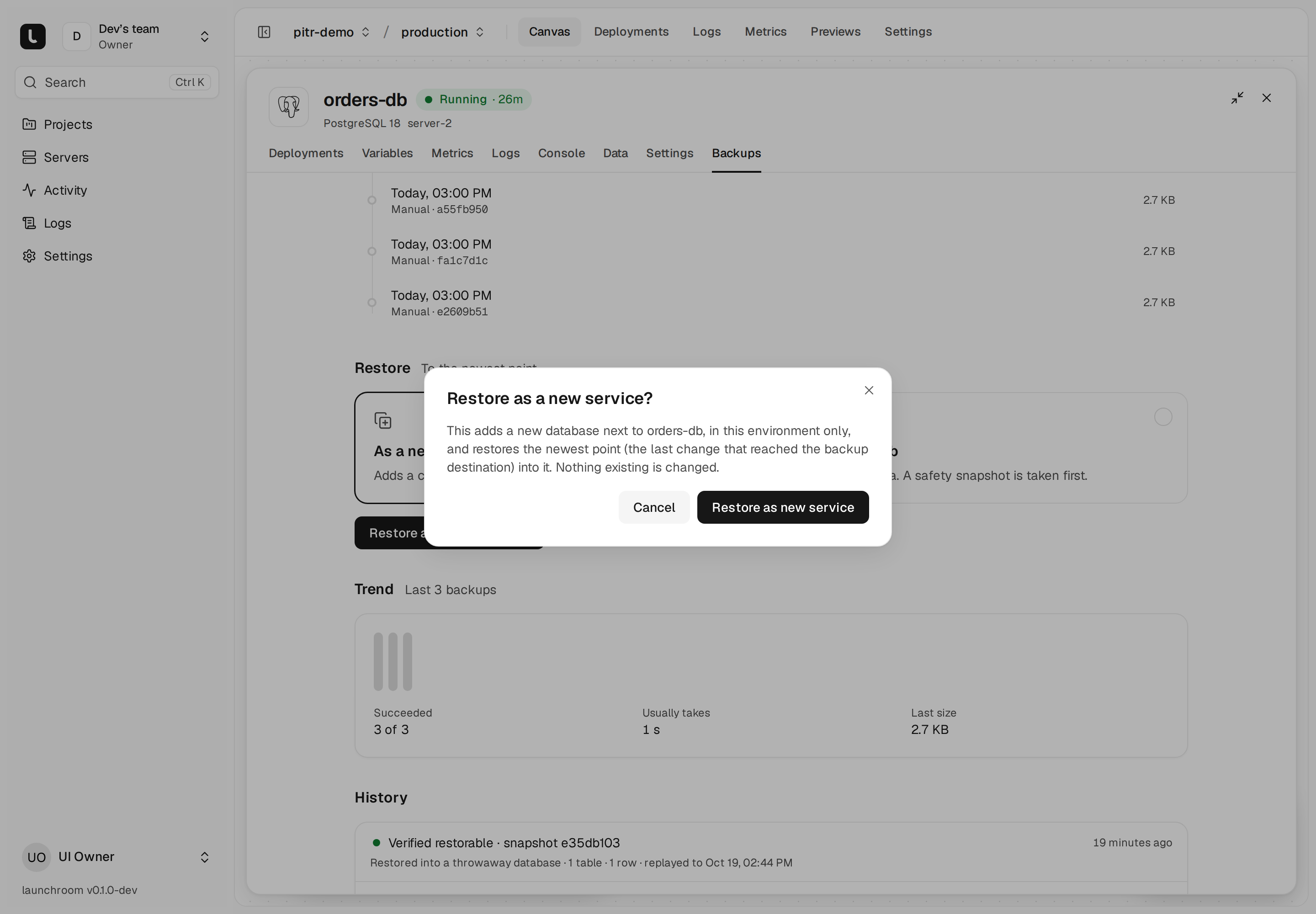
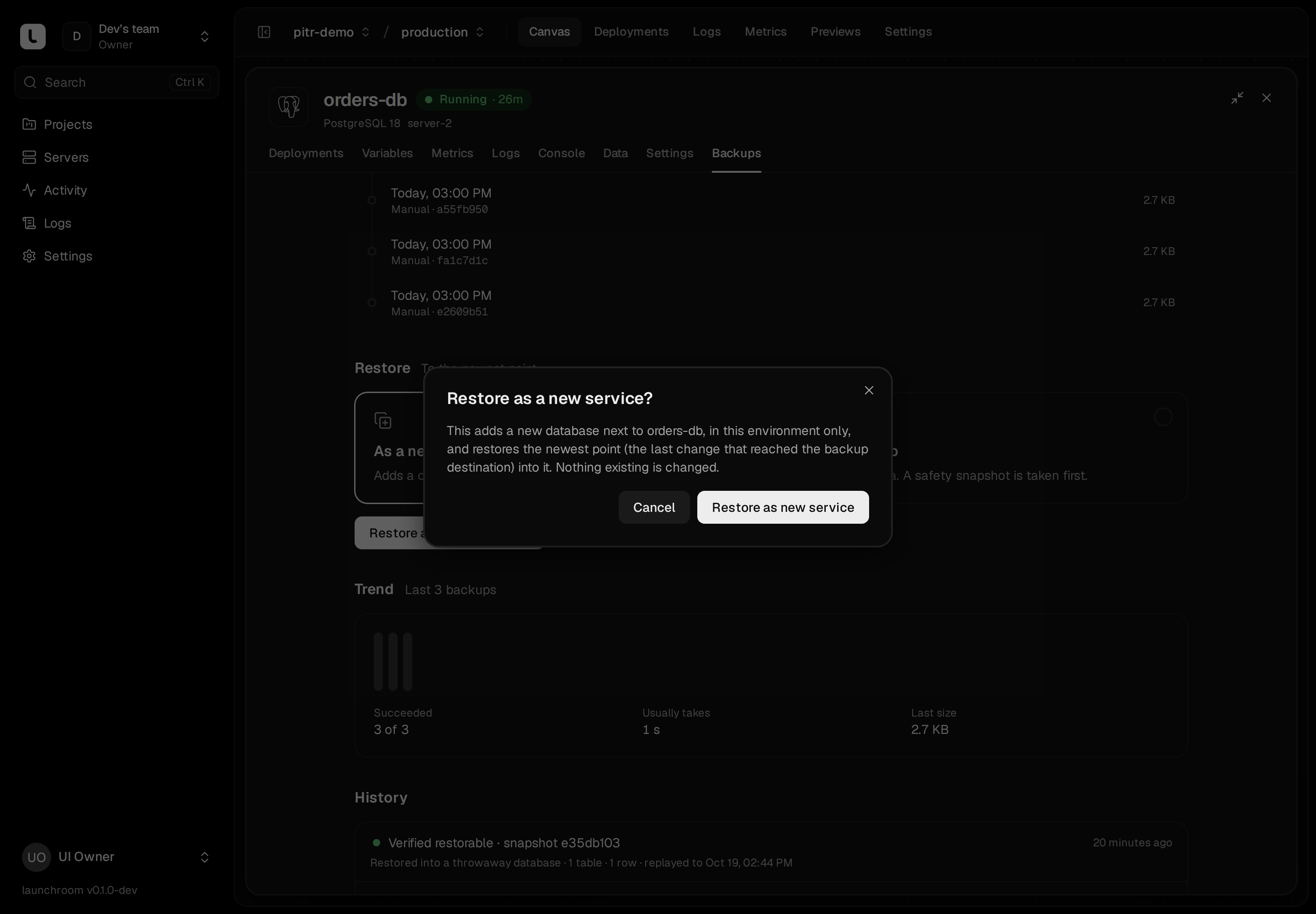
Restore a database
Open the database's Backups tab and pick a snapshot from the list. Each snapshot shows its time, size and the reason it was taken (scheduled, before a deploy, before a delete and so on). For PostgreSQL with point-in-time recovery, you can pick any second instead. Then choose how to restore.
As a new service
This is the default and the option to use first. launchroom adds a new database named like orders-db-restored-2026-10-17 next to the original, with the same engine and version, in the same environment only. It deploys the copy and restores the snapshot into it. Nothing existing changes. Restoring as a new service needs permission to manage the project and deploy.
The copy has its own generated credentials. Inspect it in the Data tab or connect a test app to it.
Swap it in
When the copy looks right, choose Swap in… next to the finished restore on the original's Backups tab and type the original's name. In that environment:
- every service connected to the original gets the same connection to the copy, so its
DATABASE_URLand other injected variables now point at the copy - the original's own connections and its domains move to the copy
- the original's removal is staged (with a final backup if it has backups)
All of this lands as staged changes. Nothing changes on your servers until you deploy them, and Discard undoes the swap. Other environments keep using their own databases.
Into this service
This replaces the data of the existing database. Owners and admins can do this, and you confirm by typing the service's name.
- A safety snapshot is taken first. If it fails, nothing changes.
- The services connected to the database in that environment are stopped, so nothing writes during the restore. Web services among them return errors meanwhile, so plan it as a maintenance window.
- The database is restored:
- PostgreSQL drops and recreates its objects in a single transaction.
- MySQL loads the dump.
- MongoDB replaces its collections.
- ClickHouse drops and restores the database.
- The connected services start again, also when the restore failed.
Redis and Valkey
Redis and Valkey databases are backed up and verified, but restoring them from the dashboard isn't supported yet.
Restore a volume
App and image services with volumes have a Backups tab too. Their snapshots show the volume's mount path.
- As a new service adds a copy of the service (same source, settings, variables and volume paths) to the environment, deploys it, then replaces its empty volume with the snapshot.
- Into this service takes a safety snapshot, stops the service while its volume is replaced and starts it again. Files that weren't in the snapshot are removed, and changed ones go back to their saved version.
A volume restore recreates only regular files, directories and links, with their numeric owners and modes. Device files and special permission bits are refused or dropped.
Restore somewhere else
To restore a backup outside launchroom, or into another launchroom, download it and import it there.
When a server other than the main one dies
Go to Servers, open the unreachable server and choose Replace server. Pick a replacement: an existing server or a new one you add. launchroom moves the failed server's roles and labels to it, restores each database and volume that lived there from its latest backup, then places the remaining services. Stateless services have usually moved on their own by then. See replace a server.
When the main server is gone
The main server runs the dashboard. Apps on your other servers, such as a machine at home, keep running and serving without it. To bring the dashboard back you need:
- a new Linux server with Docker
- the recovery kit file (or the destination, bucket, credentials and repository password it contains)
- the recovery passphrase
The kit and the passphrase come from backing up launchroom itself.
Run the installer with --restore
On the new server, in the folder where launchroom should live:
curl -fsSL https://launchroom.vantezzen.io/install | sh -s -- --recovery-kit ./recovery-kit.txt--recovery-kit FILE implies --restore. Without a kit, use --restore and the installer asks for the destination, credentials, repository password and passphrase. For unattended runs, set them as environment variables instead:
| Variable | Value |
|---|---|
LR_RESTORE_ENDPOINT, LR_RESTORE_BUCKET, LR_RESTORE_PREFIX, LR_RESTORE_REGION | Where the backups are |
LR_RESTORE_ACCESS_KEY_ID, LR_RESTORE_SECRET_ACCESS_KEY | S3 credentials |
LR_RESTORE_REPOSITORY_PASSWORD | The restic repository password |
LR_RECOVERY_PASSPHRASE | Your recovery passphrase |
--restore-allow-http accepts a plain http:// endpoint, for a backup target on your LAN.
The installer opens the key bundle first. A wrong passphrase, or a backup that doesn't belong to its key bundle, stops it before anything is changed. Then it restores the newest control-plane backup (database, keys, .env secrets and the private network's state), starts the stack, connects this server and prints the link to the recovery checklist. It removes the plaintext restore files when it finishes.
Point DNS at the new server
If the dashboard has a domain, update its A/AAAA records and those of your app domains to the new server's address. With a stable dashboard hostname (such as dash.example.com instead of an IP), your other servers need only this DNS change. They reconnect on their own, because the signing key they trust came back with the backup.
Follow the recovery checklist
Sign in as an instance owner. The dashboard opens in recovery mode at /recovery and shows a banner on every page until you finish:
- Replace the previous server with this one. The new server takes over the old one's roles and labels, the old one is revoked, and every database and volume that lived there is restored from its latest backup.
- DNS. Live checks that the dashboard host and your app domains point at your edge servers.
- Restores. Progress of each database and volume restore. Services that depend on them start afterwards.
- Images. If the registry's storage was on the old server's disk, active deployments whose image is gone are listed. Rebuild lost images builds each one again from its recorded commit.
- Other servers reconnected. Each server ticks off once it has checked in.
Finish recovery ends recovery mode. Anything left open is recorded in the audit log.
If the dashboard's address changed, other servers need one change each: set LR_CONTROL_PLANE_URL in the .env of their launchroomd folder to the new address, then run docker compose up -d in that folder.
What comes back
| Comes back | How |
|---|---|
| Teams, users, projects, services, environments, variables, domains, deployment history, settings | The control-plane database backup |
| Secrets, launchroom's keys, the signing key servers trust | The key bundle, opened with your passphrase |
| Private network, with every server's address | The network state in the key bundle; servers reconnect without re-joining |
| Databases and volumes | Their own latest backups, restored by the checklist |
| Images | From the registry on S3 if you set that up, otherwise rebuilt from their commits |
| Certificates | Issued again |
You can lose changes to the dashboard since its last backup (at most 6 hours by default) and database writes since each database's last backup (about a minute with point-in-time recovery, otherwise up to the schedule).