Add a server
One command on any Linux machine or Mac with Docker. It connects out, joins the private network and is ready for apps, traffic or builds.
Any Linux machine with Docker can join your launchroom, for example a second VPS or a mini PC at home. So can a Mac, as a build server and with OrbStack or Colima for apps too. Pick what it should do in the dashboard and run one command on the machine. It shows up under Servers a few seconds later and can take work. You don't open ports between servers, exchange SSH keys or configure a VPN.
Requirements
- Linux, x86_64 or arm64. Debian and Ubuntu are first-class. Or macOS with OrbStack, Docker Desktop or Colima: see Mac servers.
- Docker Engine 24 or newer with the compose plugin. Docker installed from snap is not supported.
- Run the command as root or a user in the
dockergroup. For Docker in rootless mode, see Rootless Docker. - Outbound HTTPS to your dashboard's address, and to GitHub and the container registries for the release and images.
- For the Serve traffic role only: a public IP with ports 80 and 443 reachable from the internet.
Like the first install, everything the command writes lives in one folder: ./launchroomd, created where you run it
(on a Mac, ~/launchroom).
Add it in the dashboard
Open Servers and click Add server. Adding a server needs the Owner or Admin role, and the dashboard asks for your password once.
What is it
Pick the kind of machine:
- a server from any VPS provider
- a rented dedicated server
- a machine at home (desktop, mini PC, NAS)
- a Mac
- a small board such as a Raspberry Pi
The kind only affects suggestions and the picture on its card.
What it does
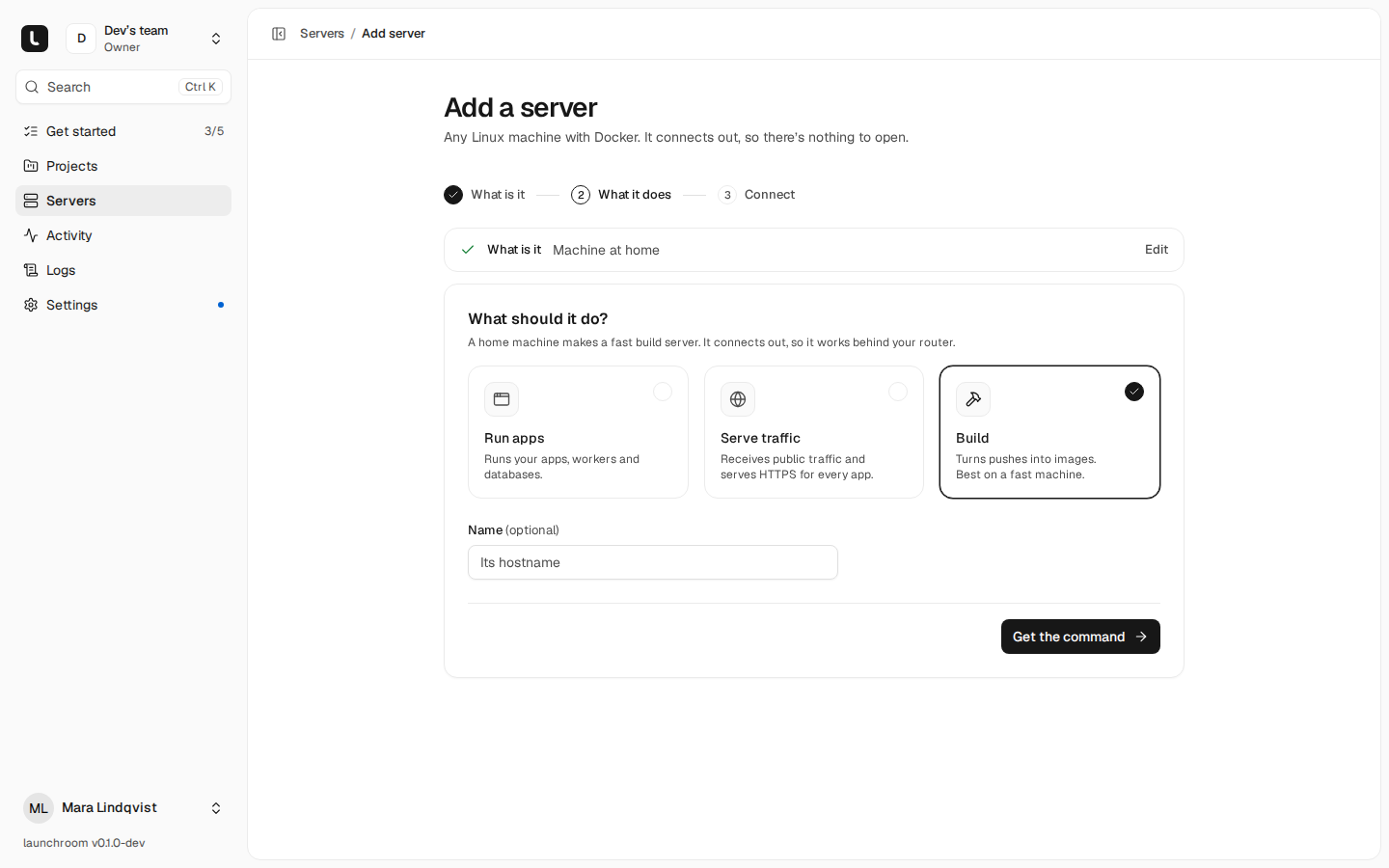
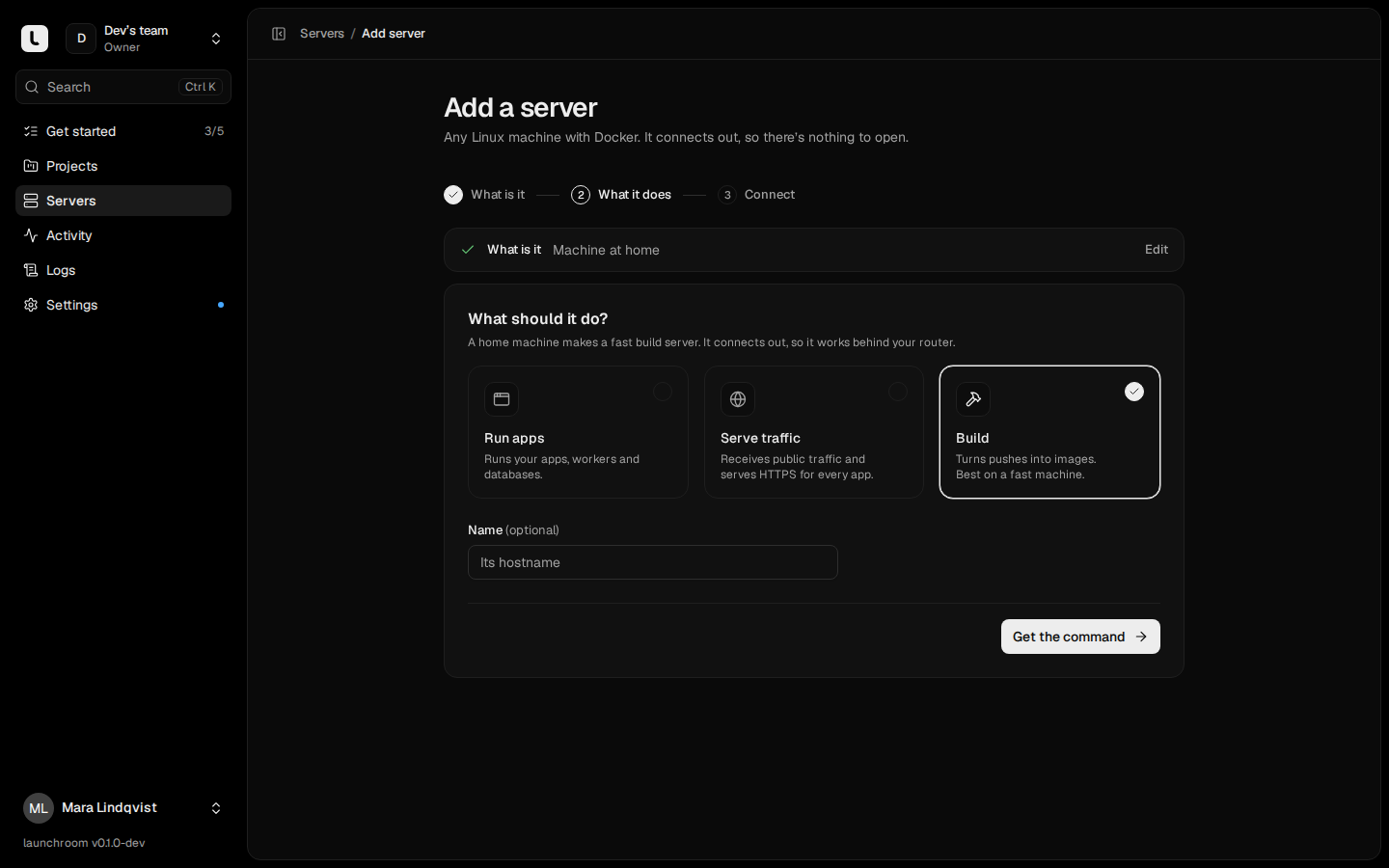
Choose its roles in any combination: Run apps, Serve traffic and Build. launchroom suggests roles for the kind of machine and explains what a choice means, for example that a machine at home serving traffic needs a public IP. Give it a name or keep the generated one. You can change roles later without touching the server.
Connect
Pick your platform, then copy the command and run it on the machine:
- Ubuntu / Debian: the command installs Docker if it's missing.
- Docker already installed or Other Linux: the command expects Docker Engine 24 or newer with the compose plugin.
- macOS: start OrbStack, Docker Desktop or Colima first, then run the command in Terminal.
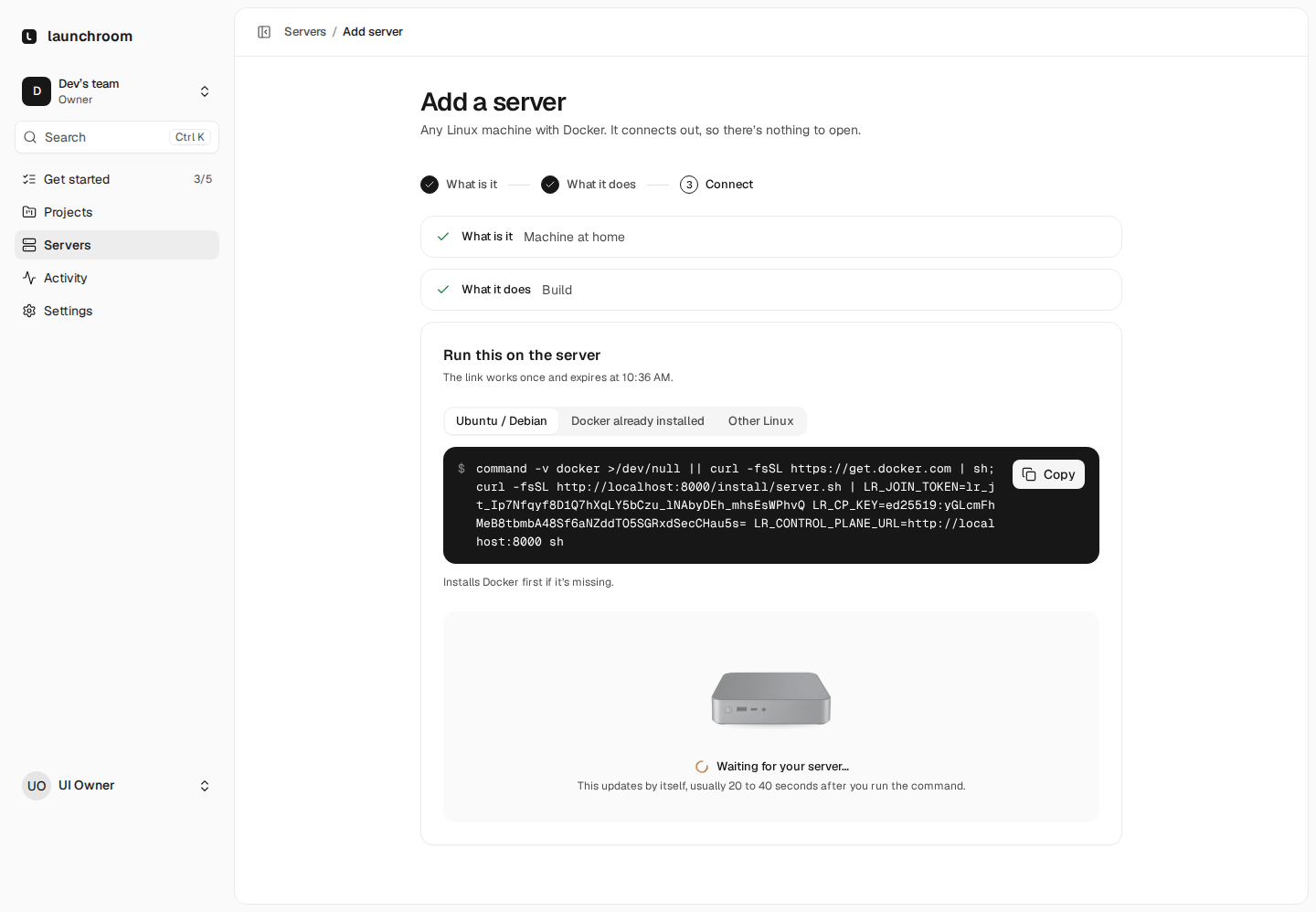
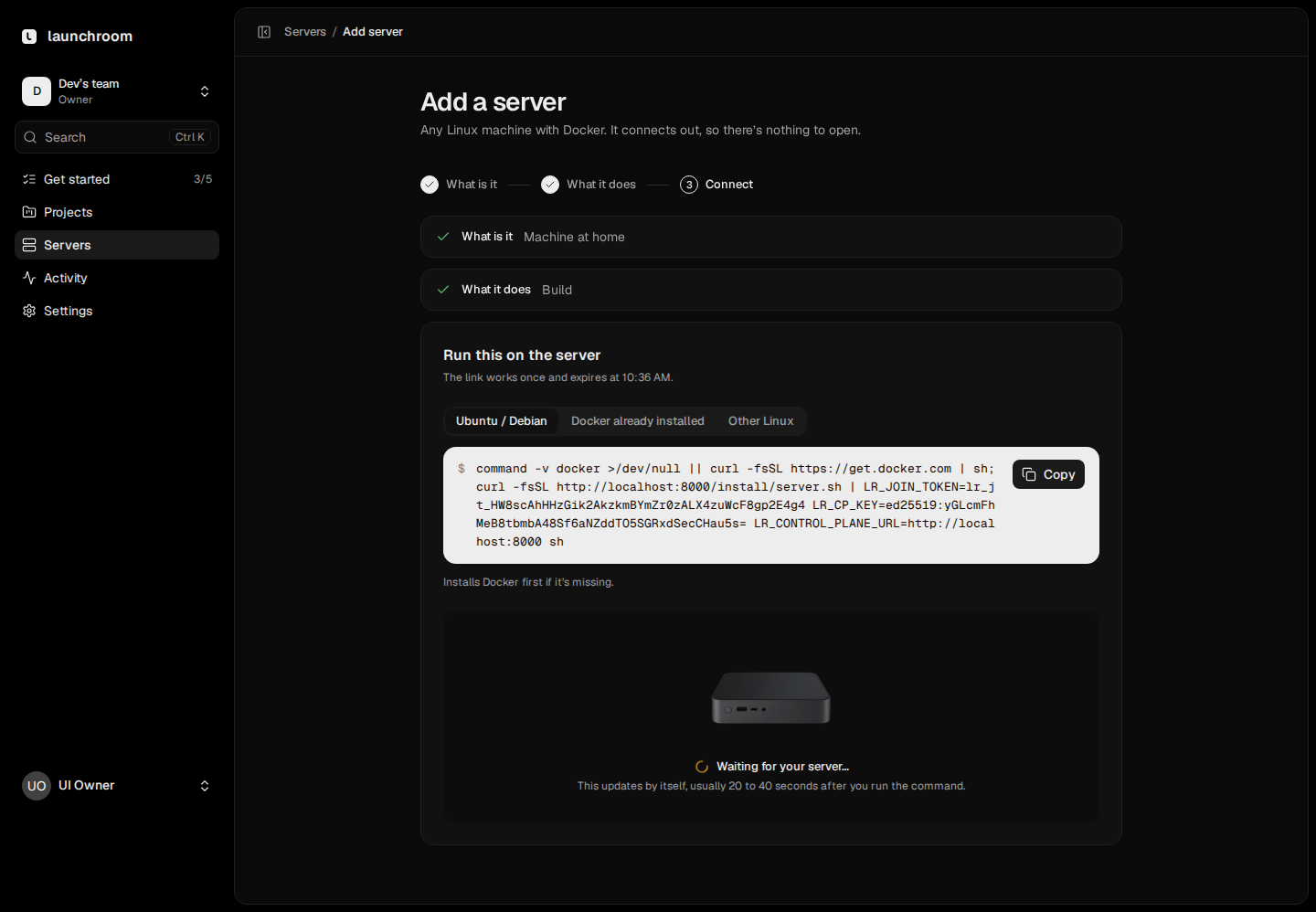
The page waits for the server and moves to the next step when it connects.
The command looks like this:
curl -fsSL https://dash.example.com/install/server.sh | LR_JOIN_TOKEN=lr_jt_… shThe join token:
- works once
- is bound to your team and the roles you picked
- expires after 30 minutes
- is passed as an environment variable, never as a command-line argument, so it doesn't show up in the process list
Without LR_JOIN_TOKEN, the script asks for it on the terminal.
What happens on the server
- The script runs the same checks as the main installer (Linux or a supported Mac engine, Docker version, compose plugin).
- It downloads the release bundle matching your dashboard's version and verifies its checksum and signature before using anything from it.
- It creates
launchroomd/with a compose file and a.envholding your dashboard's address and its pinned signing key, then starts two containers:launchroomdanddockerd-guard, which holds the Docker socket for it. - launchroomd generates its own keys, connects to the dashboard over HTTPS and enrolls with the token. The token is deleted right after.
- The dashboard sends the server its desired state, and launchroomd starts what its roles need: Caddy for Serve traffic, BuildKit for Build.
Running the script again on a server that is already enrolled only updates and restarts launchroomd.
If your team requires approval for new servers, the server waits on its page until an owner or admin approves it. Until then it gets no apps or tasks.
The private network switches on
With one server, launchroom runs no private network. When a second server joins, the dashboard turns it on automatically. Every server, the first one included, starts a WireGuard client and joins a private network coordinated by your dashboard. It works behind NAT and CGNAT, so a machine at home needs no port forwarding.
After that:
- services reach each other across servers by their usual names (
postgres:5432) - new servers pull images from the built-in registry over the private network
- edges forward requests to replicas on any server See The private network.
Firewall expectations
launchroom servers only make outbound connections. launchroomd listens on no public port and nothing needs to reach it from outside.
| Server | Inbound | Outbound |
|---|---|---|
| Any server | Nothing | HTTPS (443) to the dashboard; UDP for direct WireGuard paths (relayed over 443 otherwise) |
| With Serve traffic | 80/TCP and 443/TCP (443/UDP for HTTP/3) from the internet | as above |
| The dashboard's server | 80 and 443 for the dashboard and its apps; 3478/UDP helps other servers connect directly | as above |
A host firewall that blocks all other inbound traffic is recommended. On every server, launchroomd also keeps its own firewall rules that stop app containers from reaching:
- the host
- other environments
- the private network
- your hosting provider's metadata service
After it's connected
The server page shows its hardware, usage, what runs on it, a health checklist and its private network links.
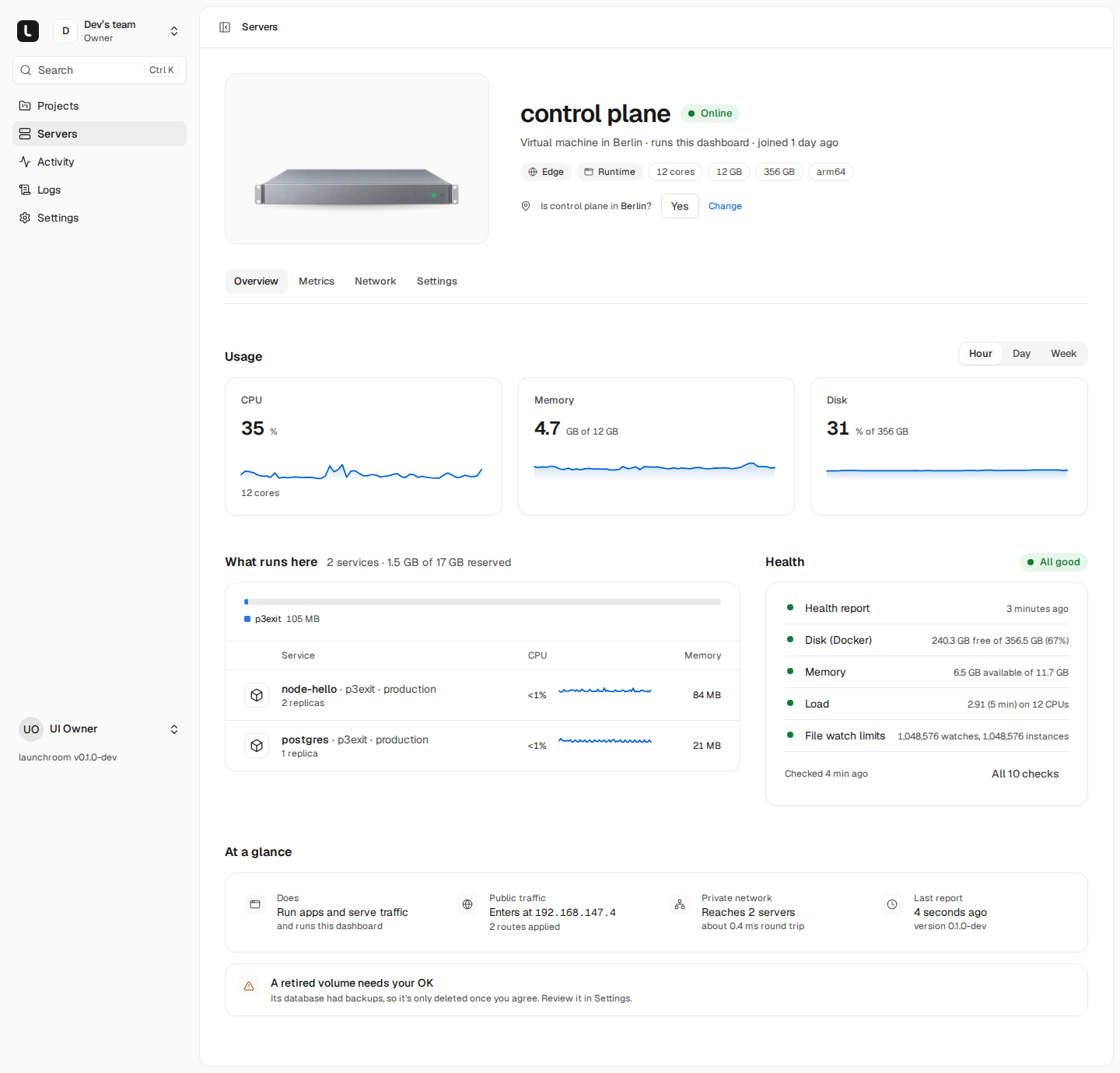
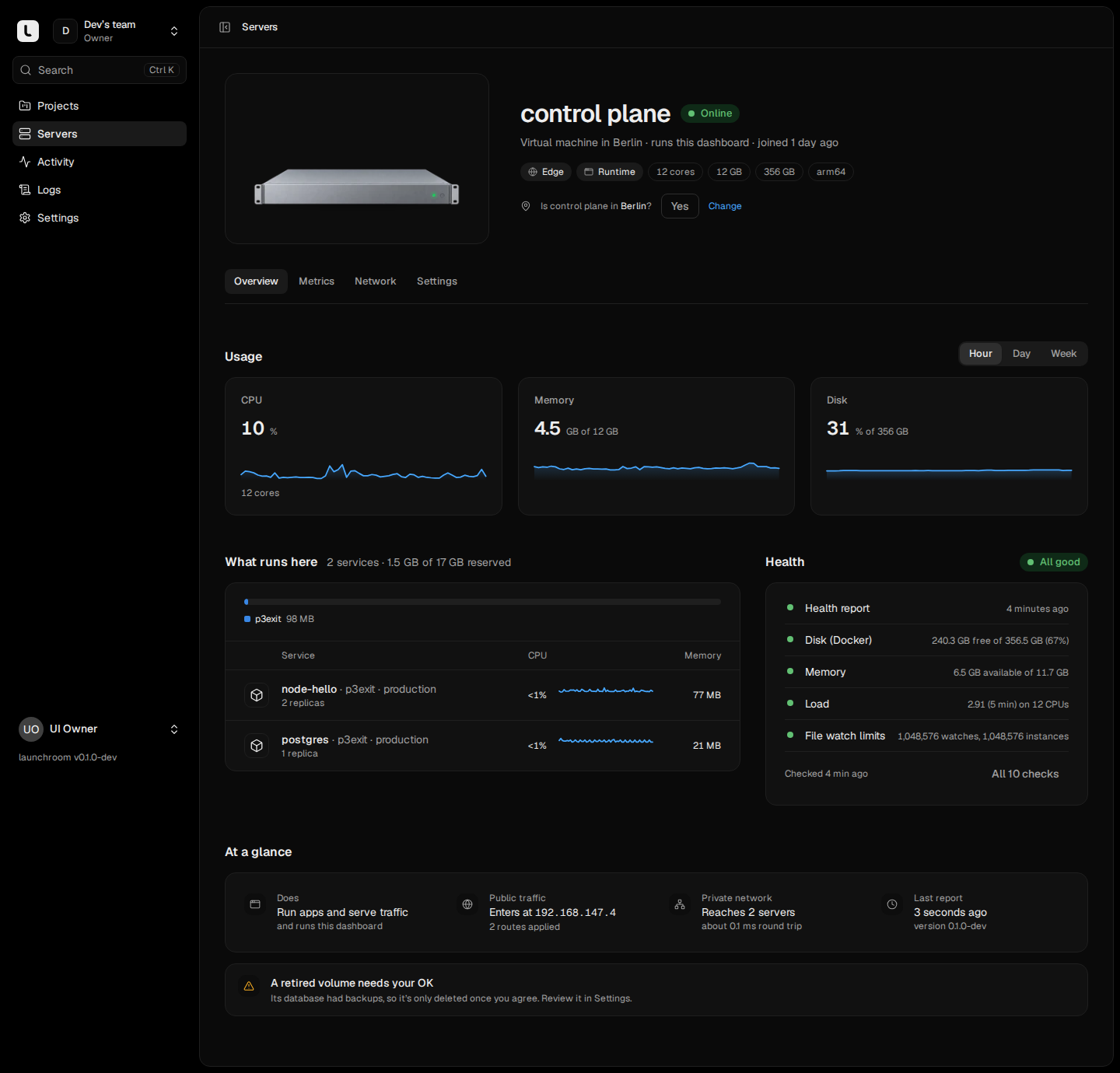
- New deploys can place replicas on it immediately. Running services don't move by themselves. The next deploy of each service uses the new capacity. See Roles and placement.
- With Serve traffic on a second server, point DNS at both edges. See High-availability ingress.
- Roles, labels, and whether it accepts production or preview workloads are on its Settings tab.
Removing a server
- Added but never connected: remove it from its card's ⋯ menu or its waiting page. The install command stops working immediately.
- Connected: open the server, go to Settings → Danger zone and Revoke it. Its key is rejected immediately, it leaves the private network and stops receiving apps and tasks. This can't be undone. To bring the machine back, add it again with a new command.
Before you revoke a server that still runs services, move them: change their placement rules and deploy. For a server that is gone for good, use Replace a server. It moves the server's roles, restores its databases on another server and re-places everything else.
Revoking doesn't delete files on the machine. To clean it up, see Uninstalling a server.
Next steps
Move launchroom to a new server
Move launchroom with every app, database, volume and domain from one machine to another without losing data, also to another CPU architecture. No backup storage needed.
Home machines
Machines at home or behind NAT and CGNAT join like any other server, with no port forwarding. Which roles fit them.