Dashboard domain
Move the dashboard from its install address to your own domain with HTTPS. launchroom verifies the domain before the switch, and the old address keeps forwarding.
The installer gives your dashboard a working address: a generated sslip.io name, the domain you passed with --domain, or the server's IP. You can move it to your own domain later. launchroom checks DNS, gets a certificate and tests HTTPS before anything changes, and the old address keeps forwarding afterwards.
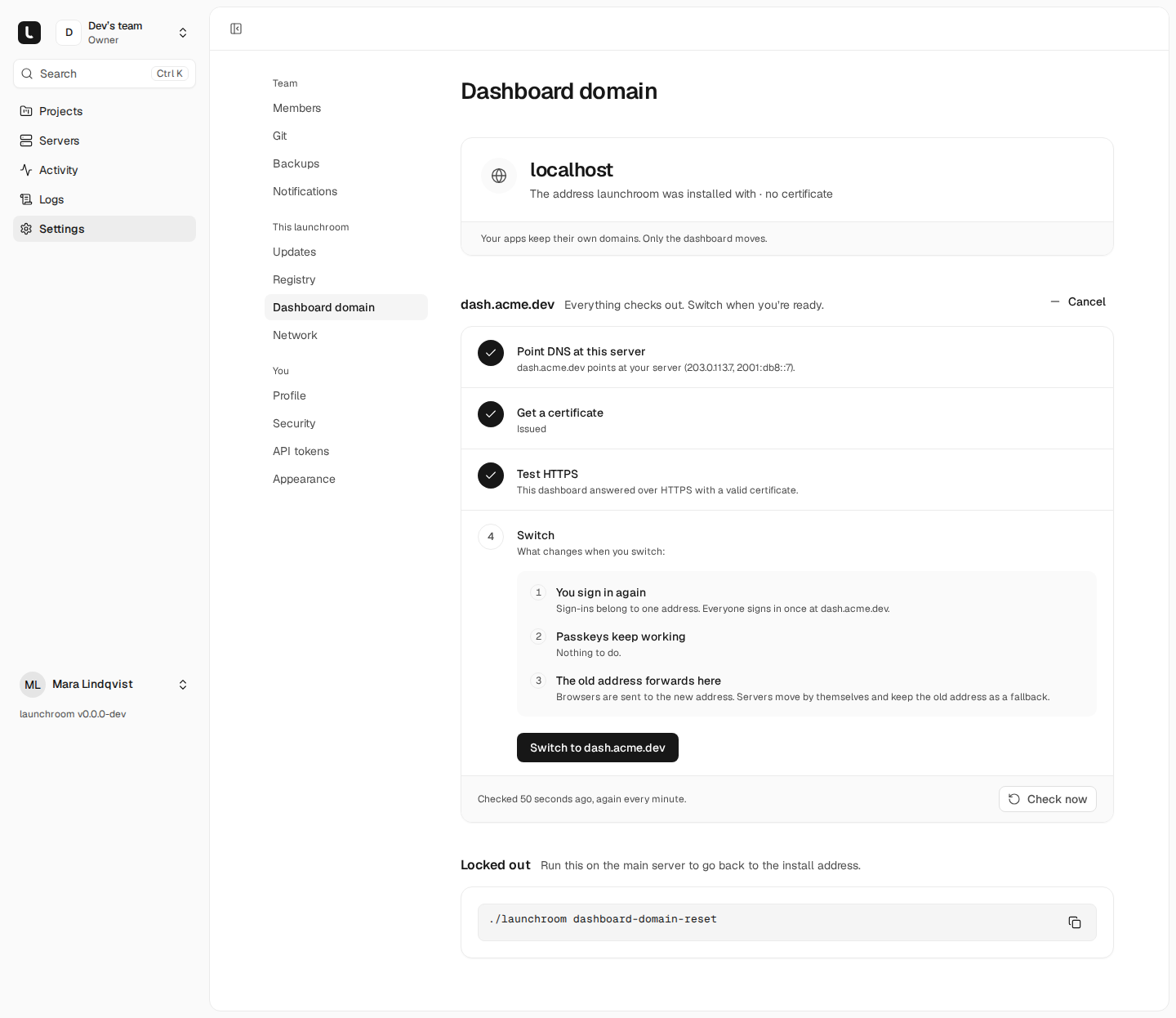
Only instance owners can change the dashboard domain. Every step asks for a recently confirmed password and is recorded in the audit log.
Choose a domain apart from your apps
Use a name that isn't under the domain your apps are served on. If apps live under *.apps.example.com, put the dashboard at launchroom.example.com or on a separate domain.
The reason is cookies. Code running on a sibling domain can set cookies for the shared parent domain. launchroom's own session cookie is host-only and __Host- prefixed over HTTPS, so an app can't overwrite it. Keeping the dashboard apart from code you deploy, especially pull request previews, is still the safer layout. launchroom refuses names at or under your apps domain and names already used as a project's custom domain.
Move the dashboard
Open Settings → Dashboard domain and enter the domain under Use your own domain. The page then guides you through four steps and checks them every minute, or when you press Check now:
Point DNS at this server
Add the A (and AAAA, if you use IPv6) records the page shows. They point to the control-plane server only, not to your other servers, because only the control plane runs the dashboard.
Get a certificate
Once DNS points at the server, Caddy requests a certificate over ACME (for example from Let's Encrypt). If it fails, the page shows Caddy's last error.
Test HTTPS
launchroom calls the new address over HTTPS, pinned to the control-plane server's own address, and expects an answer only your dashboard can give. A valid certificate on someone else's server doesn't pass.
Switch
When all checks pass, What changes lists the effects, and Switch to your domain makes it the dashboard's address. Your browser continues there.
Nothing changes until you switch. You can cancel a domain that's still being set up at any time.
What changes when you switch
- Everyone signs in again, once. Sessions don't carry over to a new address.
- Passkeys keep working if the new domain is below the old one (
example.comtodash.example.com). Otherwise the switch screen says how many stop working. People then sign in with their password and add a new passkey. See Two-factor sign-in. - Servers move on their own. Each server switches to the new address after verifying that it answers with your control plane's signature, and falls back to its old address if the new one is unreachable. The Servers section shows which address each server uses.
- New servers get the new address in their join command. Links in emails, alerts and the recovery kit use it too.
- GitHub Apps don't follow automatically. The page lists your apps with a link to each on GitHub and the four new URLs to paste (homepage, callback, setup and webhook).
The old address keeps working
After the switch, earlier addresses stay listed under Earlier addresses with what still works there:
| On the old address | For how long |
|---|---|
| Browsers | Redirected to the new address |
| The public API, the CLI's sign-in, GitHub webhooks and the server install script | During the transition window, 30 days by default |
| Servers and preview sign-ins | For good, as every server's fallback |
Scripts, CI jobs and webhooks have a month to move to the new address.
The built-in private network keeps using the install address, because moving it would mean re-joining every server to the mesh. The page says so while the built-in network is on.
Switch back
While a domain you set up here is active, Switch back (with a confirmation) makes the previous address the dashboard's address again. The domain you leave joins the earlier addresses and keeps forwarding.
Locked out
If the new domain stops working and you can't reach the dashboard, reset it from the control-plane server:
cd launchroom
./launchroom dashboard-domain-reset
After you type a confirmation, the install address is the dashboard's address again, any change in progress is dropped and the control-plane server's routes are updated at once. Add --forget-old to stop answering on every earlier address. ./launchroom status prints the address the dashboard uses now.
Re-running the installer with --domain does the same for a new name:
curl -fsSL https://launchroom.vantezzen.io/install | sh -s -- --domain dash.example.comBehind NAT
The HTTPS test connects to the control-plane server's own public address. If your router can't reach its own public address from inside (no NAT hairpinning), the bundled compose file routes the test through the host, so the test still works.