Installation problems
The installer stopped or the dashboard didn't come up. Every installer error explained, with the flag or fix that gets you past it.
The installer checks everything it needs before it changes anything, and stops with a message that starts with launchroom: error: when something is missing. Re-running it after a fix is always safe. This page lists those messages with their causes and fixes.
curl -fsSL https://launchroom.vantezzen.io/install | sh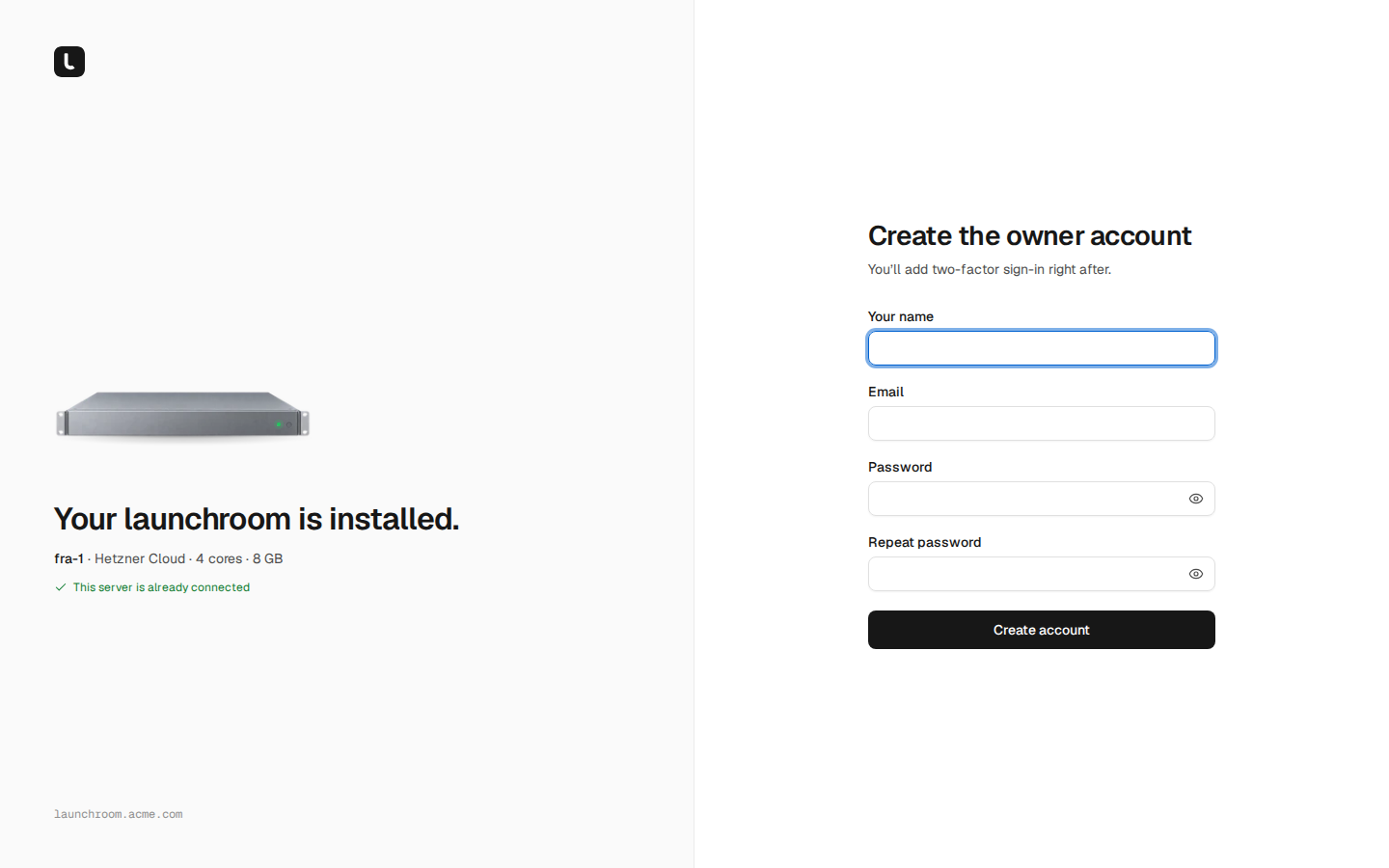
Re-running the installer is safe
Re-running is also how you upgrade, so repeated runs are supported:
.env(your secrets) anddata/(database, keys, registry) are kept.compose.yml, thelaunchroomhelper and the image pins are replaced.- The local launchroomd is only enrolled again if it isn't enrolled yet.
- Once launchroom's own Caddy holds ports 80 and 443, the port check skips them.
- Nothing is written outside the install folder (
./launchroom, or the one you pass with--dir), apart from Docker objects labelledlaunchroom.managed=true.
If you installed into another folder, pass it again: sh -s -- --dir /opt/launchroom.
Port 80 or 443 is already in use
launchroom: error: port 80 is already in use. launchroom's ingress (Caddy) needs 80 and 443. Stop the other web server, or pass --skip-port-check (the dashboard is then only reachable on 127.0.0.1:8000).Cause. Another web server (nginx, Apache, another reverse proxy, a container publishing port 80) holds the port. launchroom serves the dashboard and your apps through its own Caddy on 80 and 443.
Fix. Find and stop it:
sudo ss -ltnp 'sport = :80'
sudo ss -ltnp 'sport = :443'
If you want to install anyway (for example to try launchroom next to an existing site), pass --skip-port-check. launchroom then can't serve anything publicly on this server. The dashboard is only reachable on 127.0.0.1:8000, for example through an SSH tunnel:
ssh -L 8000:127.0.0.1:8000 you@your-serverOther ports the control plane binds: 127.0.0.1:8000 (dashboard), 127.0.0.1:5000 (registry), 127.0.0.1:6380 (Valkey) and UDP 3478 (private network). If something else uses one of them, the start fails with "port is already allocated" from Docker. The dashboard port can be changed with LR_DASHBOARD_PORT in .env.
Docker is missing, too old or unreachable
| Message | Fix |
|---|---|
| "Docker is not installed. Install Docker Engine >= 24 with the compose plugin" | Install Docker Engine from docs.docker.com for your distribution, then run the installer again. |
| "Docker Engine >= 24 is required (found 20.10.24)" | Distribution packages are often old. Install Docker Engine from Docker's own repository. |
| "the Docker compose plugin is missing" | Install the docker-compose-plugin package. The old standalone docker-compose doesn't count. |
| "cannot talk to the Docker daemon. Is it running, and may this user use it (root or the docker group)?" | Start Docker (sudo systemctl enable --now docker) and run the installer as root or as a user in the docker group. |
| "Docker from snap is not supported" | The snap package can't see files outside your home folder. Remove it and install Docker Engine from docs.docker.com. |
| "the control plane runs on Linux (found Darwin)" | The dashboard needs a Linux server. Docker Desktop on macOS or Windows works for build servers and development, not for the control plane. |
A warning about less than 2 GB of RAM doesn't stop the install. The control plane fits, but builds on the same machine may run out of memory. See Build problems.
Could not detect this server's public IP
Cause. Without --domain, the installer gives the dashboard an address like https://203-0-113-4.sslip.io, which needs the server's public IP. It asks a few IP echo services over HTTPS for it. That fails without outbound internet access, behind a proxy, or when those services are blocked.
Fix. Pass the dashboard's domain yourself. Point an A record for it at the server first, so the certificate can be issued:
curl -fsSL https://launchroom.vantezzen.io/install | sh -s -- --domain dash.example.comIf you don't want the installer to contact IP echo services, add --no-public-ip-detect. It then requires --domain ("pass --domain HOST (public IP detection is off)"). The domain must be a lowercase host name like dash.example.com.
The signature or checksum doesn't verify
launchroom:   cosign: Error: ...
launchroom: error: the bundle's cosign signature could not be verified for https://github.com/vantezzen/launchroom/.github/workflows/release.yml@refs/tags/v1.2.0 (cosign's output above). Not installing.
The cosign: lines above the error say what went wrong.
Cause. Every release bundle is signed by launchroom's release workflow on GitHub, and the installer checks that signature with cosign before it unpacks anything. The check runs in a pinned cosign container and fetches Sigstore's trust data, so it also fails when:
- The server can't pull the cosign image from
ghcr.ioor reach Sigstore's servers (a proxy or egress firewall). - The server's clock is far off (certificates look not yet valid or expired).
"the bundle checksum does not match" means the download was corrupted or altered on the way.
Check it by hand. This runs the same check and prints everything:
docker run --rm -v "$PWD/launchroom/.tmp:/work:ro" ghcr.io/sigstore/cosign/cosign:v3.0.2 verify-blob \
  --bundle /work/bundle.tar.gz.sigstore.json \
  --certificate-identity https://github.com/vantezzen/launchroom/.github/workflows/release.yml@refs/tags/v1.2.0 \
  --certificate-oidc-issuer https://token.actions.githubusercontent.com /work/bundle.tar.gz
Fix. Check outbound HTTPS to github.com, ghcr.io and sigstore.dev, and the clock (timedatectl status), then run the installer again. If it still fails on a working network, don't work around it. Open an issue with the exact message. --allow-unsigned only accepts releases that have no signature (development builds). A signature that is present but wrong is always refused.
The dashboard doesn't become healthy
The installer waits up to 10 minutes for the dashboard, its workers, the database and the registry to report healthy. The first start runs the database migrations, which takes longer on small servers.
If it gives up, look at what is unhealthy and why:
cd launchroom
./launchroom status
./launchroom logs dashboard
./launchroom logs postgres
Common causes:
- Not enough memory or disk. Check
free -handdf -h. The database and the dashboard need room to start. - A port conflict on one of the loopback ports above.
- An interrupted earlier install that left a half-written
.env. If this is a fresh install with nothing in it yet, remove the folder and install again. Don't do that on an install that has data.
When the dashboard is up but the installer says "the local launchroomd did not enroll within 3 minutes", run ./launchroom logs launchroomd. It usually names the problem: Docker access, or the dashboard not answering on its local port.
The setup link doesn't work
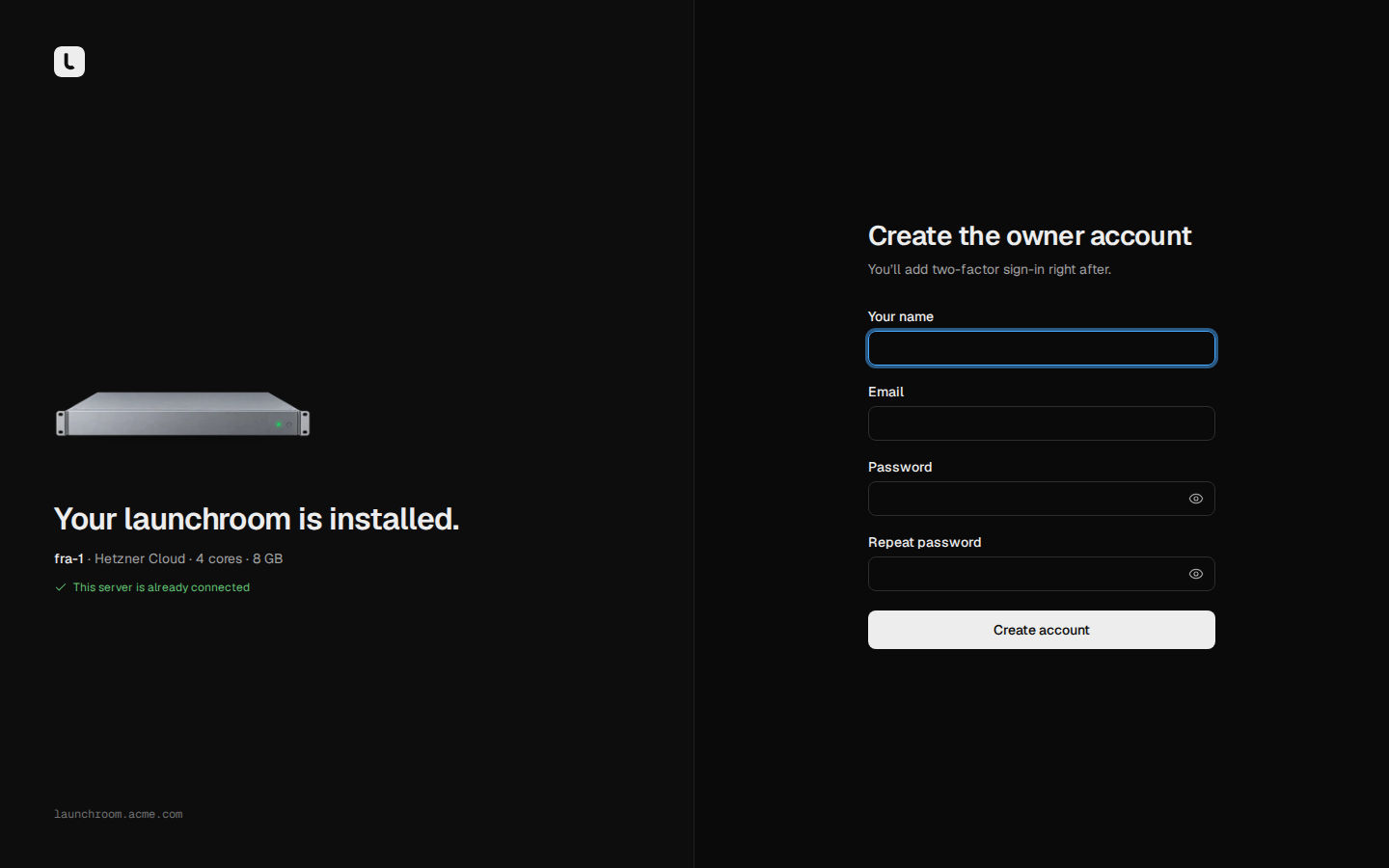
The installer prints a one-time link to create the owner account, valid for 60 minutes. If it expired, print a new one:
./launchroom setup-tokenIf the link doesn't open, the dashboard's address doesn't resolve or isn't reachable from your computer. See the next section.
The sslip.io address doesn't resolve
Cause. Without --domain, the dashboard's address is an sslip.io name that resolves to your server's IP. Some resolvers refuse such names: routers with DNS rebinding protection, filtering DNS services and many company networks. The browser then reports that the address can't be found, although the server works.
Fix. Use one of these:
- Try from another network or with another DNS resolver to confirm that's the cause.
- Re-run the installer with
--domain dash.example.comand a DNS record of your own. Do this before you add other servers, since they connect to the dashboard's address. - Once you can sign in, move the dashboard to your own domain under Settings → Dashboard domain. See Dashboard domain.
Use your own domain for anything beyond a first test: other servers and the private network connect to the dashboard's address, and sslip.io addresses share certificate rate limits with everyone else.
Locked out after changing the dashboard domain
If the dashboard moved to a domain that doesn't work (DNS gone, certificate trouble), go back to the address from the install:
./launchroom dashboard-domain-resetIt asks for a typed confirmation and makes the original address canonical again. Everyone then signs in once more.