Home machines
Machines at home or behind NAT and CGNAT join like any other server, with no port forwarding. Which roles fit them.
A desktop, mini PC, NAS or Mac at home can join your launchroom like any VPS. It connects out to your dashboard, joins the private network and takes work, even behind a home router, carrier-grade NAT or a mobile connection. You don't forward ports, set up a tunnel or copy IP addresses.
How a home machine connects
Add it like any other server: Servers → Add server, choose Machine at home, Mac or Small board, pick its roles and run the command. See Add a server, and Mac servers for a Mac.
Everything a home machine does is outbound:
- launchroomd talks to your dashboard over HTTPS.
- It joins launchroom's private WireGuard network, coordinated by your dashboard. Servers find a direct path to each other through NAT where they can (UDP hole punching). When they can't, they fall back to a relay that runs inside your dashboard over HTTPS. Both work, and a direct path is faster.
- It pulls and pushes images through the private network to the registry on your dashboard's server.
Your dashboard's server must be reachable from the internet on HTTPS (443/TCP). UDP 3478 on it helps machines find direct paths. A setup where every machine, the dashboard included, is on a home network with no public address is not supported yet.
The machine needs /dev/net/tun to join the private network. Regular Linux installs have it. Some containers (LXC) and
restricted VMs don't. In that case the server reports the private network as unavailable, with the reason.
Good roles at home
Build
Building is the best role for a home machine. Builds use a lot of CPU, memory and disk for a few minutes and are idle otherwise. A fast desktop handles that well, and the load stays off the servers that run your apps. A home build server builds the image and pushes it to the registry over the private network. Your public servers pull it from there.
A typical setup:
- The VPS has Run apps and Serve traffic, without Build.
- The machine at home has only Build.
A Mac mini is a good fit: it's quiet, uses little power, and an Apple Silicon Mac also builds for x86 servers. See Mac servers.
Run apps, with care
A home machine can run apps and databases, but it depends on your power and internet connection. Good fits are previews, staging, internal tools and background workers. To keep production off it, turn off Production in the server's Settings → Placement.
Serve traffic needs a public address
An edge receives traffic from the internet on ports 80 and 443. At home that only works with a public IP and those ports forwarded on your router. Behind CGNAT (many fibre, cable and mobile connections) it doesn't work. Let a public server serve traffic. It reaches apps running at home over the private network. A Mac never serves traffic: its Docker runs in a Linux VM whose ports aren't on your network.
Laptops
A laptop works as a build server while it's awake. When it sleeps, its apps stop. launchroom marks the server unreachable after a little over a minute, and builds waiting for it go to another build server. Running apps or serving traffic on a laptop is not recommended, and the role picker says so.
When the laptop wakes up, launchroomd reconnects, catches up with the latest desired state and takes builds again.
Architecture
Images are built for the platform they run on. A Raspberry Pi or another ARM machine builds ARM images. Your x86 servers need a build server that can build x86 images: an x86 machine, or an Apple Silicon Mac on OrbStack or Docker Desktop, which also run x86 programs. Builds for another architecture are slower, so a native build server is preferred when one is online. If a service may run on servers whose architecture no build server can build, the dashboard says so.
Link quality
Each server measures its private links to your other servers. The server's Network tab shows, per peer:
- whether the path is direct or relayed
- the current round trip
- a 24-hour round-trip chart
- the measured speed in both directions
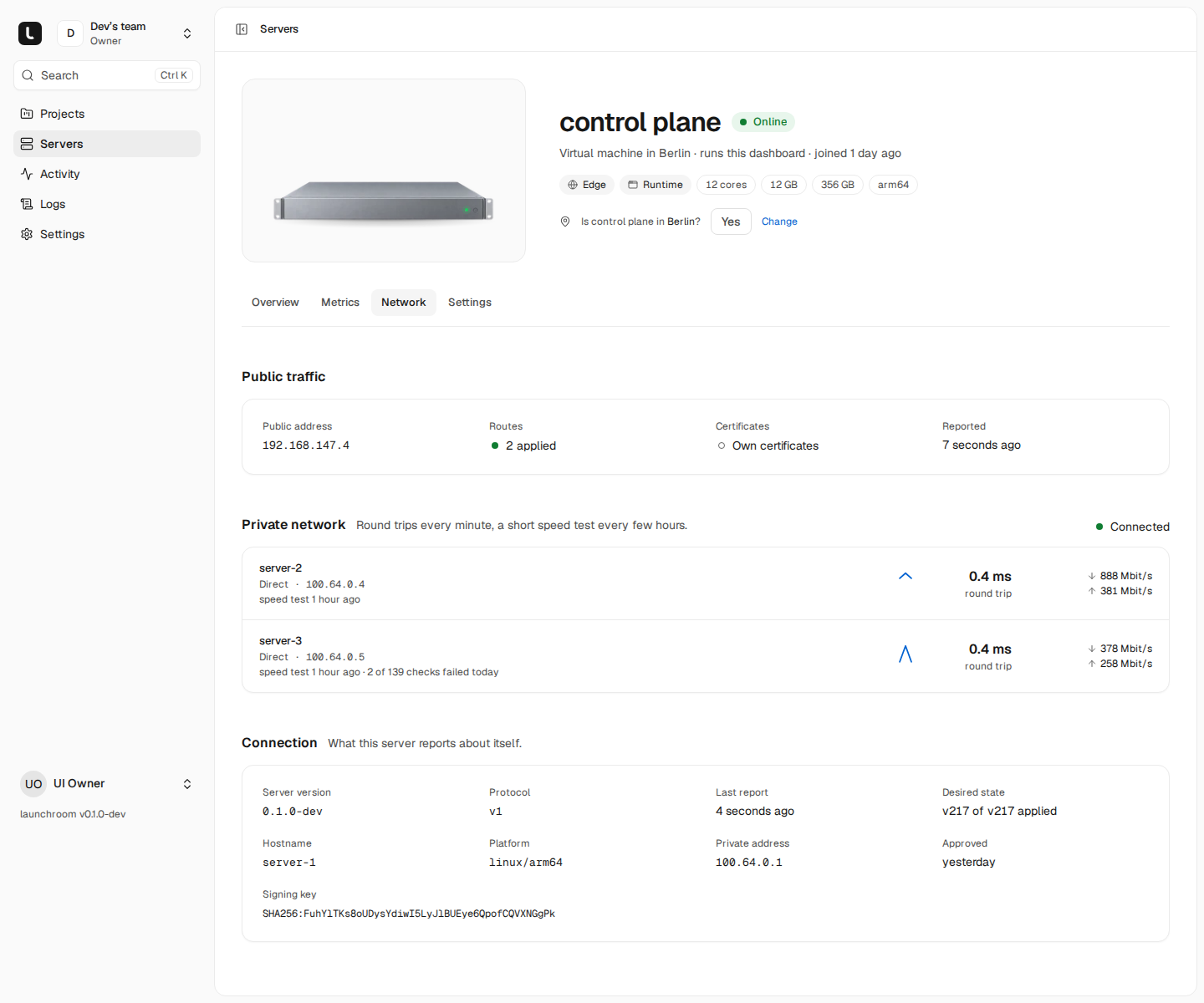
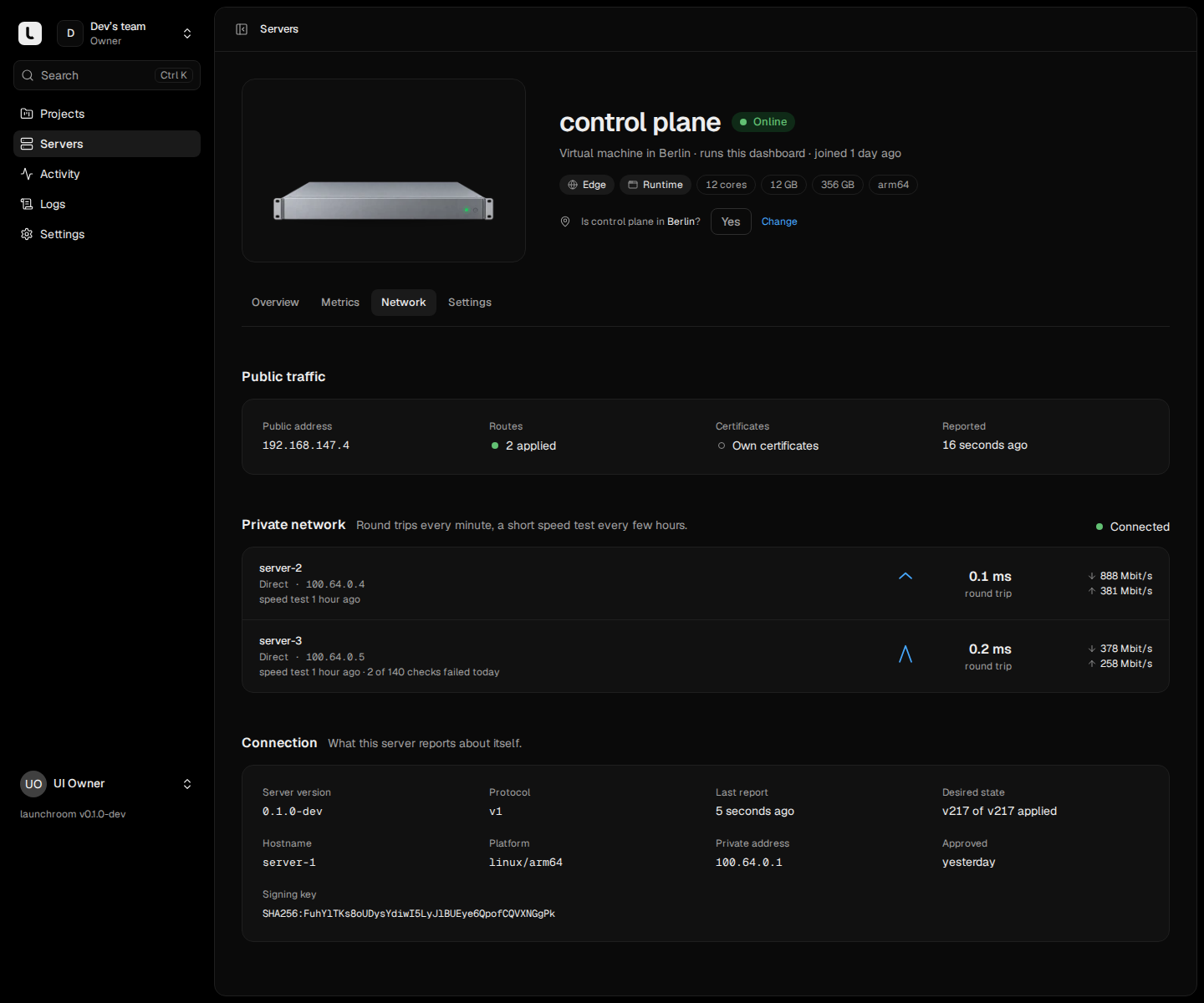
- The round trip is measured every minute.
- A speed test of up to 16 MB runs every 6 hours, about 64 MB a day per peer and direction. It underestimates links much faster than 1 Gbit/s and is meant as an estimate.
- On a metered connection, turn the checks off with Network checks on the server's Settings tab.
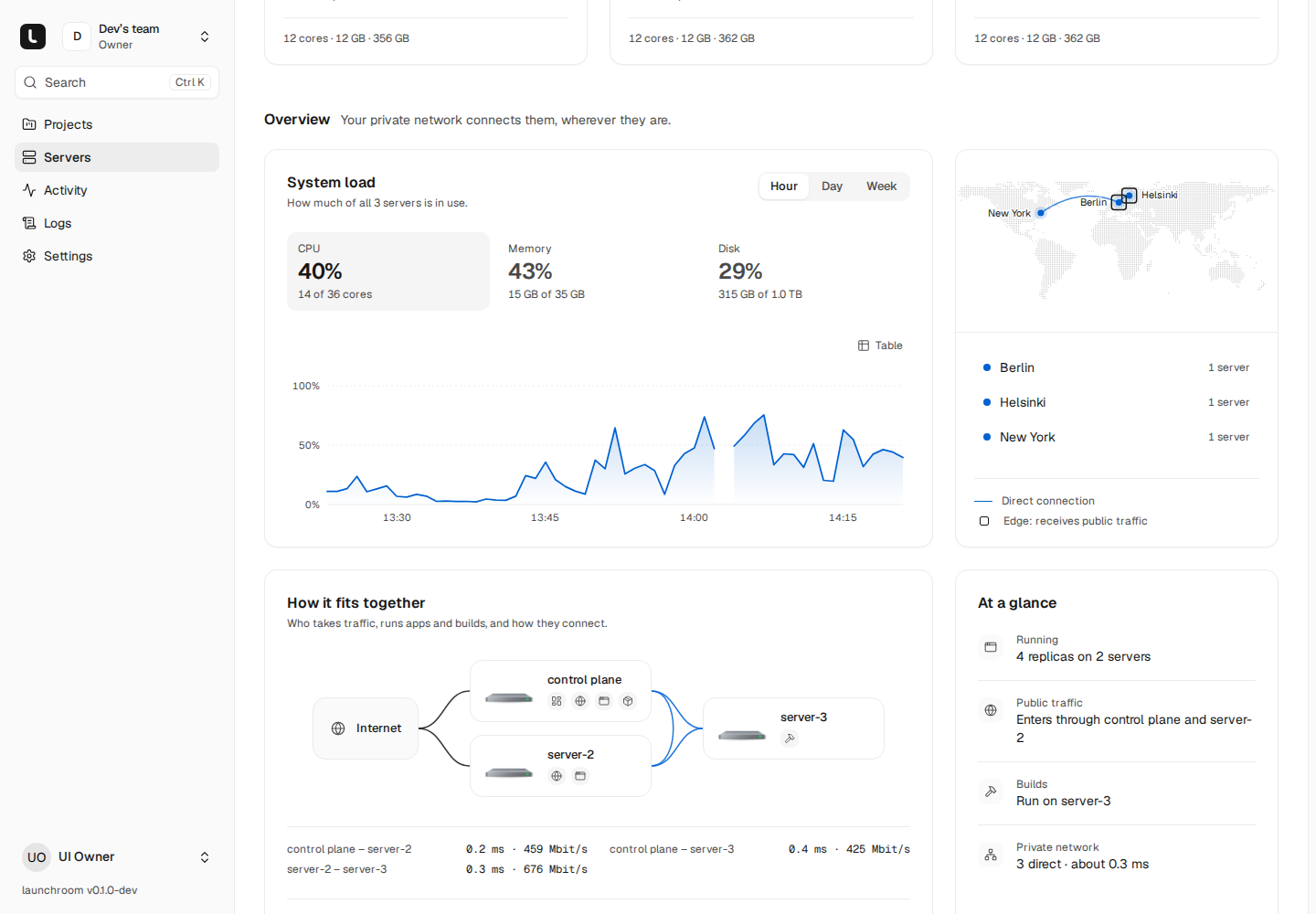
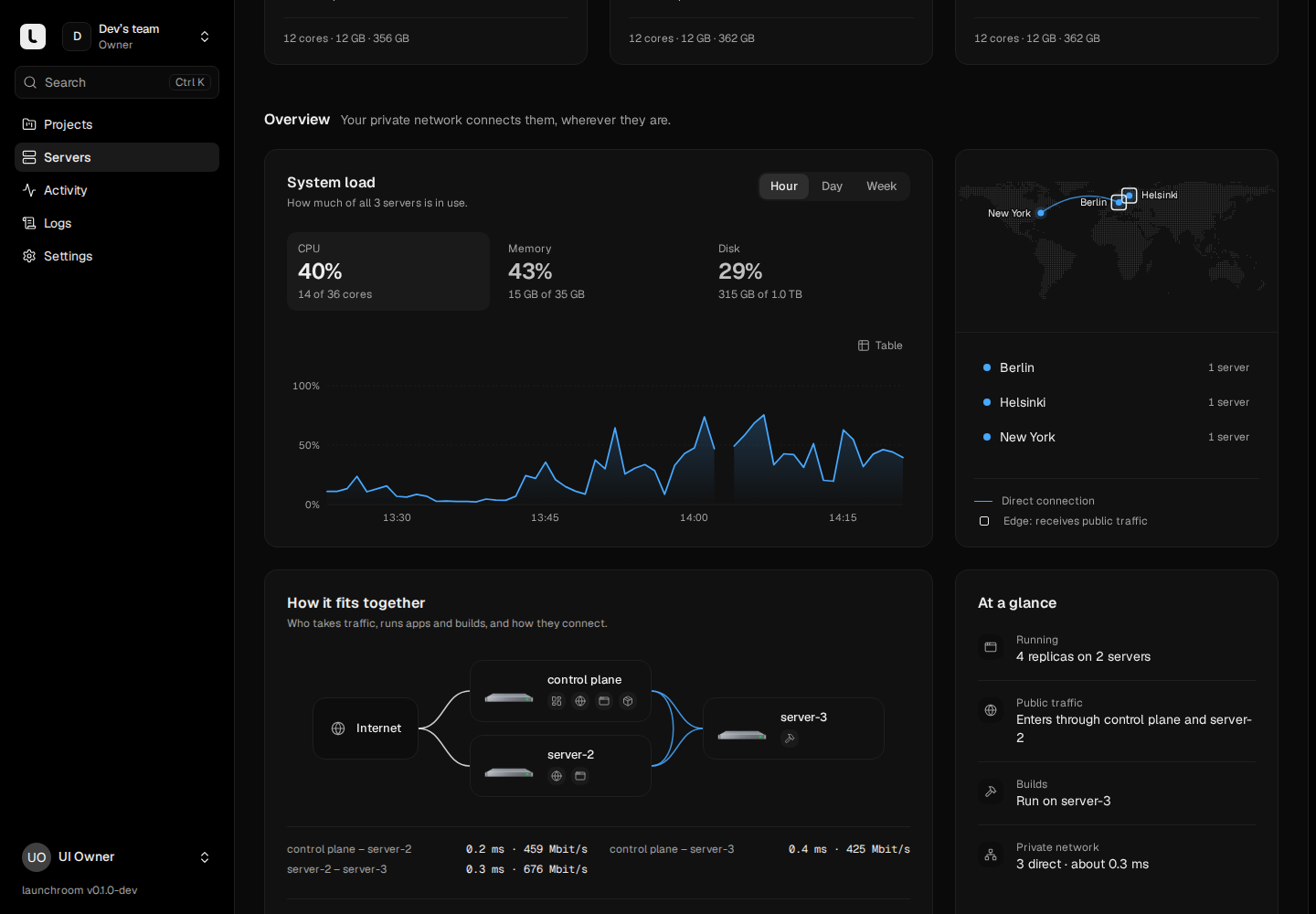
The Servers page shows the same numbers on its topology, along with which servers serve traffic and which build.