Two-factor sign-in
Protect your account with an authenticator app and recovery codes, or sign in with a passkey. Recommended for everyone, required for no one.
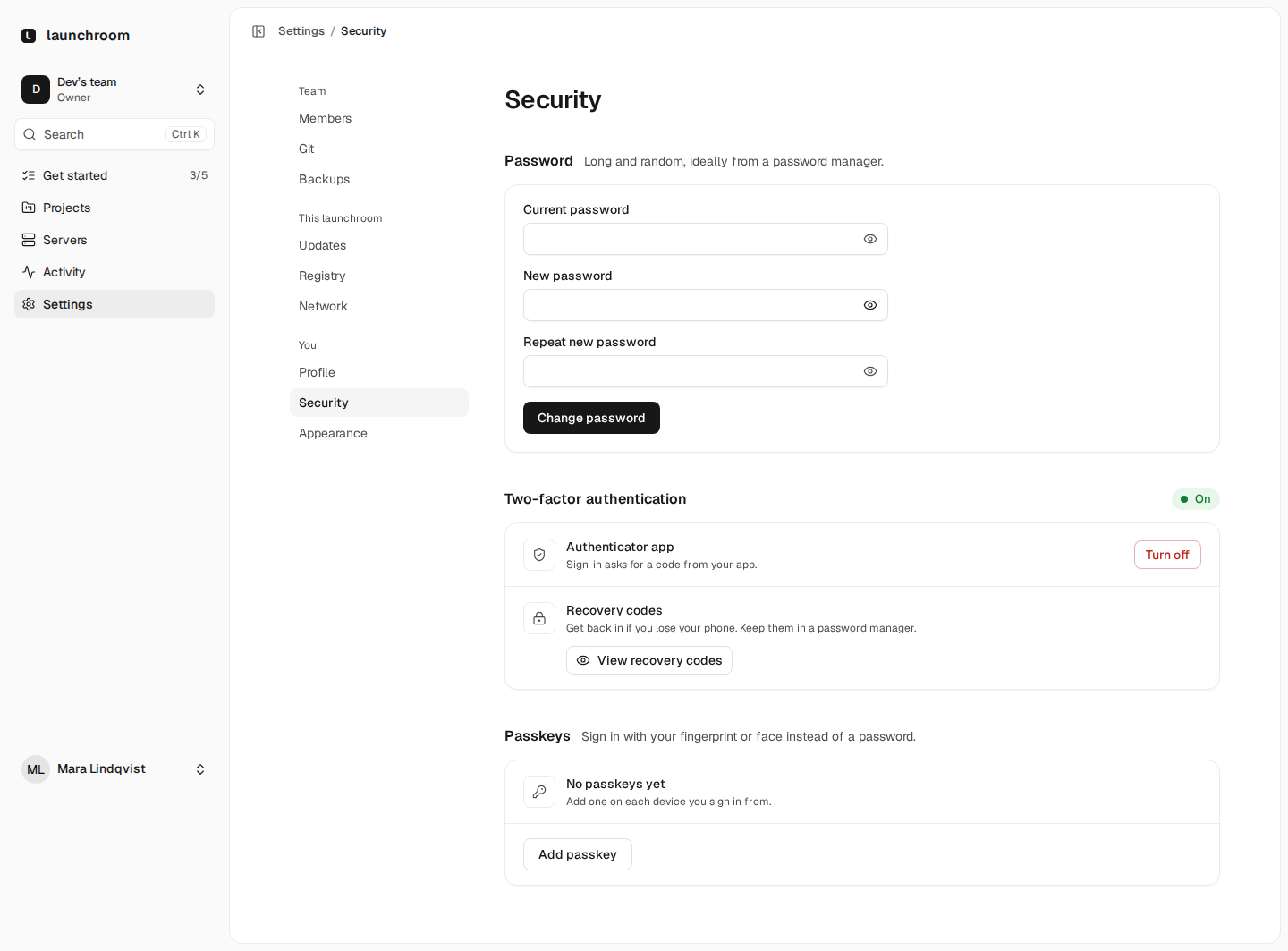
Your launchroom account can deploy code to your servers and read your secrets, so a password alone is weak protection. Add an authenticator app, a passkey, or both, under Settings → Security.
Recommended, not required
Two-factor sign-in is recommended for everyone and enforced for no one, instance owners included. Get started shows a card that suggests it, and Settings → Security marks it Recommended until it's on.
Sensitive actions ask for your password again in any case: adding a server, revealing a secret, creating an API token, changing roles, Git app settings, deleting a project, and opening a Console or Data session.
Authenticator app
Any app that supports time-based one-time codes (TOTP) works.
Turn it on
Open Settings → Security. Under Two-factor authentication, find Authenticator app and choose Turn on.
Scan the code
Scan the QR code with your authenticator app, or type the setup key into it.
Confirm
Enter the 6-digit code your app shows. Two-factor sign-in is now on.
From now on, sign-in asks for a code from your app after your password.
Recovery codes
Once two-factor is on, View recovery codes shows a list of one-time codes. Store them somewhere safe and separate from your phone, for example in a password manager.
- Each code works once and is removed after use.
- On the sign-in code screen, choose Lost your device? Use a recovery code if you don't have your phone.
- Regenerate codes replaces the whole list. Old codes stop working.
Turn it off
Turn off on the same card removes the authenticator. You can set it up again at any time.
Passkeys
A passkey signs you in with your fingerprint, face or device PIN instead of a password. It is tied to your device and to your dashboard's address, so it can't be phished on a look-alike site.
- Open Settings → Security and go to Passkeys.
- Choose Add passkey, give it a name (for example
MacBook) and follow your browser's prompt. - Add one on each device you sign in from.
On the sign-in page, Sign in with a passkey comes first. Your password still works as a fallback.
Passkeys need a domain name. A dashboard reached by its IP address can't use them, because browsers don't allow passkeys for IP addresses.
Passkeys and a new dashboard domain
Passkeys belong to the address they were created on. If you move the dashboard to its own domain:
- Moving to a name below the old one (
example.comtodash.example.com) keeps every passkey working. - Moving anywhere else means existing passkeys stop working. The switch screen tells you how many. Afterwards, Settings → Security marks them For the old address. Sign in with your password, add a new passkey and remove the old one.
Lost your second factor
- You have a recovery code: sign in with it, then set up two-factor again.
- A team member lost access: they need one of their recovery codes. There is no reset of another member's second factor in the dashboard.
- The instance owner lost access: someone with access to the control-plane server can remove the owner's two-factor setup:
cd launchroom
./launchroom reset-owner-2fa [email protected]
The helper asks you to type a confirmation, removes the authenticator and recovery codes, signs out remembered sessions and records the reset in the audit log. The owner signs in with their password and can set up two-factor again.
Why host access
Resetting an owner's second factor is only possible from the server itself. Someone who only has the owner's password can't do it from the dashboard.
Other sign-in protections
- No public sign-up. Accounts are created through invitations only. The first account needs a one-time setup link that the installer prints.
- Rate limits. Repeated wrong passwords, both at sign-in and when confirming your password for a sensitive action, are throttled and logged.
- Email changes need your current password, notify the old address and require verifying the new one.
Teams and roles
Invite people into a team with one of four roles. Projects, servers and settings belong to the team, and roles decide who can change what.
Client certificates
Servers prove who they are with a certificate before the dashboard reads their request. Roll it out in three steps, Off, Check and Require.