Teams and roles
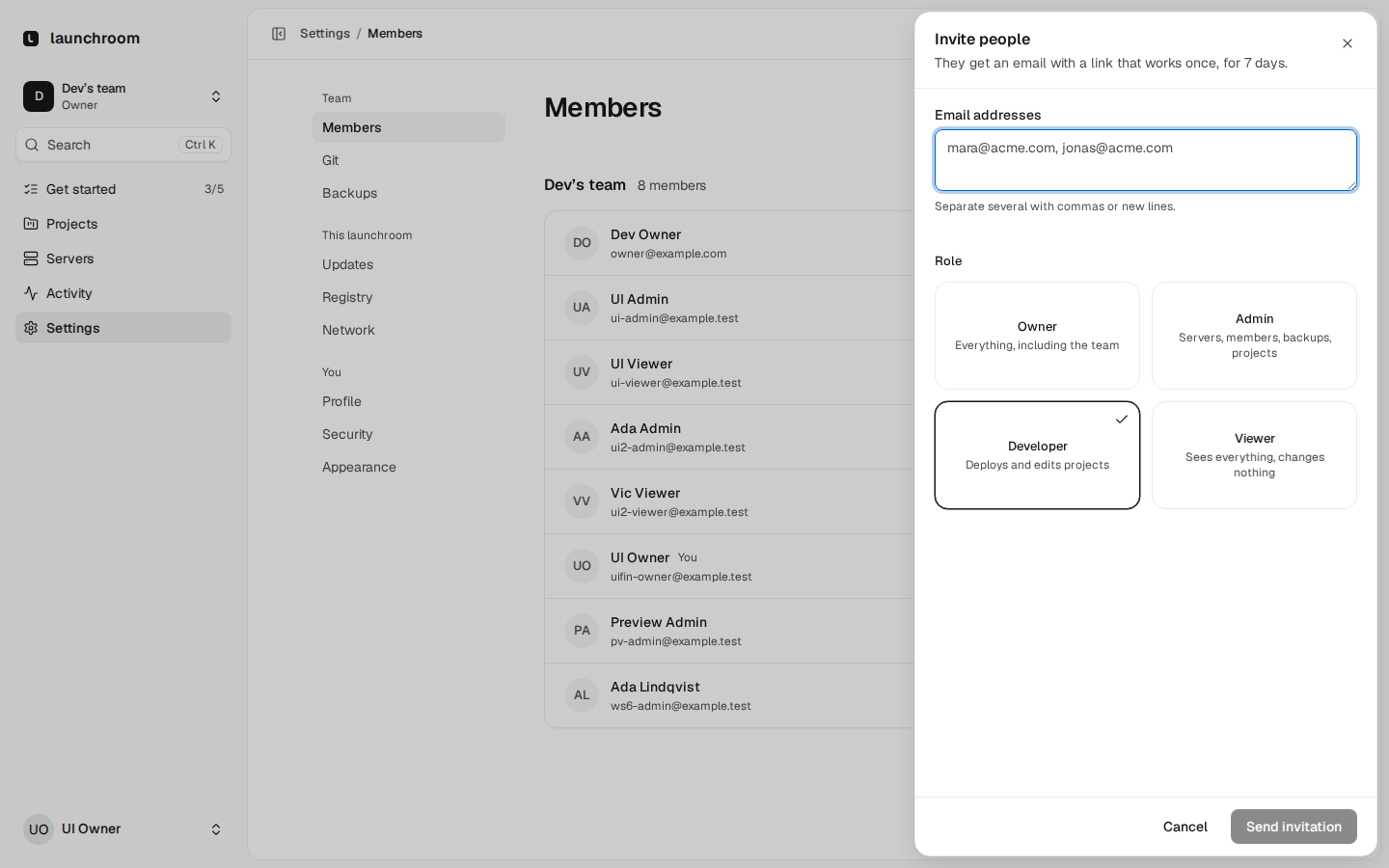
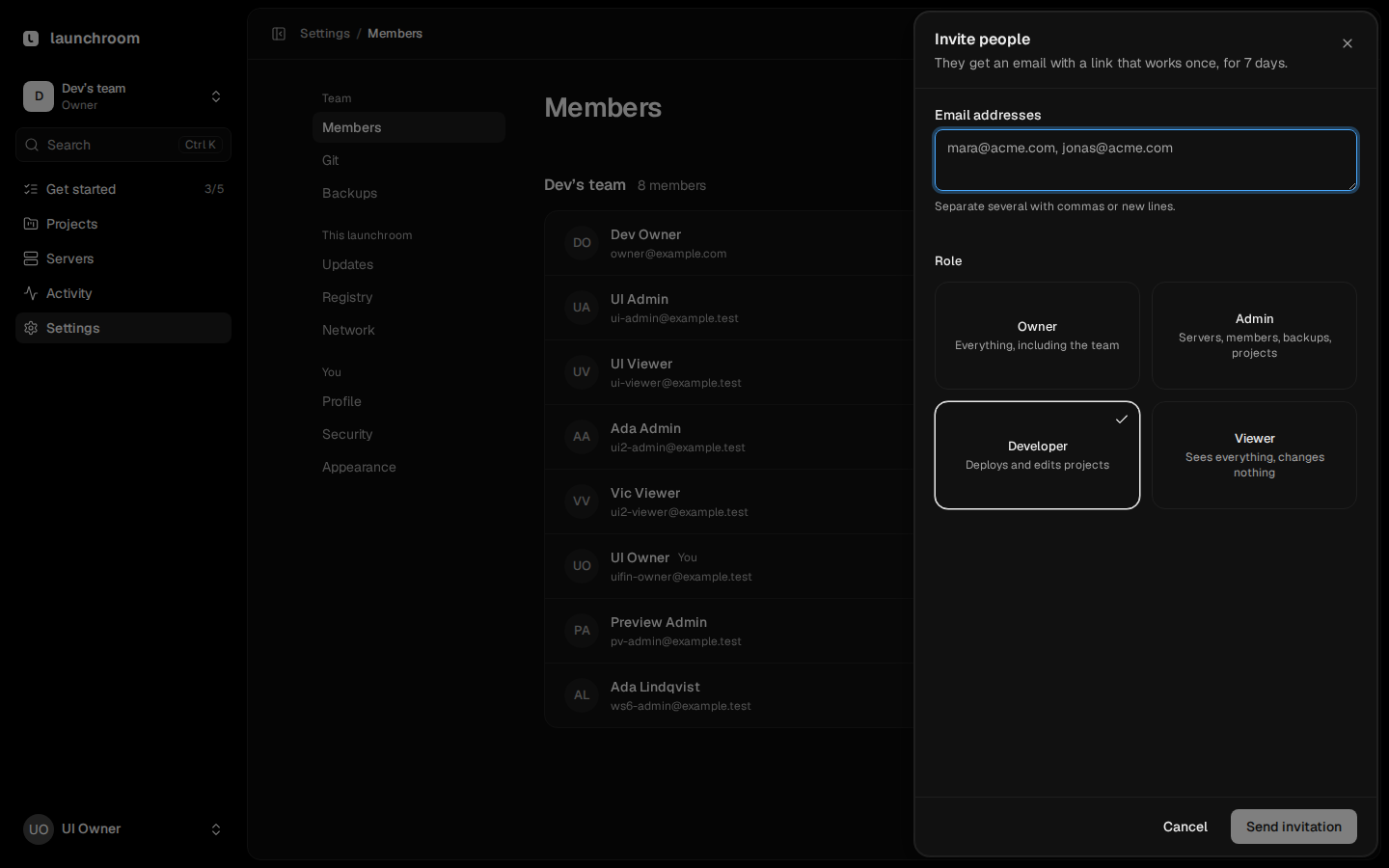
Invite people into a team with one of four roles. Projects, servers and settings belong to the team, and roles decide who can change what.
Everything you deploy belongs to a team: its projects, servers, Git connections, backups and notification settings. People join a team by invitation and get one role in it. One launchroom can hold several teams that don't see each other.
Teams
When you create the first account during setup, launchroom creates your team with you as its owner. You can work in a single team, or create more to keep things separate, for example one per client.
- Switch teams from the team selector at the top of the sidebar.
- Create a team from the same menu. Instance owners, and anyone who is an owner or admin of a team already, can create teams. You become the new team's owner.
- Resources never cross teams. A project, server or token of one team is invisible from another, even to someone who belongs to both.
Roles
| Role | In one line |
|---|---|
| Owner | Everything, including the team |
| Admin | Servers, members, backups, projects |
| Developer | Deploys and edits projects |
| Viewer | Sees everything, changes nothing |
In detail:
| Permission | Owner | Admin | Developer | Viewer |
|---|---|---|---|---|
| See projects, deployments, logs, metrics and servers | ✓ | ✓ | ✓ | ✓ |
| Create and delete projects, services and databases | ✓ | ✓ | ✓ | |
| Deploy, roll back, restart | ✓ | ✓ | ✓ | |
| Edit variables | ✓ | ✓ | ✓ | |
| Reveal secret values | ✓ | ✓ | ||
| Console (shell in a container) | ✓ | ✓ | When granted | |
| Data tab (browse and query databases) | ✓ | ✓ | When granted | |
| Add and remove servers, network, registry and Git app settings | ✓ | ✓ | ||
| Backup destinations, schedules and restores | ✓ | ✓ | ||
| Import data, download backups and data | ✓ | ✓ | ||
| Notifications and alert rules | ✓ | ✓ | ||
| Make databases public, relax container hardening | ✓ | ✓ | ||
| Invite members and change roles | ✓ | ✓ | ||
| Team settings, delete the team | ✓ |
Viewers can read deployment logs. Secret values are masked in those logs, so reading a log never reveals a secret.
Console and Data access for developers
Console and Data access are separate from deploying. Owners and admins have them. Developers don't by default. To give one developer access, open their menu in Settings → Members and tick Console or Data. Viewers can never get them. Every change is recorded in the audit log, and taking access away ends that person's open sessions at once. See Console and Data.
Invite people
Open Members
Go to Settings → Members and choose Invite people.
Enter email addresses and a role
Pick Owner, Admin, Developer or Viewer. You can only invite someone with a role up to your own: an admin can invite admins, developers and viewers, never owners.
Send
launchroom emails each person a link. The invitation is valid for 7 days. Inviting the same address again replaces the earlier link.
The person signs in (or creates their account) from the link and lands in the team. Open invitations are listed on the Members page, where you can revoke them.
New accounts are created only through invitations. There is no public sign-up page.
Email needs a mailer
Invitations are sent through your launchroom's mail settings (the MAIL_* values in the control plane's .env). Set them up before you invite people. Without a mailer, nothing is delivered.
Change roles and remove members
From a member's menu on the Members page you can change their role, grant Console or Data access, or remove them. The same rule applies: you can't give anyone a role above your own, and you can't manage someone whose role is above yours. A member can leave a team from the same menu.
Removing a member also deletes the API tokens they created for that team and ends their open Console and Data sessions. The last owner of a team can't leave it or delete their account. Hand ownership to someone else first.
Instance owners and team roles
Two different things decide what you can do:
- Team roles (above) apply inside one team.
- Instance owner is about the launchroom installation itself. The account created during first-run setup is the instance owner.
Instance owners see a This launchroom group in Settings: Updates, Registry, Dashboard domain, Network and Security (server certificates and audit log forwarding). They also see Get started, recovery after a restore, and approve settings that affect every team, such as allowing a backup destination or Git server on a private network.
Being an instance owner doesn't give you a role in teams you weren't invited to.
Everything is audited
Invitations, accepted invitations, role changes, permission grants and removals all appear in the audit log with who did it and when. The Activity page filter Team shows them.
Console and Data
Open a shell inside a running container, or browse and query a managed database, from the service panel. Permissioned, time-limited and audited.
Two-factor sign-in
Protect your account with an authenticator app and recovery codes, or sign in with a passkey. Recommended for everyone, required for no one.