Alerts
Built-in rules for failed deploys, crashing services, offline servers, full disks and failed backups, sent to email, Slack, Discord or a signed webhook.
launchroom watches your services, servers, certificates and backups. It notifies you when something needs attention and again when the problem is resolved. Rules are built in and on by default, so the only setup is choosing where alerts go.
Set up notifications
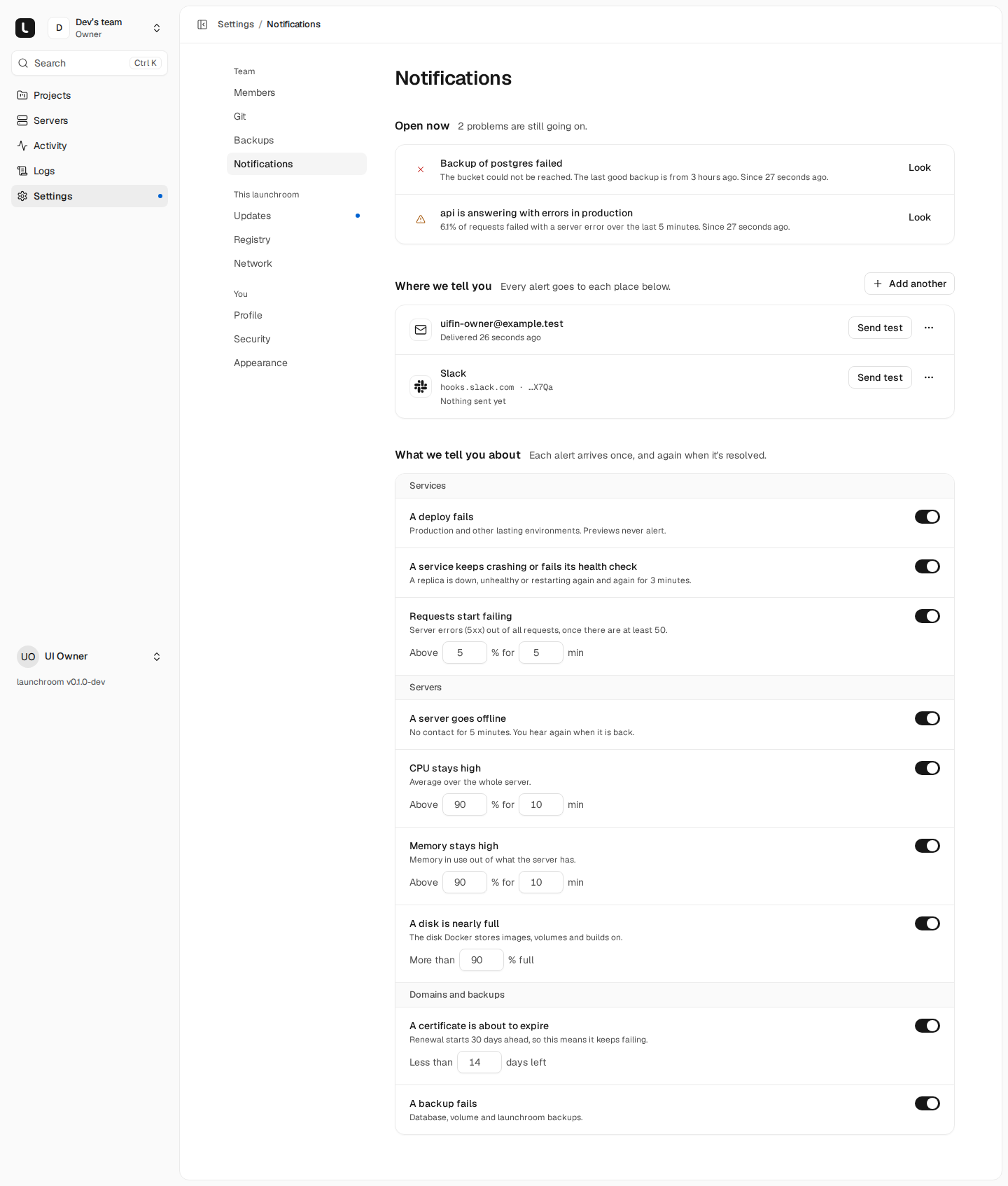
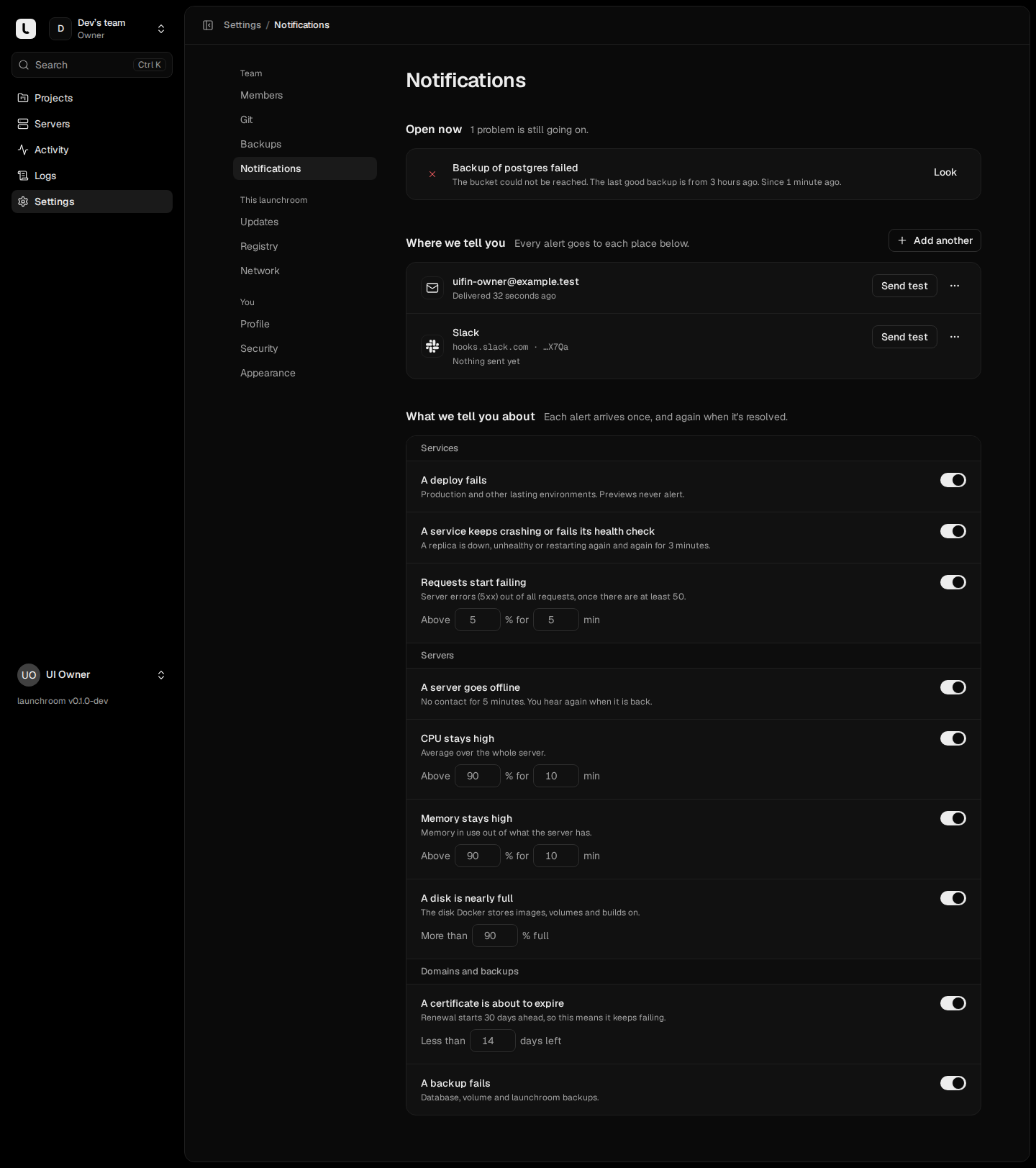
Open Settings → Notifications. Without a destination yet, the page asks "Where should we tell you?" with four choices: Email, Slack, Discord and Webhook. Fill in the field for that kind and press Send a test. The result appears on the page.
Owners and admins can change notifications. Every team member can see them.
Built-in rules
| Rule | Default | Fires when | Resolves when |
|---|---|---|---|
| A deploy fails | On | A deployment fails in production or another lasting environment. Previews never alert | The service's next deployment goes live |
| A service keeps crashing or fails its health check | On | A replica of the live deployment is unhealthy, exited or failed, or restarted 3 times in 10 minutes, for at least 3 minutes | Every replica is healthy with no restart for 3 minutes |
| Requests start failing | On, 5 % for 5 min | Server errors (5xx) exceed the threshold, once there are at least 50 requests | The rate drops below half the threshold |
| A server goes offline | On | No contact from the server for 5 minutes | The server is online again |
| CPU stays high | On, 90 % for 10 min | Average CPU of the whole server stays above the threshold | The average drops 10 points below it |
| Memory stays high | On, 90 % for 10 min | Memory in use out of what the server has | The average drops 10 points below it |
| A disk is nearly full | On, 90 % | The disk Docker stores images, volumes and builds on | Usage is 5 points below the threshold |
| A certificate is about to expire | On, 14 days | A domain's certificate expires within the threshold. Renewal starts 30 days ahead, so this alert means renewal keeps failing | The certificate is renewed |
| A backup fails | On | A database, volume or launchroom backup fails | The next backup succeeds |
Severity
Alerts are either warning or critical:
- Failed deploys and crashing services are critical in production and warnings elsewhere.
- Offline servers and failed backups are always critical.
- A disk at 95 % or more, an error rate of 25 % or more, and a certificate with less than 3 days left (or already expired) become critical.
- High CPU and memory are warnings.
Thresholds
Under What we tell you about, each rule has a switch. Rules with a threshold read as a sentence with number fields, for example "CPU above 90 % for 10 min". Save with the bar that appears at the bottom.
| Rule | Threshold range | Duration range |
|---|---|---|
| Requests start failing | 1 to 100 % | 1 to 30 min |
| CPU stays high, Memory stays high | 10 to 100 % | 1 to 30 min |
| A disk is nearly full | 50 to 99 % | |
| A certificate is about to expire | 1 to 29 days |
Thresholds apply to the whole team.
Channels
| Kind | What you enter | Message |
|---|---|---|
| Up to 10 addresses (yours is filled in) | Title, summary, facts and an "Open in launchroom" link | |
| Slack | An incoming webhook URL (https://hooks.slack.com/services/…) | The title in bold, the summary, project, environment and server, and a button to launchroom |
| Discord | A webhook URL (https://discord.com/api/webhooks/…) | An embed with title, summary and facts. Mentions are switched off |
| Webhook | Any https URL | A signed JSON event (below) |
Each channel can receive everything from warning up, or critical only. You can pause, edit and remove channels. Each row shows when it last delivered or why it failed.
Email uses your launchroom's mail settings. If no mailer is configured, the Notifications page says so.
Webhook URLs and signing secrets are stored encrypted and never shown again in full. The page shows only the host and the last four characters. Outgoing requests go to public addresses only, never to private networks or the control plane itself, and don't follow redirects.
Alerts go to third parties
Alert titles and summaries name your services, servers and domains. They never contain variable values, secrets or log lines.
When you hear from launchroom
- Once per problem: while a problem lasts, the alert stays open and you get one message for it.
- Repeats: only for new occurrences, such as another failed deploy of the same service after 10 minutes or another failed backup after 6 hours. Condition rules (CPU, disk, offline) never repeat.
- Resolved messages: when the problem is gone, every channel that was notified gets one "resolved" message. Alerts that were never sent resolve without a message.
- Cooldown: if the same problem comes back within 10 minutes of resolving, the old alert reopens instead of a new one. You're notified again only if the last message is older than 10 minutes, so a flapping service doesn't flood your channel.
Alerts also appear on the Activity page (filter Alerts) with how long they were open, and project activity shows the project's alerts.
Backup alerts
"A backup fails" covers database backups, volume backups and the backup of launchroom itself. The alert names the database or volume and the destination, and resolves on its own after the next successful backup. See Backups and Troubleshooting backups.
Signed webhooks
A webhook channel receives a POST with Content-Type: application/json:
{
  "type": "alert.fired",
  "id": "alr_01J…",
  "rule": "deploy_failed",
  "severity": "critical",
  "status": "firing",
  "title": "web failed to deploy",
  "summary": "…",
  "url": "https://launchroom.example.com/p/…",
  "team": { "id": "team_…", "name": "Acme" },
  "project": { "id": "prj_…", "name": "shop" },
  "environment": { "id": "env_…", "name": "production" },
  "service": { "id": "svc_…", "name": "web" },
  "server": null,
  "facts": { "Commit": "3b7d5e1" },
  "openedAt": "…",
  "resolvedAt": null,
  "sentAt": "…"
}
type is alert.fired, alert.repeated, alert.resolved or alert.test. Headers:
| Header | Value |
|---|---|
X-Launchroom-Event | The event type |
X-Launchroom-Delivery | Unique per delivery, the same across retries. Use it to drop duplicates |
X-Launchroom-Signature | t=<unix seconds>,v1=<hex HMAC-SHA256> |
The signing secret (it starts with lrwh_) is shown once when you create the channel. You can rotate it later.
Verify the signature
The signature is an HMAC-SHA256 keyed with the signing secret, computed over the timestamp, a dot and the raw request body: <t>.<body>. To verify:
- Read the raw body before parsing it as JSON.
- Split the header into
tandv1. - Reject the request if
tis more than 5 minutes old. - Compute the HMAC of
t + "." + bodyand compare it withv1in constant time.
import crypto from 'node:crypto';

export function verify(rawBody, header, secret) {
  const parts = Object.fromEntries(header.split(',').map((p) => p.split('=')));
  const t = Number(parts.t);
  if (!t || Math.abs(Date.now() / 1000 - t) > 300) return false;
  const expected = crypto
    .createHmac('sha256', secret)
    .update(`${parts.t}.${rawBody}`)
    .digest('hex');
  const a = Buffer.from(expected);
  const b = Buffer.from(parts.v1 ?? '');
  return a.length === b.length && crypto.timingSafeEqual(a, b);
}
Answer with any 2xx status to confirm delivery. A failed delivery is tried up to three times in total, a few minutes apart, and the failure is recorded on the channel. Failed deliveries don't change the alert itself.
To reach a paging tool, point the generic webhook at a small receiver that forwards to your on-call system.
Metrics
Requests, error rate, latency and bandwidth measured at the edge, plus CPU and memory per service and server, with every deploy marked on the chart.
Console and Data
Open a shell inside a running container, or browse and query a managed database, from the service panel. Permissioned, time-limited and audited.