Logs
Build and runtime logs in one explorer. Search across services, environments or the whole team, follow lines live and keep runtime logs if you want them.
Every line a build, a deploy or a running service writes is collected in the Logs tab of a project. You can search it like a document, filter it by service, level or server, and follow new lines live.
Where logs come from
launchroom collects two kinds of lines:
- Build and deploy logs: everything a deployment prints, including the build, release commands, the rollout and health checks. They are stored with the deployment and kept as long as the deployment exists. Open a deployment to read its log step by step, or find the same lines in the explorer.
- Runtime logs: what your services write to stdout and stderr while they run. By default they are shown live and kept for a day. Turn on retention for an environment to store every line for longer.
Secret values are masked before lines are stored. If a variable marked secret shows up in a build or deploy log, you see a placeholder instead of the value. Logs are always shown as text, never rendered as HTML.
The Logs explorer
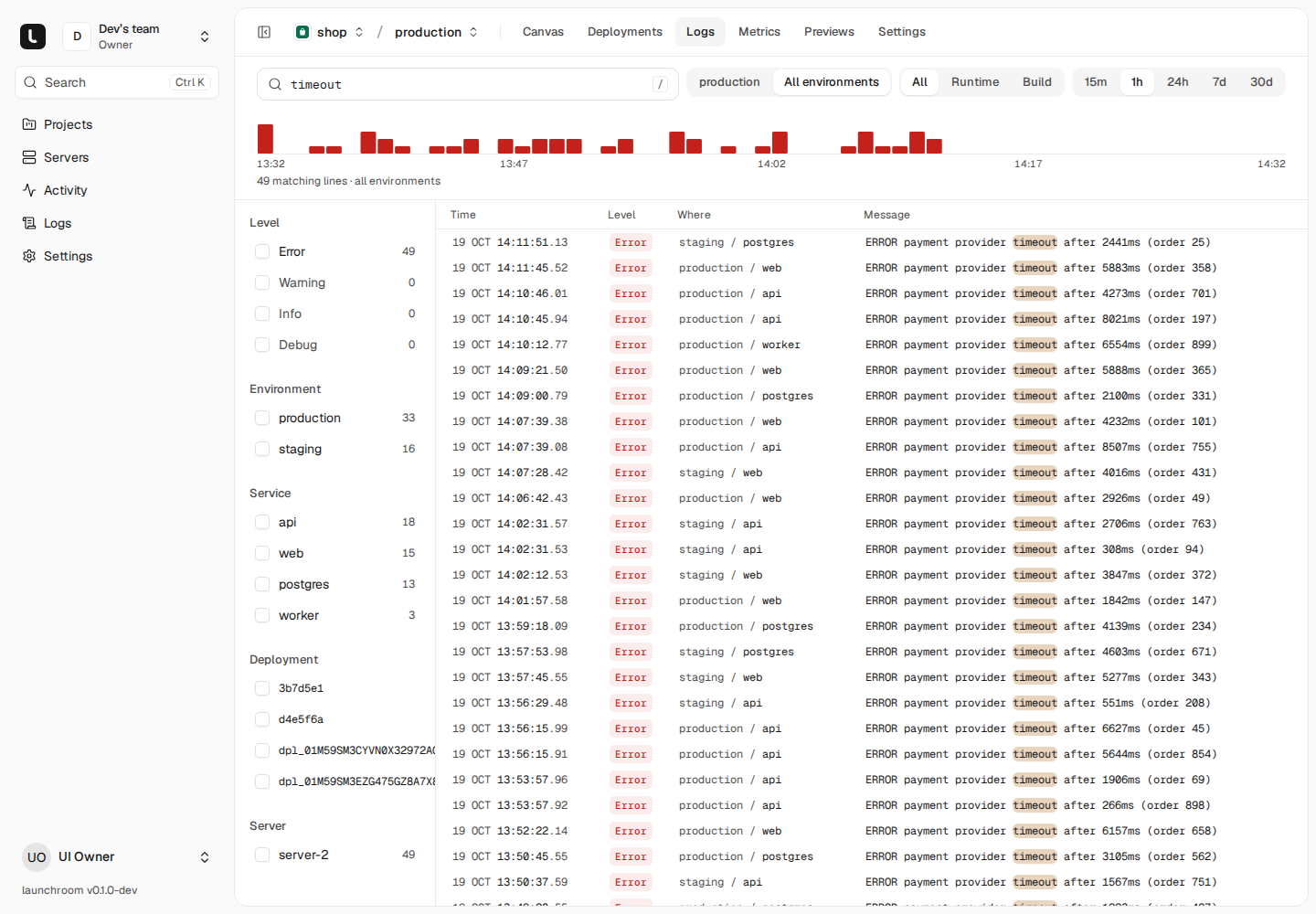
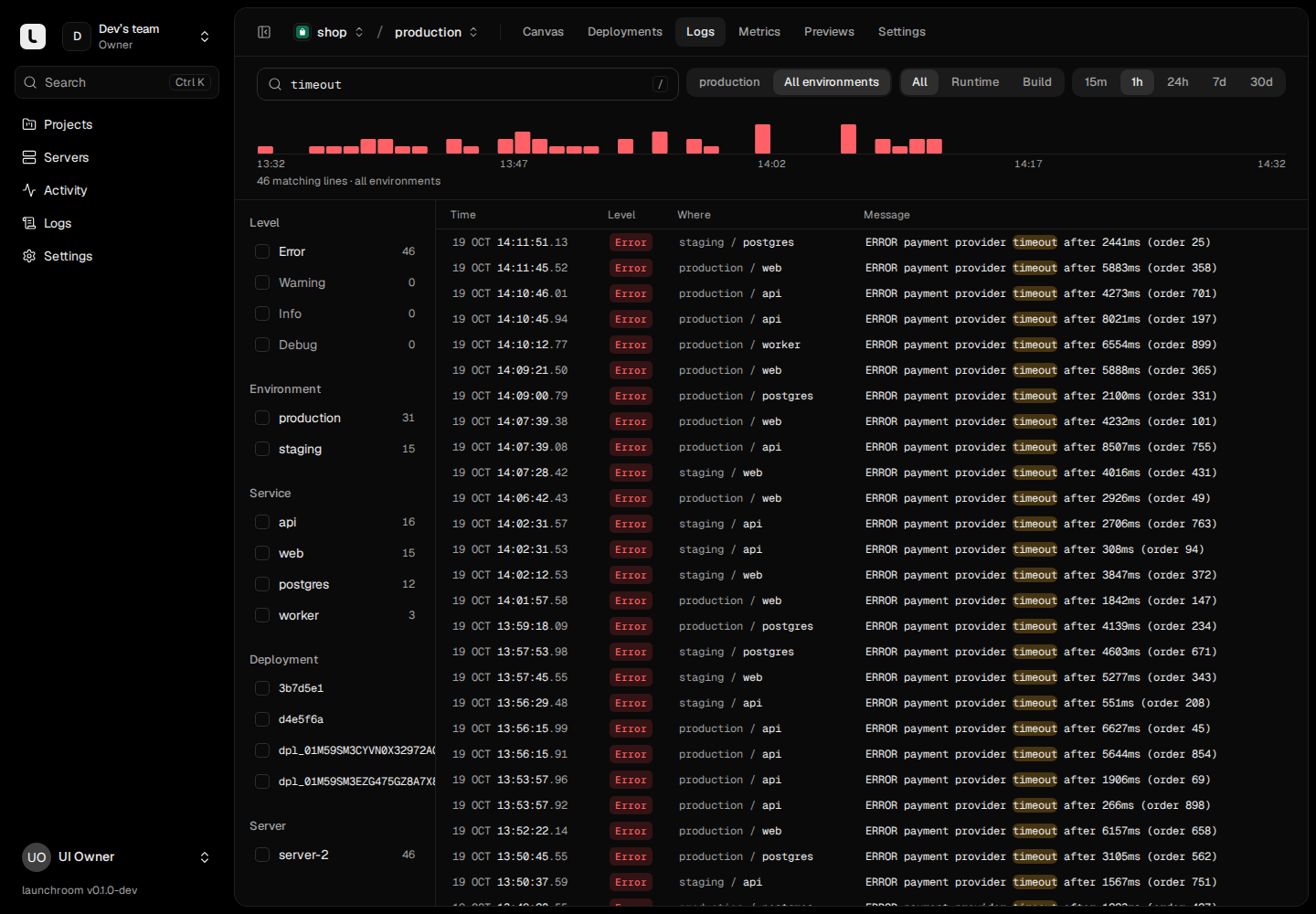
Open a project and choose Logs. The explorer has one toolbar, a histogram, a filter rail and the lines themselves.
- Source: All, Runtime or Build.
- Range: 15m, 1h, 24h, 7d or 30d. When nothing matches, the empty state has options to widen the range or follow live.
- Histogram: lines over time, with errors stacked in red and a marker for every deploy (failed deploys in red). Hover a marker to see its service and commit.
- Filter rail: counts per level, environment, service, deployment and server. Click a value to filter by it.
- Detail drawer: click a line to see its facts (service, replica, server, commit), similar lines and a shortcut to show only that service.
Each service also has a Logs tab in its panel with the same explorer, scoped to that service.
Search syntax
Type into the query bar. Free text matches anywhere in a line. Quoted phrases match as a whole. Filters narrow the result:
| Filter | Example | Matches |
|---|---|---|
service: | service:api | Lines from one service |
level: | level:error | error, warning, info or debug (err, fatal and warn work too) |
environment: | environment:staging | Lines from one environment |
project: | project:shop | Lines from one project (team-wide search) |
deployment: | deployment:dpl_… | Lines of one deployment |
server: | server:fra-1 | Lines from replicas on one server |
stream: | stream:stderr | stdout or stderr |
Put - in front of a filter to exclude it: service:api -level:debug "connection refused". The query is part of the URL, so you can share a search with a teammate.
Search runs on the server, so it covers the whole range instead of only the lines loaded in your browser. The count line shows how many lines matched. Large results show the newest 5,000.
Search across environments and the team
On a project's Logs tab, a switch next to the source sets the scope: the current environment or All environments of the project. Owners and admins also get a team-wide Logs page in the sidebar that searches every project at once. In wide scopes the service cell shows where a line came from, for example "staging / web".
Live following works inside one environment only.
Follow live
Press Live to stream new lines as they are written. launchroom starts a short-lived tail on every running replica of the environment's live deployments and keeps it running while the page is open. Tails are renewed every few minutes and stop when you leave. New lines appear within about two seconds.
You can follow logs from a terminal too:
launchroom logs -fSee the CLI reference for --service, --since and --source.
Keep runtime logs
Without retention, runtime lines are visible while you follow them and kept for a day. To store everything your services write and search it later, turn on retention per environment:
Open the project's log settings
In the project, open Settings → Logs. Each environment has its own card.
Turn on "Keep runtime logs"
Switch it on for the environments you want, for example production.
Choose a period and a size cap
Pick how long to keep lines and how much space they may use, then Save.
| Setting | Options | What happens at the limit |
|---|---|---|
| Keep for | 1, 3, 7, 14 or 30 days | Older lines are deleted |
| Up to | 256 MB, 1 GB, 5 GB or 10 GB | The oldest lines go first |
The change applies right away to running services, without a restart. Each server ships the logs of that environment's replicas continuously and resumes where it left off after an interruption. The card footer shows how much is stored and since when. Turning retention off stops shipping. Lines already kept then age out.
Retention is opt-in
Runtime logs can contain personal data your app prints. launchroom stores them only when you turn on retention for an environment, with a limit you choose.
Logs on the server
Every container launchroom starts writes its logs with Docker's json-file driver, limited to 3 files of 10 MB each. Rotation happens on the server without changes to your Docker daemon configuration, so a service that logs a lot can't fill the disk.
For the launchroom installation itself (dashboard, database, launchroomd), use the helper on the control-plane server:
cd launchroom
./launchroom logs            # everything
./launchroom logs dashboard  # one container
Through the API
GET /api/v1/environments/{environment}/logs runs the explorer's query (with range, source, service and q), and …/logs/stream follows lines as server-sent events. See the API reference.
Backups to Hetzner Object Storage
Store launchroom's encrypted backups in Hetzner Object Storage, ideally in a different location than your servers.
Metrics
Requests, error rate, latency and bandwidth measured at the edge, plus CPU and memory per service and server, with every deploy marked on the chart.