Backup problems
Failed backups and verifications, gaps in point-in-time recovery, and what a lost recovery kit or passphrase means for your data.
launchroom backs up databases, volumes and itself with restic into S3-compatible storage. Data is encrypted before it leaves your servers. Once a week, launchroom restores each backup into a throwaway container to verify it. When one of these steps fails, you get an alert and the database's node on the canvas shows the failure. This page covers the common failures and two situations to understand before they happen: a lost recovery kit and a lost passphrase.
Where to look
- On the canvas, every database shows its backup state under its status: "Backed up 3 hours ago", Last backup with a stale time, Last backup failed, No backup yet or Backups off.
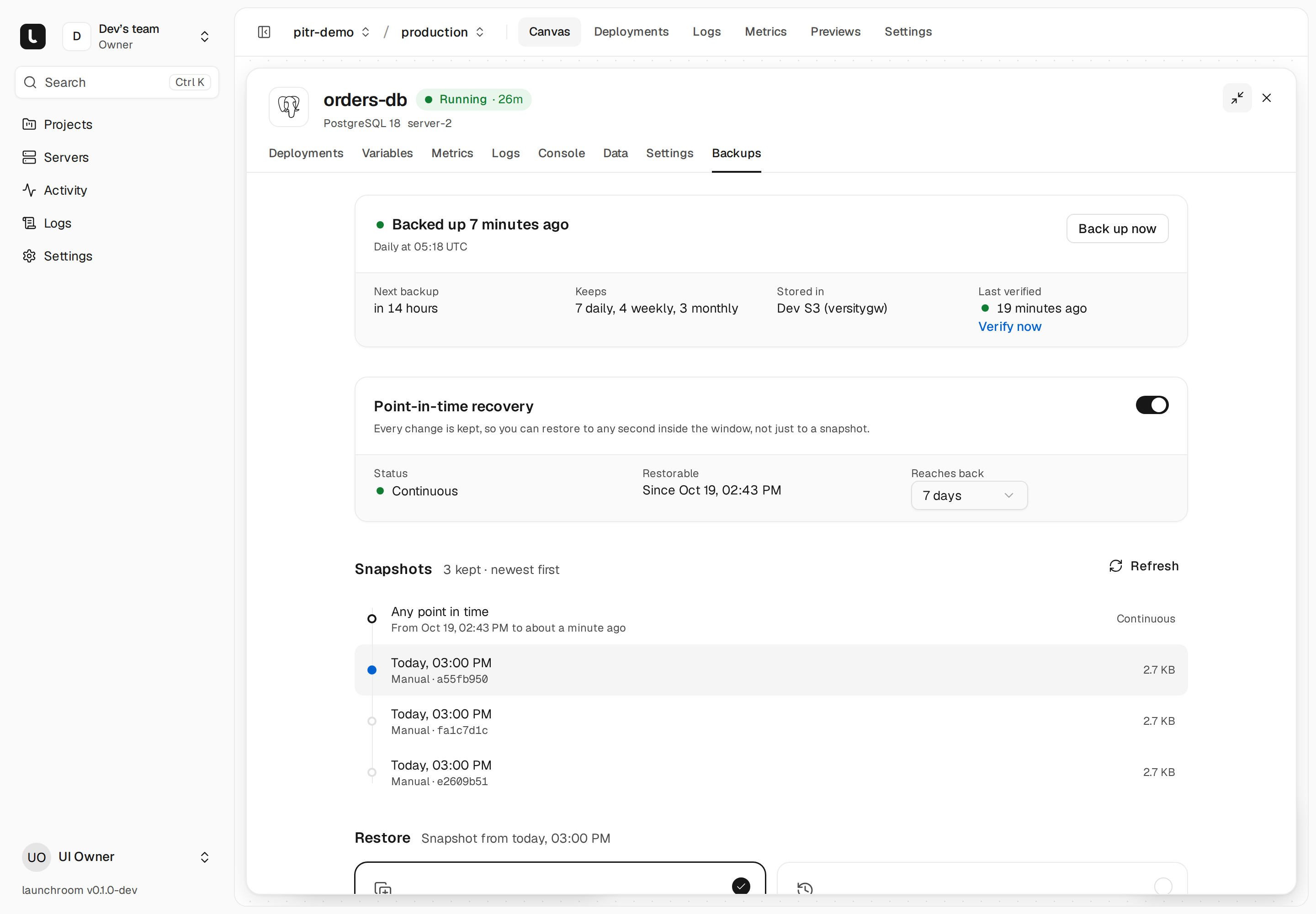
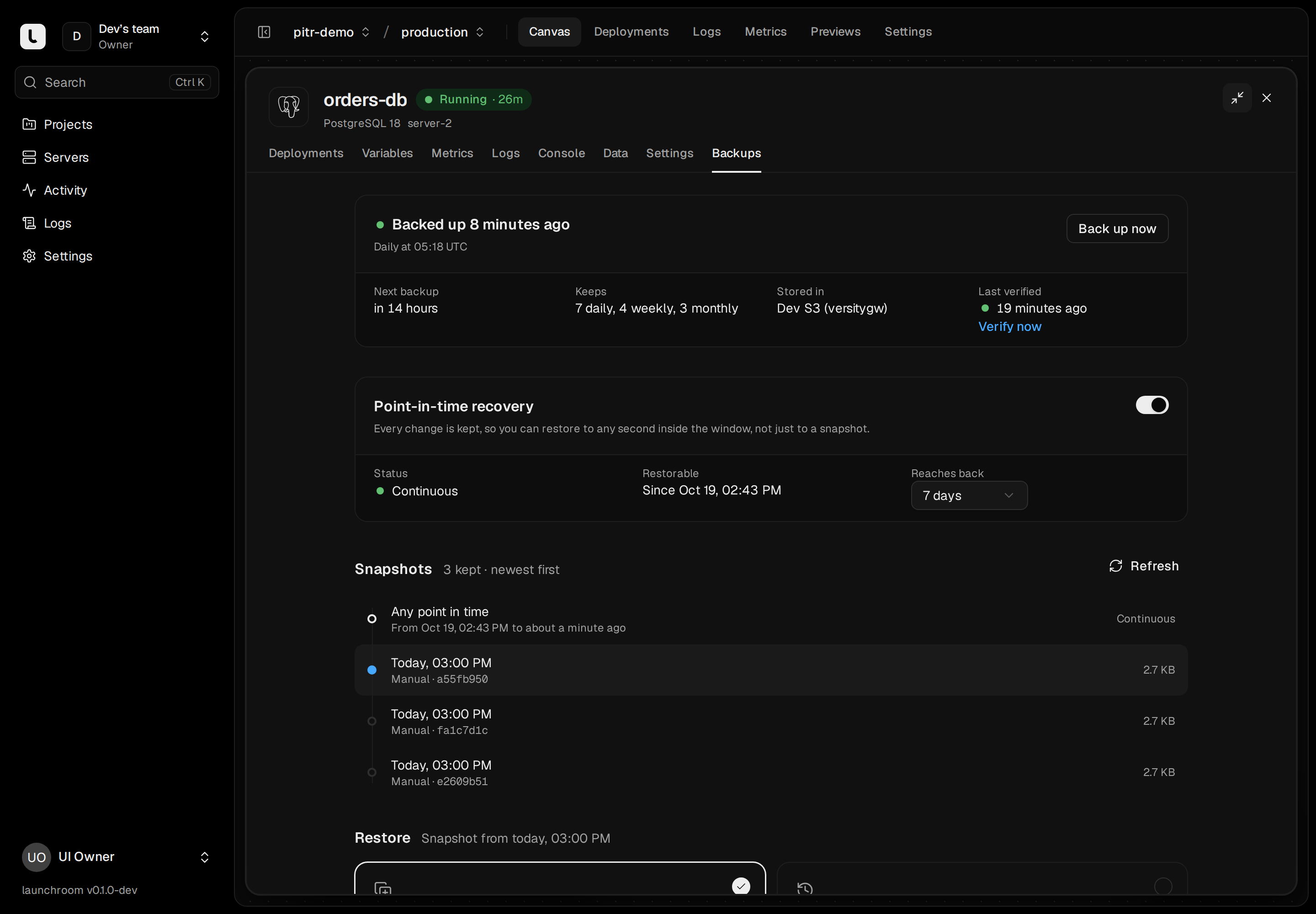
- The database's Backups tab shows the schedule, the destination, Last verified, point-in-time recovery, the snapshot timeline and History with every run and its error. Back up now and Verify now start a run at once.
- Settings → Backups lists destinations with their state (Connected, Unreachable, Not tested yet), every protected database, and the recovery kit for launchroom itself.
- Alerts: failed backups, failed verifications, backups overdue for 36 hours and lagging point-in-time recovery each raise a problem under Settings → Notifications. See Alerts.
Last backup failed
Open the database's Backups tab. The failed run in History shows the error. Common causes:
| Error or symptom | Cause | Fix |
|---|---|---|
| Access denied, invalid access key, signature mismatch | Wrong or revoked S3 credentials, or a key without write access to the bucket. | Create a key with read and write access to this bucket and update the destination under Settings → Backups. |
| The bucket doesn't exist, or a region error | Bucket name, endpoint or region don't match. The endpoint is the S3 API address without the bucket name. | Correct the destination. The provider guides list the exact values: Cloudflare R2, Hetzner. |
| "the repository is locked by another operation; try again later" | Another backup, cleanup or check of the same repository is running. | Wait a few minutes and run Back up now again. |
| "wrong repository password" | The repository at this destination was created by another launchroom, or with another password. | Point the destination at an empty bucket or a new prefix. Moving the endpoint, bucket or prefix starts a new repository there. |
| Request time too skewed, or similar time errors | The server's clock is far off, and S3 refuses signed requests with a wrong time. | Turn on time sync on the server that ran the backup (sudo timedatectl set-ntp true). Its Clock health check shows the difference. |
| The database wasn't running | A scheduled backup can't dump a database that is stopped or crashed. | Fix the database first. See Health check problems. |
| "Update launchroomd on … to back up MongoDB" | MongoDB and ClickHouse backups need a recent launchroomd on the database's server. | Update the servers under Settings → Updates. |
The destination test on Settings → Backups opens the repository and lists its snapshots, so it catches most credential and bucket problems before the next scheduled run.
Object Lock and lifecycle rules
Don't turn on Object Lock (or a retention policy that blocks deletes) on a bucket you use for backups, and don't add lifecycle rules that delete or move objects. launchroom keeps its own retention: it removes old snapshots daily and needs to delete data to do that. A locked bucket makes cleanup fail and storage grow without limit. A lifecycle rule that deletes objects without launchroom knowing breaks the repository.
Verification failed
The Backups tab shows Last verified with ✕, and History says what was restored and what the checks found.
Cause. Once a week, launchroom restores the newest backup into a throwaway container without network access and checks it: for Postgres a full restore with table and row counts and pg_amcheck, for MySQL CHECK TABLE on every table, for Redis and Valkey the RDB file check, for volumes a full read of every file. A failure means one of two things:
- The check ran and found a problem: the dump didn't restore, a table is damaged, the file is incomplete. Act on it: run Back up now, then Verify now on the new backup. If the new one also fails, the problem is in the live database, not in the backup.
- The check couldn't run: the verification runs on the database's own server and needs about one CPU and 1 GiB of memory there. On a full or overloaded server it fails to start. Check the server's Health section, free space or memory, and use Verify now again.
Gaps in point-in-time recovery
Point-in-time recovery (Postgres 15 and newer) keeps a daily base backup and ships every completed change log segment about every 30 seconds, so you can restore to any second inside the window. The first entry of the snapshot list, Any point in time, shows the window ("From Oct 12, 03:00 to about a minute ago").
Its state on the Backups tab shows whether the window is growing:
- Continuous: everything is shipped.
- Taking the first base backup: right after turning it on, there is no window yet.
- Waiting for Postgres to run: the database is stopped, nothing is being written.
- WAL isn't reaching the destination: shipping fails. The window stops at the last stored segment. Postgres keeps the unshipped segments on its volume, so nothing is lost while the problem lasts, but the volume fills up. The causes are the same as for failed backups above.
Times outside the window are refused. The window starts at the oldest kept base backup (you choose how many days to keep, 1 to 35), and after an in-place restore it starts again with the next base backup. Point-in-time recovery needs the database's default start command. If you changed it, launchroom takes daily dumps only. See Point-in-time recovery.
Restore problems
- Redis and Valkey are backed up and verified, but can't be restored from the dashboard yet.
- Restore into this service first takes a safety snapshot. If that fails, nothing is changed. Fix the backup problem first, or use Restore as a new service, which never touches the original.
- During an in-place restore, the services connected to the database are stopped until it is done, so web services answer with errors for the duration. Treat it as a maintenance window.
See Restore and disaster recovery for the restore flows.
Import problems
An import stops before it changes anything when the file or the target doesn't fit. The run says why:
| Message | What to do |
|---|---|
| "This dump comes from PostgreSQL 18.1, but postgres runs PostgreSQL 17" | A dump only imports into the same or a newer major version. Create the database with the newer version, or dump with the older version's pg_dump |
| "postgres isn't empty (14 tables)" | Choose Replace everything (a safety snapshot is taken first), or --replace with the CLI |
| "Couldn't reach db.example.com:5432 from server-1" | The source must be reachable from the database's server. Private and mesh addresses are blocked for imports like for apps. Check the host, port, password and TLS mode, or import a dump file instead |
| "launchroom couldn't recognise this file" | Use pg_dump -Fc or plain SQL, mysqldump, or mongodump --archive. pg_dumpall files and pg_dump -Fd/-Ft aren't supported |
| "This dump holds more than one database" | Dump one database: mysqldump <database>, or mongodump --db <database> --archive |
An error from pg_restore, psql, mysql or mongorestore | The last lines of the tool's output are shown as they came. With Replace everything, the safety snapshot in the Backups tab brings the old data back |
| "The archive contains … outside the volume" | Volume imports refuse absolute paths, .., links pointing outside the archive and device files. Create the archive from inside the folder: tar -czf uploads.tar.gz -C uploads . |
If the upload stops, choose the same file again (or run the same launchroom db import): it continues where it stopped. Uploads that aren't used are deleted after 24 hours.
The recovery kit is lost
The recovery kit is a text file with the backup destination, its credentials and the restic repository password for launchroom's own backups. It never contains the passphrase.
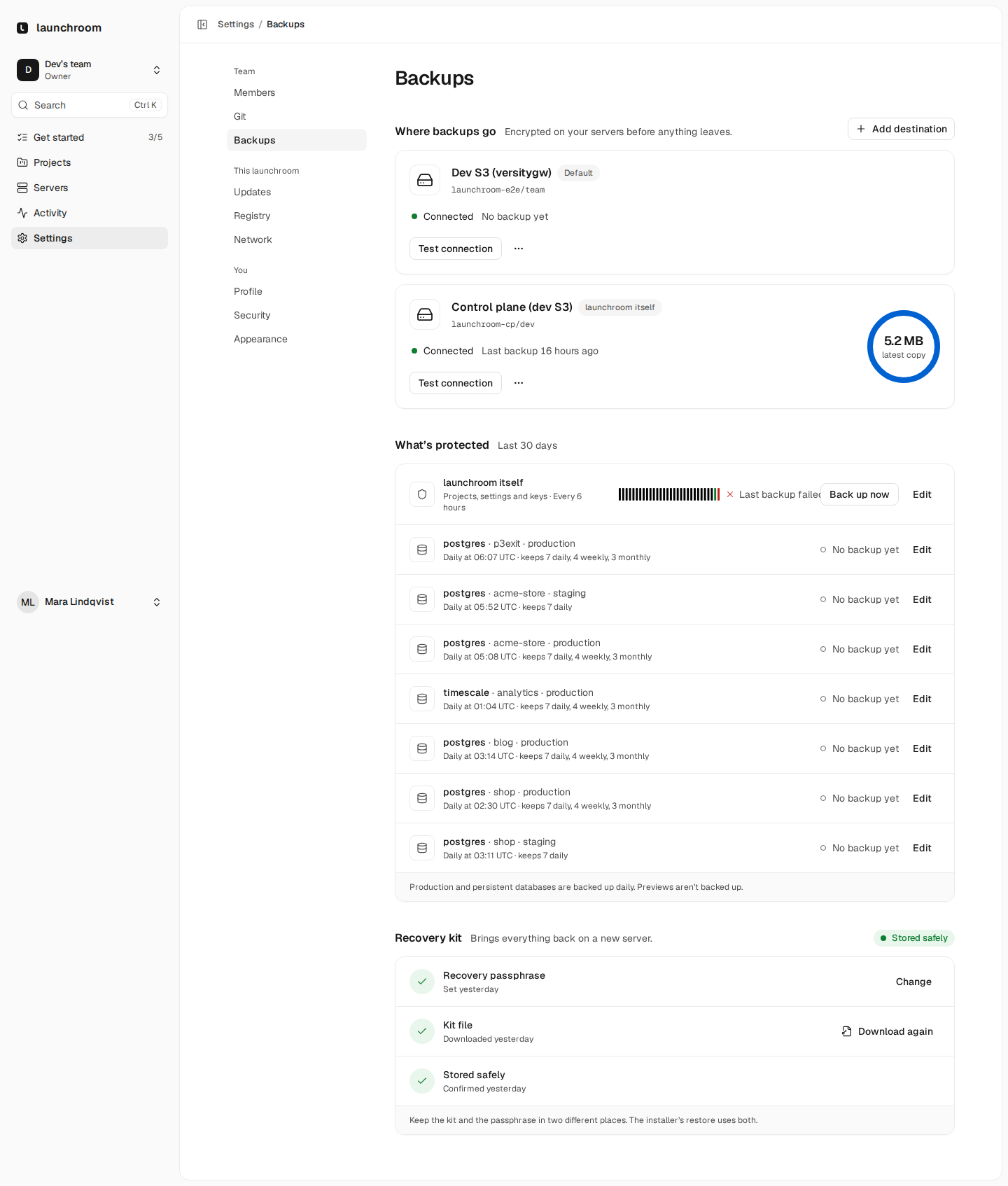
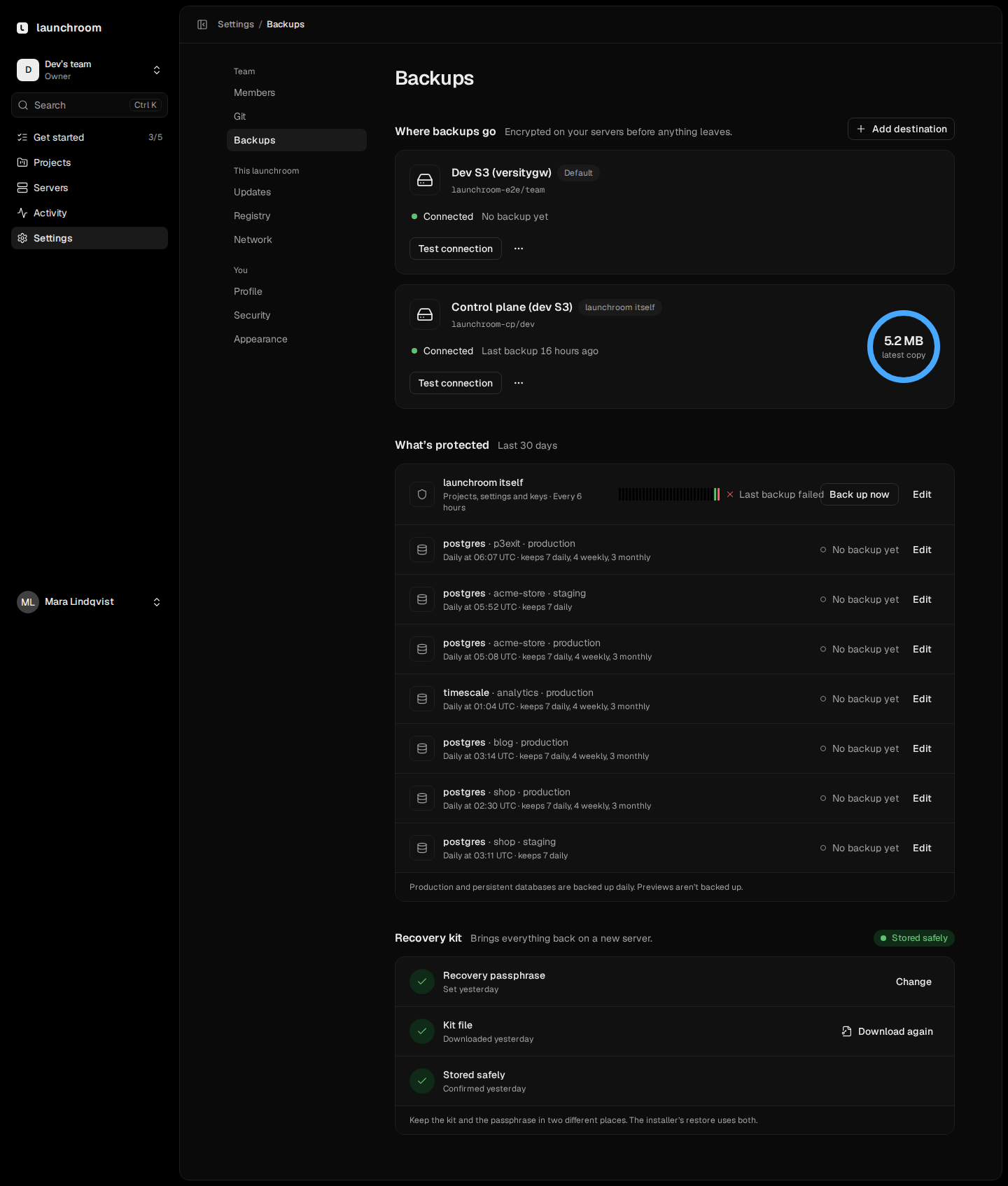
While the dashboard runs, losing the kit is not a problem: download it again under Settings → Backups → Recovery kit (instance owners, password confirmation), store it somewhere outside your servers, and confirm that you did.
If the control-plane server is gone too, the installer's --restore can take the destination, credentials and repository password typed in by hand instead of the kit file. The repository password was generated by launchroom and exists only in the kit and inside launchroom itself. Without it, launchroom's own backups can't be opened. For this reason the dashboard reminds instance owners until they confirm the kit is stored safely.
The recovery passphrase is lost
The passphrase encrypts launchroom's keys inside every backup of launchroom itself. launchroom never stores it, so nobody can recover it for you.
While the dashboard runs: set a new passphrase under Settings → Backups → Recovery kit, download the new kit and confirm it. From the next backup of launchroom itself on, the keys are encrypted with the new passphrase. Older backups stay locked to the old one, so let a new backup run before you rely on it.
If the control-plane server is gone and the passphrase is lost, launchroom can't be restored from its backups: without the passphrase the keys in them can't be decrypted, and without the keys nothing launchroom stored encrypted can be read (variables, credentials and the repository passwords of your other backup destinations). Your apps' database and volume backups are encrypted with those repository passwords, which launchroom generated, so they can't be opened either. You would have to set up launchroom again from the start.
Before you need it
Store the recovery kit and the passphrase in two different places outside your servers, for example a password manager and a printed copy. Test that you can find both.
Next steps
Private network problems
When services on different servers can't reach each other, links are relayed or slow, or the private network itself is unhealthy. Causes and fixes.
Installation problems
The installer stopped or the dashboard didn't come up. Every installer error explained, with the flag or fix that gets you past it.