Console and Data
Open a shell inside a running container, or browse and query a managed database, from the service panel. Permissioned, time-limited and audited.
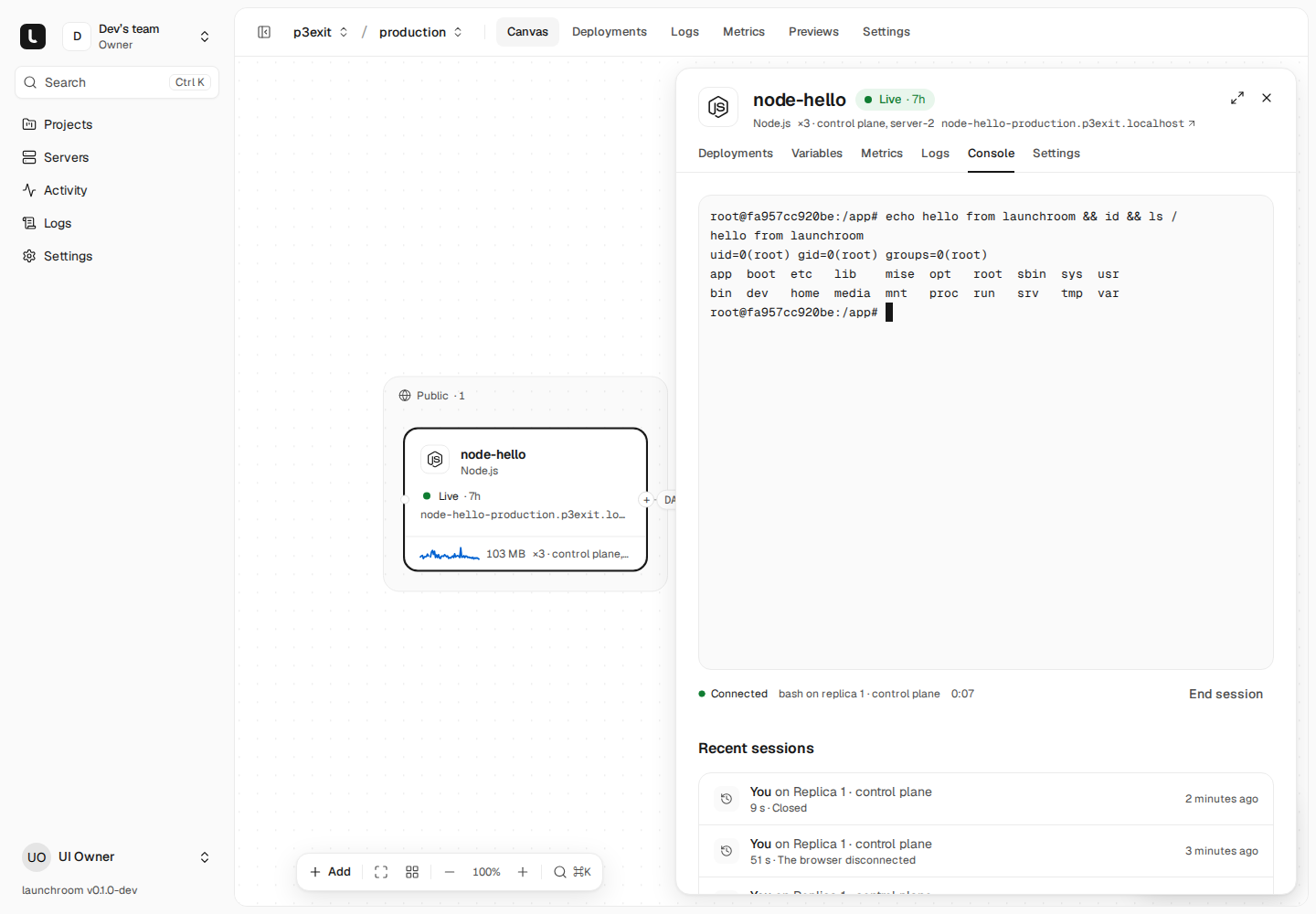
Use these tabs to check a file, run a one-off script or read a few rows. The Console tab opens a shell inside one of your service's containers. The Data tab is a table browser and query editor for your managed databases. Both work in the browser, without SSH and without opening a port.
What a session is
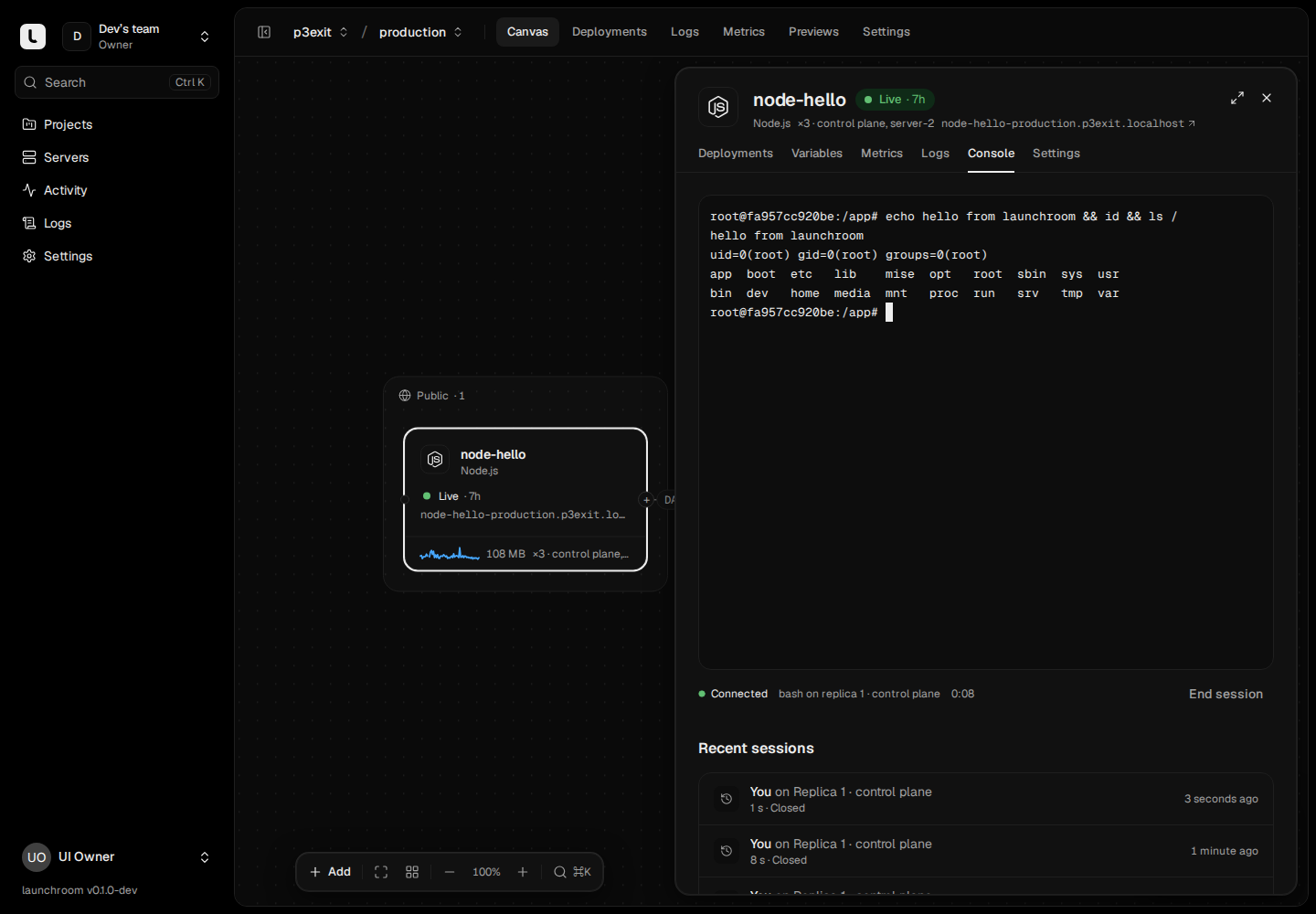
A console is a shell inside one container of your service. It is never a shell on the server itself. launchroom has no way to run commands on a host, and the Console doesn't add one.
- The shell runs as the container's own user. It's root only if your image runs as root.
- It sees the same variables your app sees. For that reason, Console access is a separate permission.
- launchroomd starts it only for containers that launchroom manages and that belong to your live deployment. launchroom's own system containers and builds are excluded.
The connection is relayed through the dashboard's realtime server:
- launchroomd makes outgoing connections only.
- Every frame is authenticated end to end.
- Commands from the dashboard are signed.
Nothing in between can inject input or replay it.
Who can use it
| Role | Console | Data tab |
|---|---|---|
| Owner, Admin | Yes | Yes |
| Developer | Only when granted | Only when granted |
| Viewer | No | No |
Owners and admins grant Console or Data access to individual developers from the member's menu in Settings → Members. Members without the permission don't see the tabs. See Teams and roles.
Opening a session asks for your password if you haven't confirmed it in the last 15 minutes.
Console
Open a service, choose Console, then:
Pick a replica
If the service runs several replicas, choose one ("Replica 1 · fra-1"). Only running replicas are listed.
Pick a shell
Automatic uses the first of bash, ash or sh that exists in the image. You can also choose sh or bash. An image without any shell says "This image has no shell".
Open console
Confirm your password if asked. The terminal connects within a second or two.
The status line under the terminal shows the shell, the user and how long the session has been open. End session closes it. Switching tabs or closing the panel ends it too.
Recent sessions lists who opened a console on this service, on which replica, for how long and why it ended. Owners and admins see everyone's sessions and can end open ones.
Recording
Console sessions are not recorded by default. A team owner can turn on Record console sessions under Settings → Members. Recorded sessions keep only what the terminal showed (never keystrokes), with secret values masked, up to 1 MiB per session. The tab says "This session is recorded" before you connect. Reading a recording needs Console access and a fresh password, and each read is audited.
Data tab
Managed databases get a Data tab with two modes.
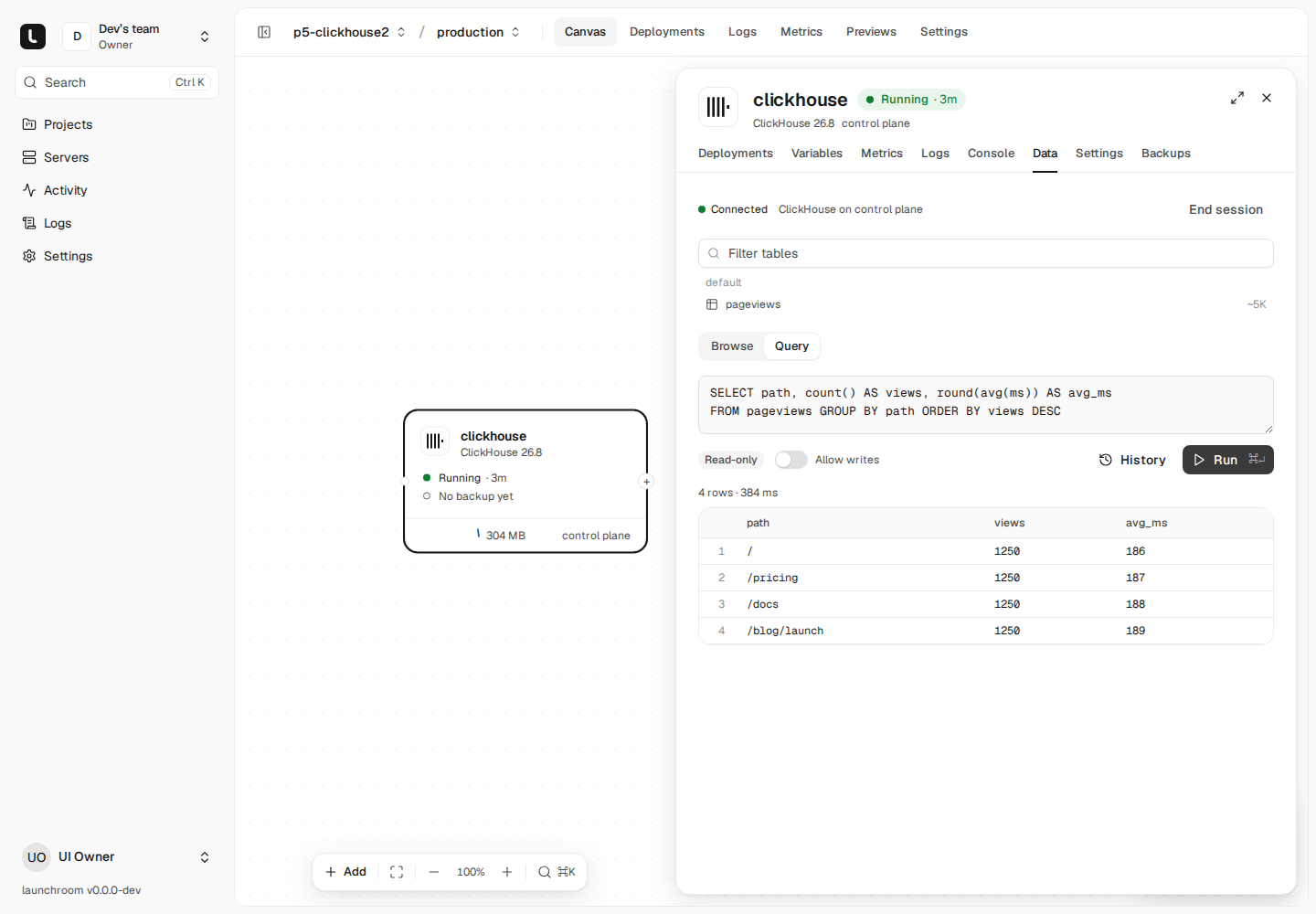
- Browse: the sidebar lists schemas and tables (or keys for Redis and Valkey). Select one to page through rows, 50 at a time. Long values are cut with "…". Click one to see the full value.
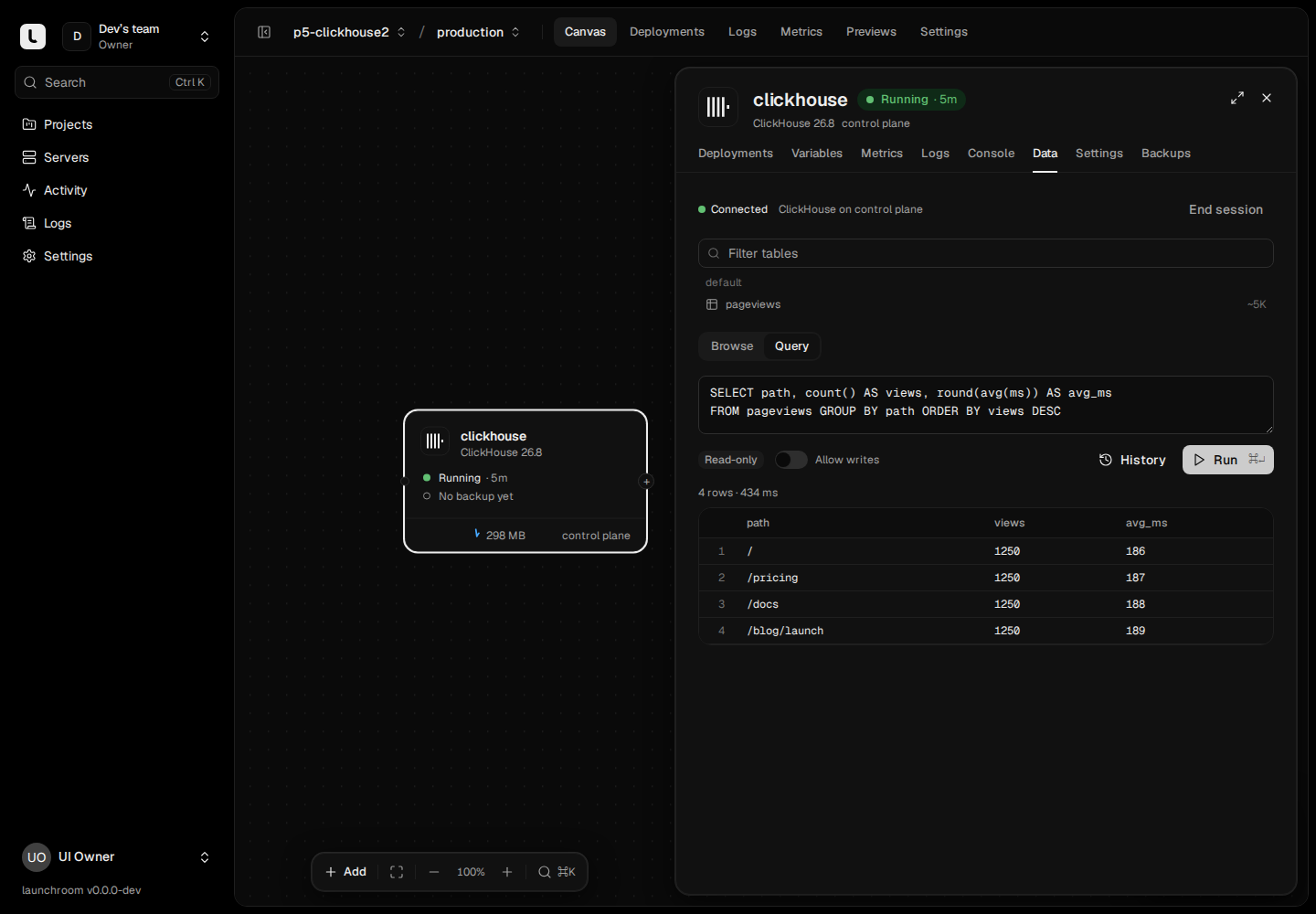
- Query: write a statement and press ⌘↵ or Run. History holds your last 50 statements on this database.
The database's own client runs inside the database container with the credentials launchroom already holds. The Data tab needs no extra container or exposed port.
Read-only by default
Every session starts Read-only. To change data, switch on Allow writes for the rest of that session and confirm. What read-only means depends on the engine:
| Engine | Browse | Query | Read-only means |
|---|---|---|---|
| PostgreSQL | Schemas, tables, views | SQL | A read-only transaction |
| MySQL | Tables | SQL | TRANSACTION READ ONLY |
| ClickHouse | Tables | SQL | ClickHouse's own readonly=1 |
| Redis, Valkey | Keys by pattern | Redis commands | Only reading commands (GET, HGETALL, SCAN, …) |
| MongoDB | Collections and documents | A database command as JSON, for example {"find": "users", "filter": {}} | Only reading commands (find, aggregate without $out/$merge, count, …) |
Some commands are refused even with writes allowed, because they could take the database down or change who can access it:
- Redis and Valkey:
SHUTDOWN,CONFIG,ACL,MONITOR,DEBUGand similar - MongoDB: user and role management,
shutdownand commands against another database
Read-only mode guards against mistakes
Read-only mode protects you from accidents. Access is controlled by the Data permission, the password confirmation and the audit trail.
Limits
| Limit | Value |
|---|---|
| Rows per result | 500 |
| Cell size | 8 KiB (longer values are cut and marked) |
| Result size | 1 MiB |
| Statement timeout | 15 seconds |
Session limits
| Limit | Value |
|---|---|
| Idle (no input, no statement) | 15 minutes |
| Longest session | 60 minutes |
| Open sessions per person | 3 |
| Open sessions per server | 8 |
A session also ends when your browser goes quiet for 45 seconds, when launchroomd can't reach the dashboard for about 30 seconds, or when your access changes. Removing a member or changing their role ends their open sessions at once. You can't reconnect to a running shell. Open a new one instead.
Audit
Every session is recorded in the audit log: who opened it, on which service, environment, replica and server, with which shell or engine, and when and why it ended.
In the Data tab, every statement is audited before it runs: its verb (for example SELECT or UPDATE), its length, a fingerprint, and whether writes were allowed. The statement text and results are never written to the audit log. The text is kept only in your own query history, encrypted.
See Audit log.
Turn sessions off on a server
Each server has its own setting for whether it accepts sessions. Set LR_INTERACTIVE_SESSIONS in the server's .env (the launchroomd folder on joined servers, the launchroom folder on the control plane) and restart with docker compose up -d in that folder:
| Value | Allows |
|---|---|
on (default) | Console and Data |
console | Console only |
data | Data tab only |
off | Nothing. The server ignores session requests |
The dashboard can't override this setting and lists only replicas on servers that allow the session kind. Use it for servers that hold data you don't want touched interactively.
Alerts
Built-in rules for failed deploys, crashing services, offline servers, full disks and failed backups, sent to email, Slack, Discord or a signed webhook.
Teams and roles
Invite people into a team with one of four roles. Projects, servers and settings belong to the team, and roles decide who can change what.