Canvas and services
A project is a canvas of services joined by connections. Add apps, images, databases, workers and cron jobs, then review and deploy.
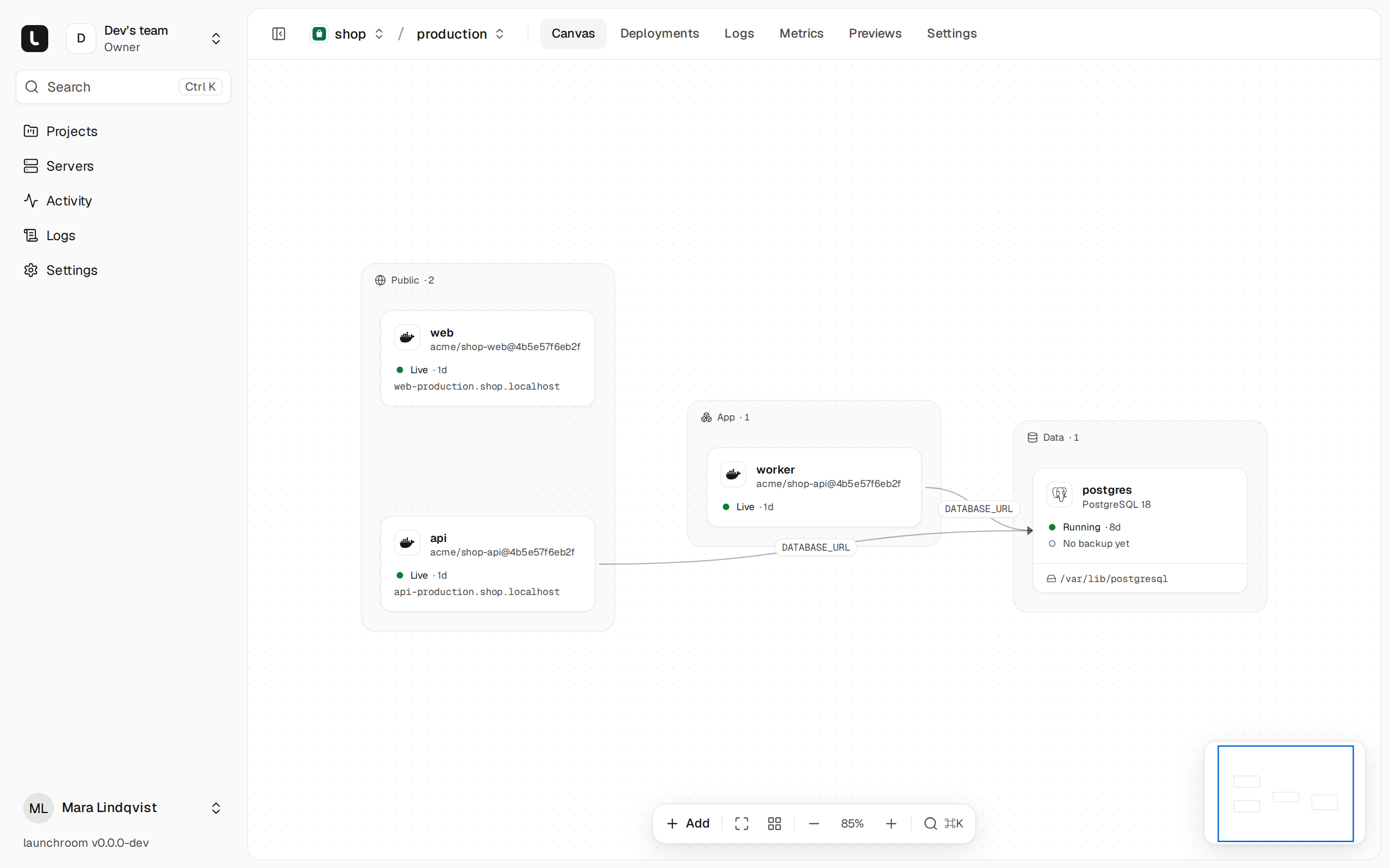
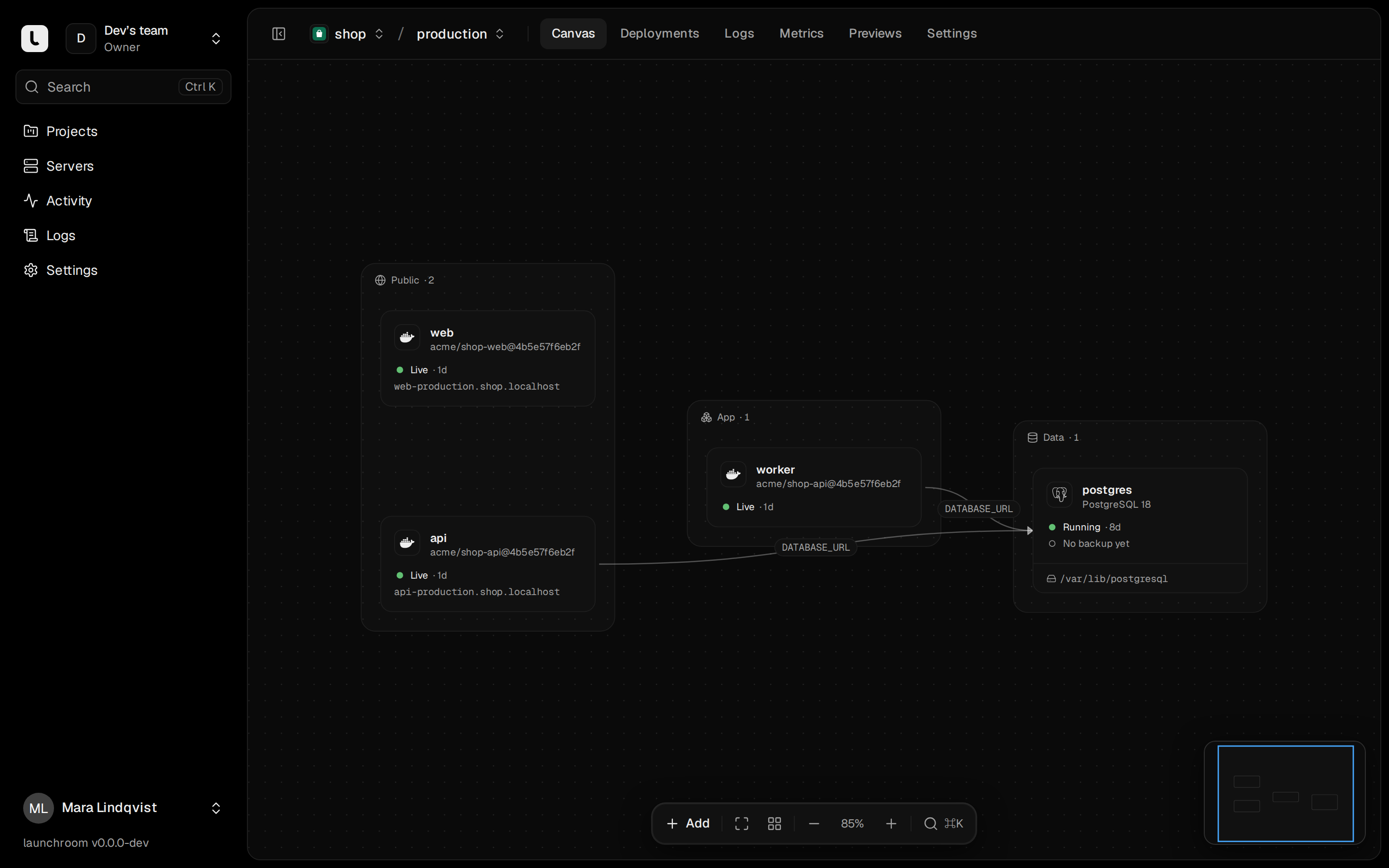
Every project in launchroom is a canvas. Each box on it is a service: an app built from your repository, a prebuilt image, a managed database, a worker or a cron job. Lines between them are connections. A connection wires credentials and addresses into your app. Your changes collect as staged changes until you press Review & deploy.
Projects and environments
A project holds one set of services. Each project has a production environment and can have more (staging, QA, one per pull request). The canvas shows one environment at a time. Pick it with the switcher in the top bar. See Environments and Previews.
The Projects page shows each project as a card with:
- a small picture of its canvas
- its domain
- the last deploy
- a deploy history for the last two weeks
Service kinds
Open Add in the canvas toolbar to add a service. The add sheet lists these kinds:
| Kind | What it runs | Built |
|---|---|---|
| GitHub repository (app) | Your code from a connected repository and branch, with an optional root directory for monorepos | Yes, on every push |
| Docker image | A prebuilt image from a registry, such as ghcr.io/org/app:1.2 | No, the image is pulled and pinned |
| Database | A managed PostgreSQL, MySQL, Redis, Valkey, MongoDB or ClickHouse instance with generated credentials, a volume and backups | No |
| Worker | A second process of one of your apps, such as a queue worker, with its own start command | Reuses the app's image |
| Cron | A command of one of your apps that runs on a schedule | Reuses the app's image |
| From the catalog | A ready-made app or stack from the template gallery | Depends on the template |
The repository tile lists repositories from every git provider you connected (GitHub, GitLab, Gitea, Forgejo or any git server). See Git providers.
Workers and cron jobs share the build of their parent app, so the web process, queue worker and scheduler run the same code. On the canvas they appear as their own boxes, linked to the app they belong to. See Cron jobs and Managed databases.
Groups on the canvas
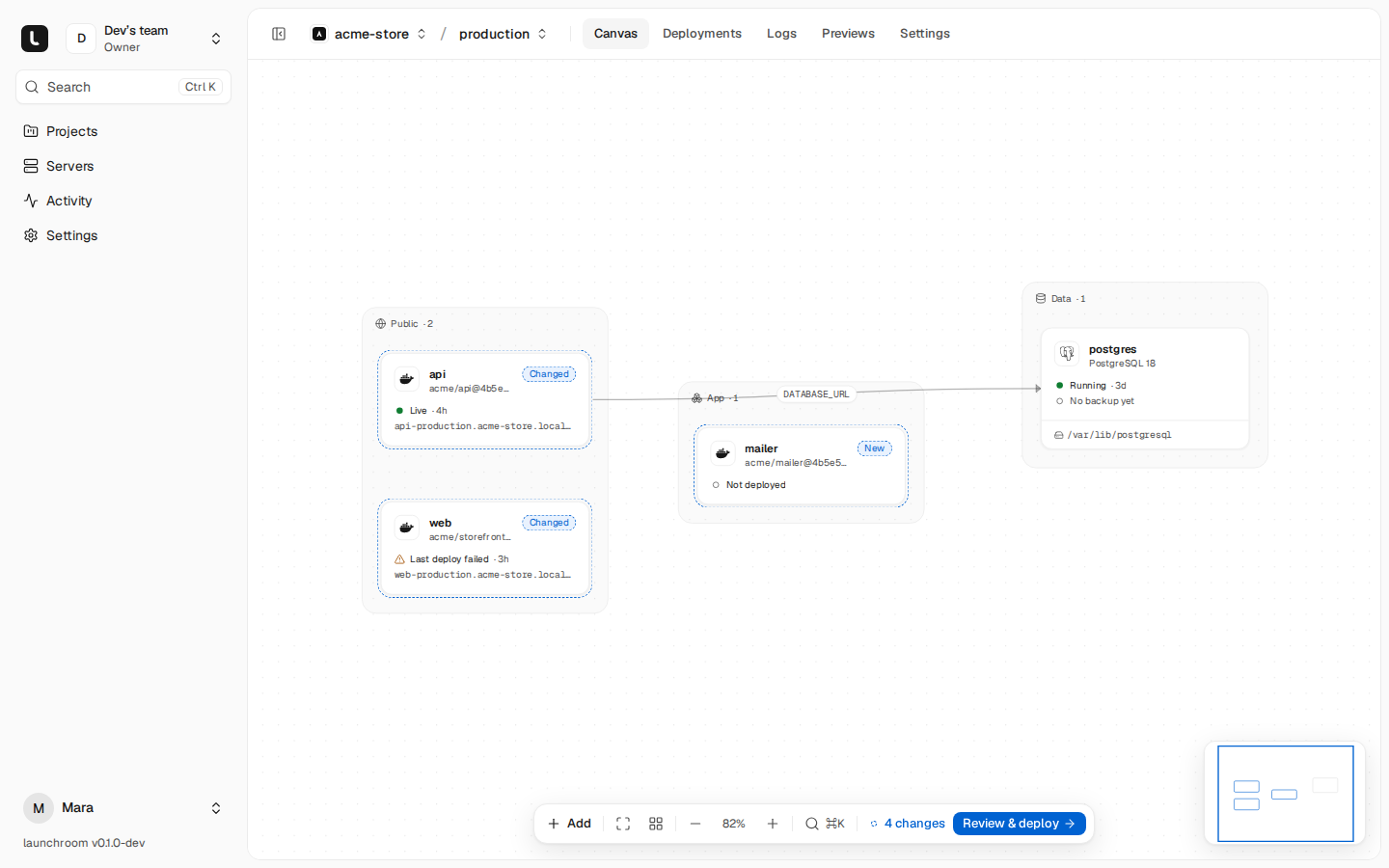
launchroom arranges services in three groups, drawn as frames behind the boxes:
- Public: services with an address on the internet (a generated or custom domain).
- App: services that only talk to other services, such as workers, cron jobs and private APIs.
- Data: databases.
launchroom assigns the group from the kind of service. You can drag boxes anywhere (positions are saved per environment and apply right away) or press Tidy up layout in the toolbar to lay the groups out as columns. On a phone the canvas becomes a grouped list of the same service cards.
Each box shows:
- the service's logo and name
- its status with its age (Live, Deploying, Failed, …)
- its address or, for a database, when it was last backed up
- CPU and memory once metrics exist
- its volume and where its replicas run
Connections
Drag from the + handle on the right of one service to another to connect them. The Connect popover shows which variables launchroom will add before you accept.
- Variable names: for a database, choose between One URL (
DATABASE_URL,REDIS_URL), Laravel names (DB_CONNECTION,DB_HOST,DB_PORT,DB_DATABASE,DB_USERNAME,DB_PASSWORD) or Separate parts (<NAME>_HOST,_PORT, and so on). launchroom picks the default from the app's framework, for example Laravel names for a Laravel app. - Private or public path: between two apps, choose Over the private network (for example
API_URL=http://api:8000) or Through the public URL. Variables the browser reads, likeNEXT_PUBLIC_*, always use the public URL, and the popover says why. - References: connections inject references such as
${{postgres.DATABASE_URL}}instead of a copy of the password. In staging or a preview the same reference resolves to that environment's own database. See Variables.
Services in the same environment reach each other by their slug (api, postgres), even when they run on different
servers. The edge label on the canvas shows the injected variables. Removing a connection removes the variables it
added, after you confirm.
When launchroom creates several services at once (a new preview, a template or a Compose import), databases start first so they are ready for the apps connected to them.
The service panel
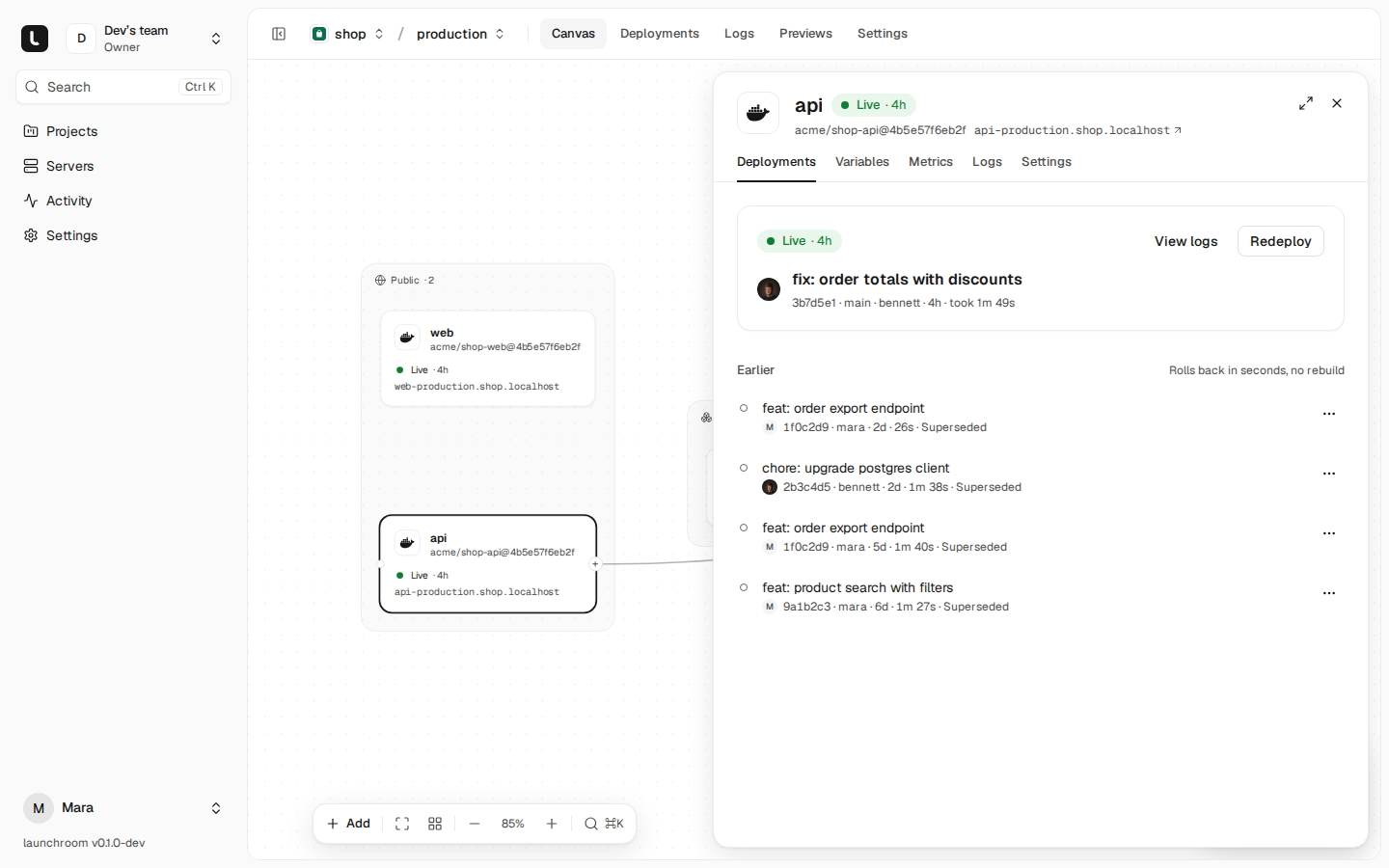
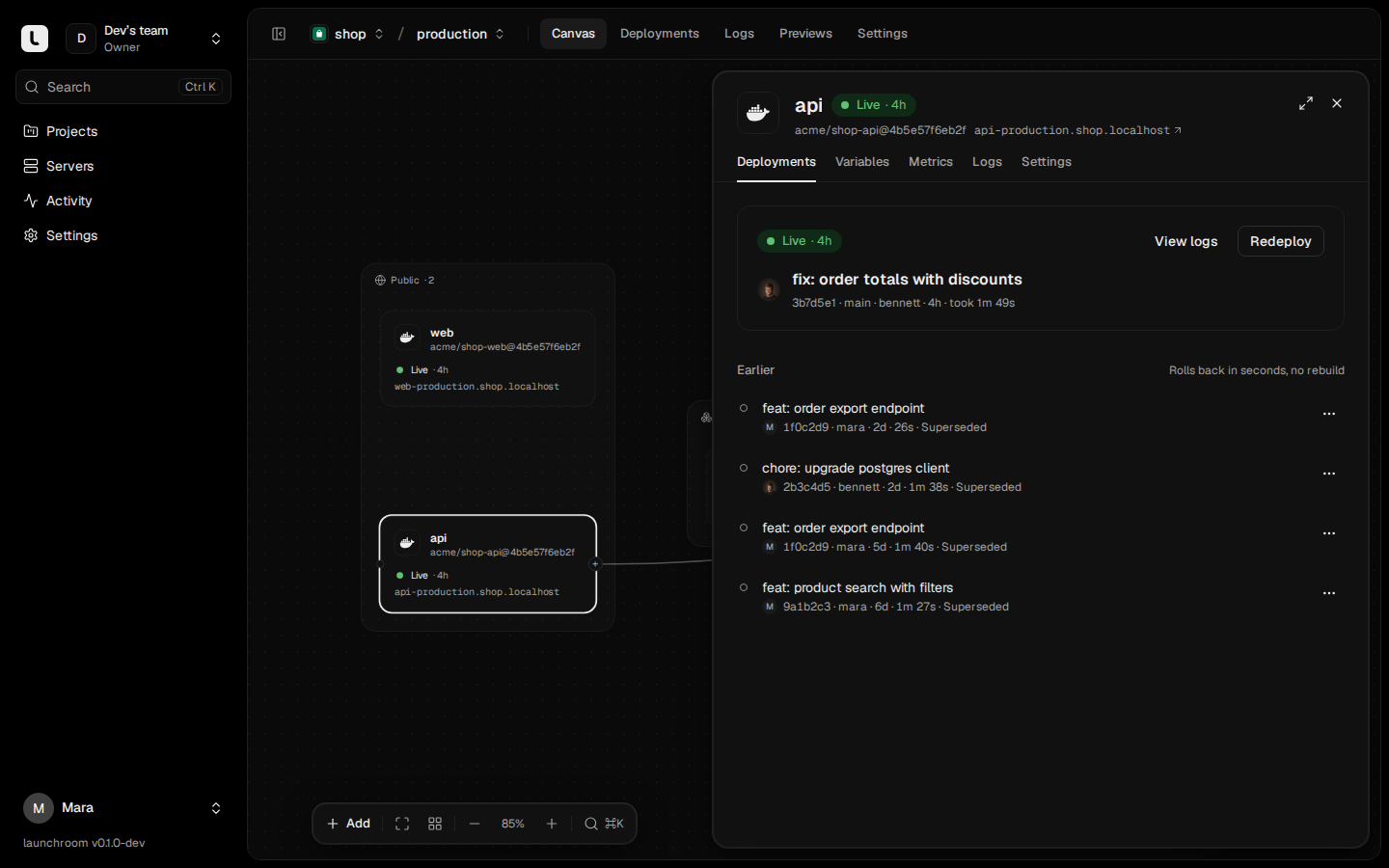
Click a service to open its panel next to the canvas. The tabs are:
- Deployments: the live deployment and the one in progress as cards, with View logs, Redeploy and Cancel, then earlier deployments you can roll back to.
- Variables: the service's variables, references and shared variables. See Variables.
- Metrics and Logs: this service only. See Logs and Metrics.
- Settings: everything else.
- Console, and for databases Data and Backups, for members with the permission. See Console and data.
Right-click a box (or use its ⋯ menu) for Open, Variables, Settings, Copy private address,
Redeploy and Remove from environment.
Service settings
The Settings tab expands the panel to full width and shows a sidebar of pages:
- General: the service at a glance (domains, build, replicas and where they run, private address), its name and slug. The slug is the service's name on the private network and in references; it never changes.
- Build & deploy: Source (repository and branch, image or database engine), Build (apps), Deploy (start, release and seed commands, health check, drain time) and, for cron jobs, Schedule.
- Network: Domains and Private network (the port and the address other services use).
- Scaling: replicas, size per replica and where it may run. See Scaling.
- Volumes: persistent storage (below).
- Advanced: the entrypoint, Linux capabilities from a short allow-list, and read-only ids and containers for debugging.
- Danger zone: remove the service.
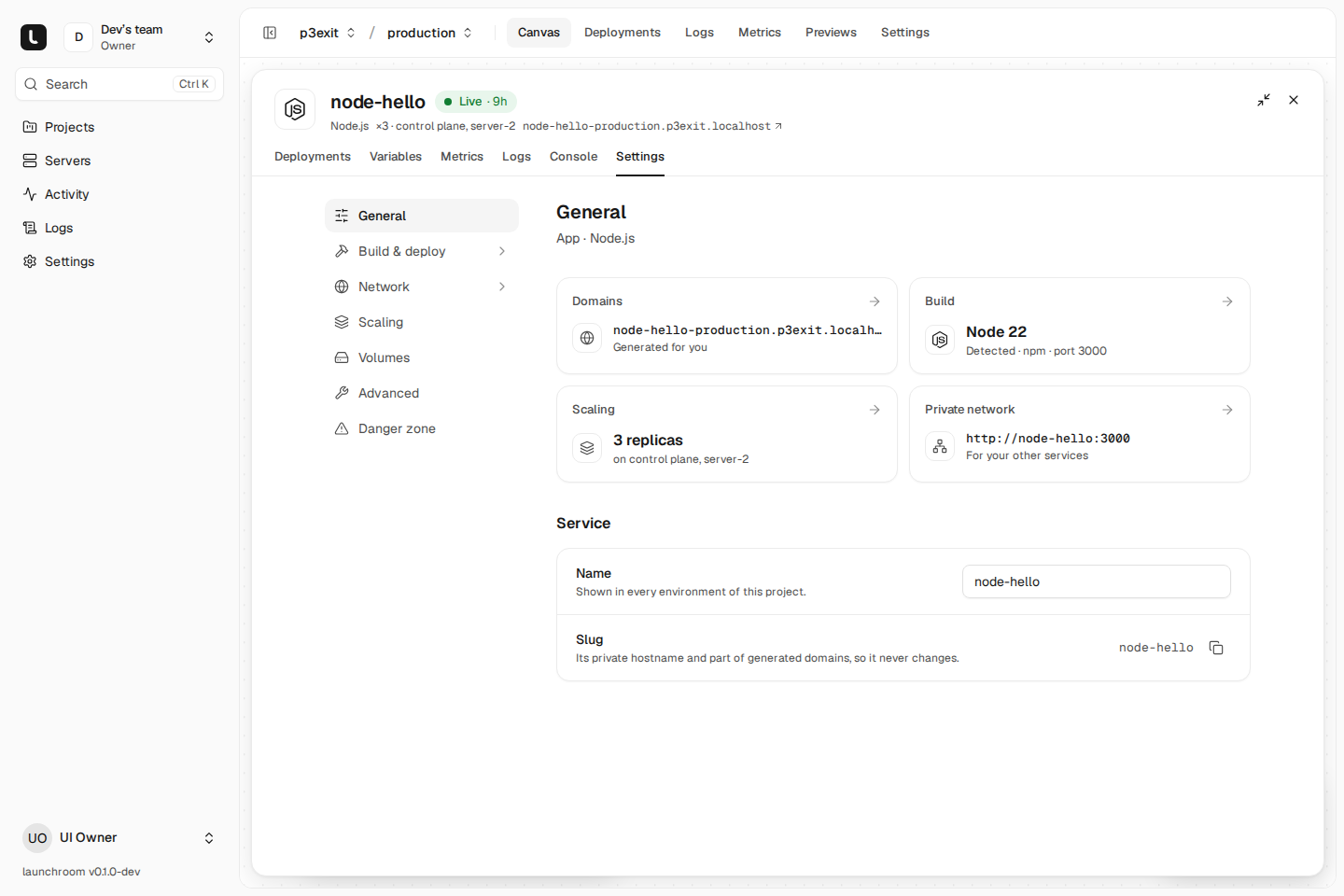
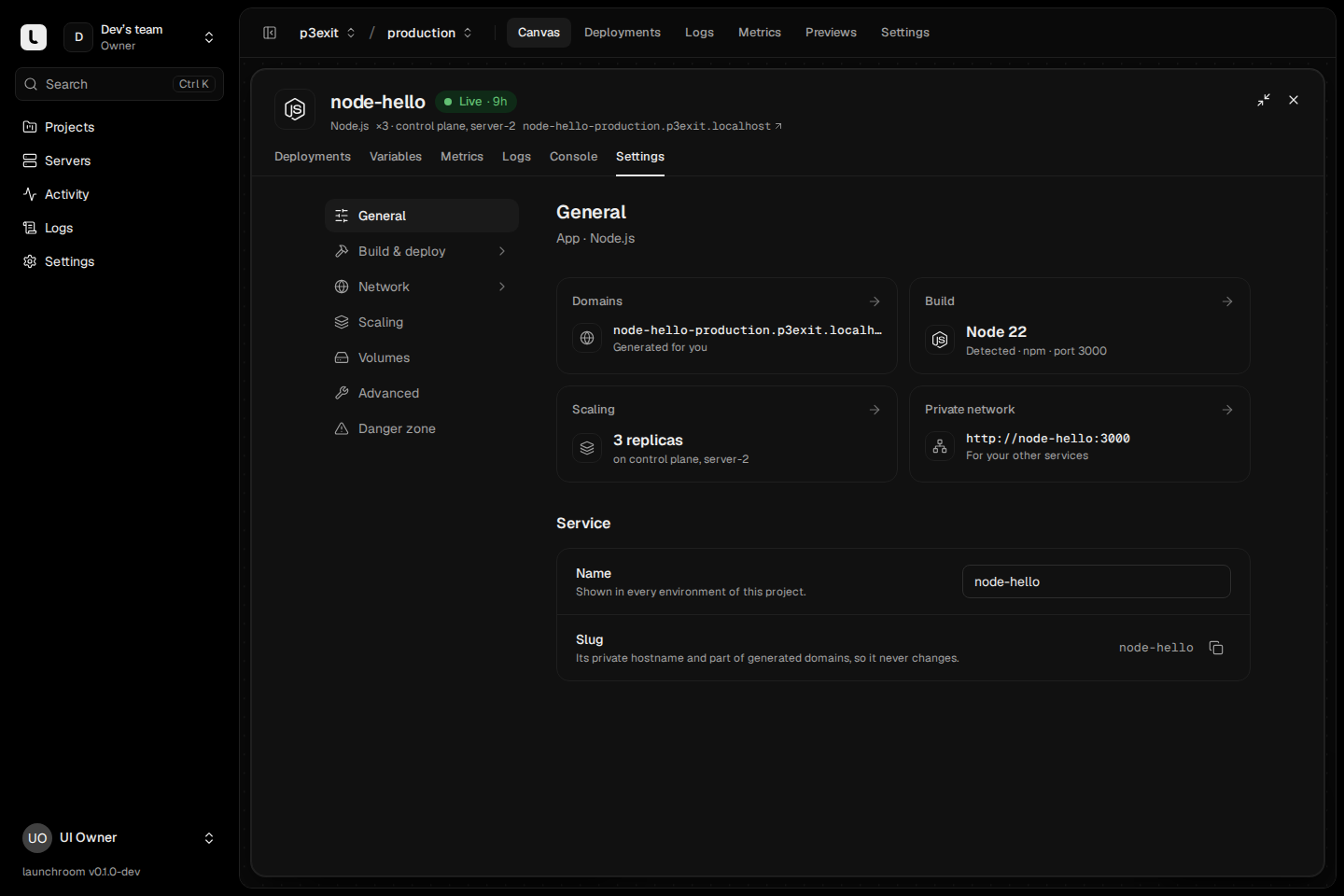
The search field at the top of the sidebar finds single settings as well as pages. Type "healthcheck", "port", "replicas" or "certificate" and press Enter to jump to the row. Detected values (install command, port, health path) show as "Detected …" with an Override switch. Fill in only the values launchroom got wrong.
Volumes
A volume keeps data across deploys and restarts. Add one under Volumes → Add volume and give it the path your app
writes to. launchroom suggests common paths, such as /app/storage for Laravel.
A service with a volume:
- runs as one replica and stays on the server that holds its data
- restarts with a short interruption on deploys, because two copies can't share one data directory
- can be backed up as snapshots (see Backups)
Volumes start empty and are kept when a service is removed from an environment.
Staged changes
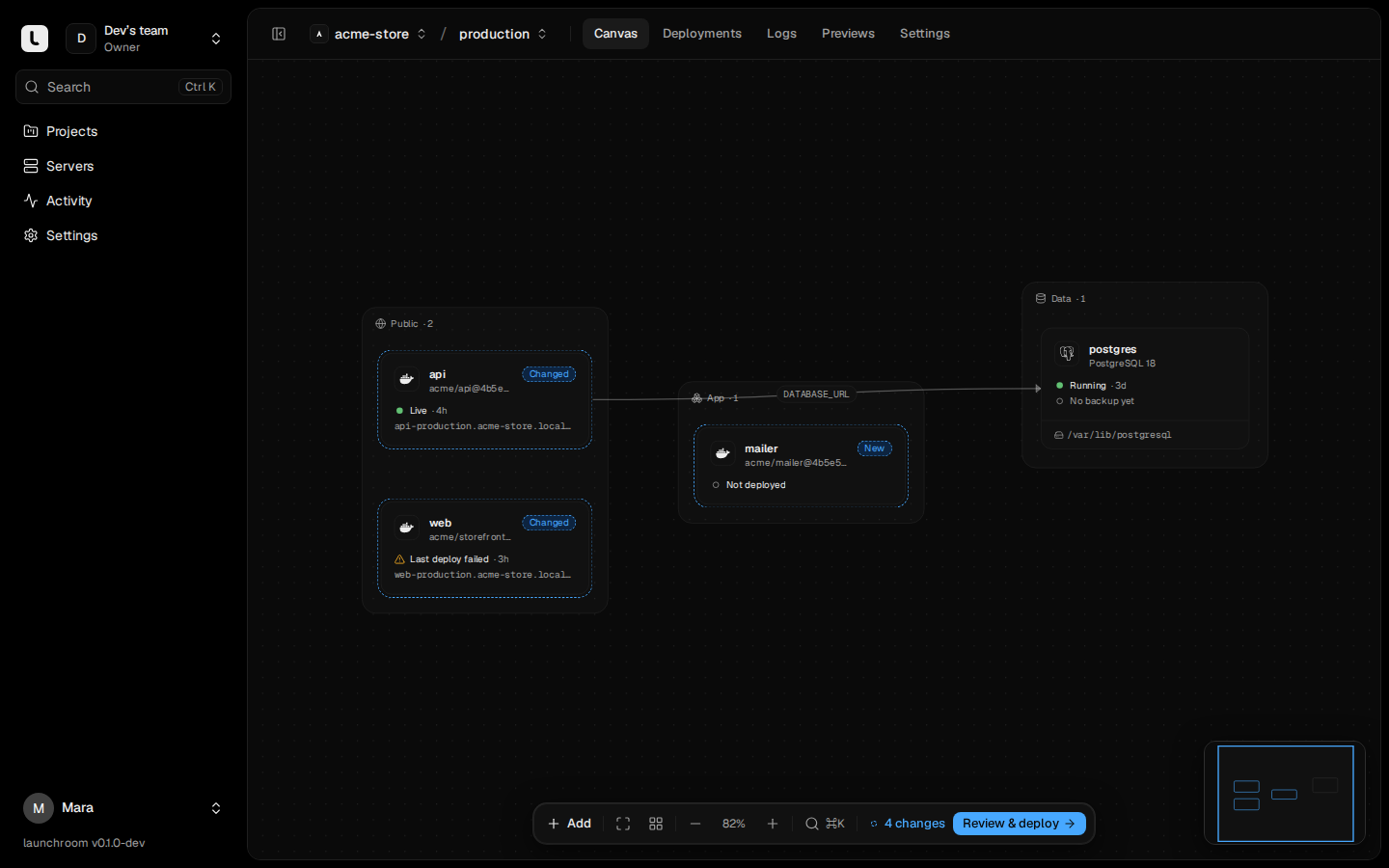
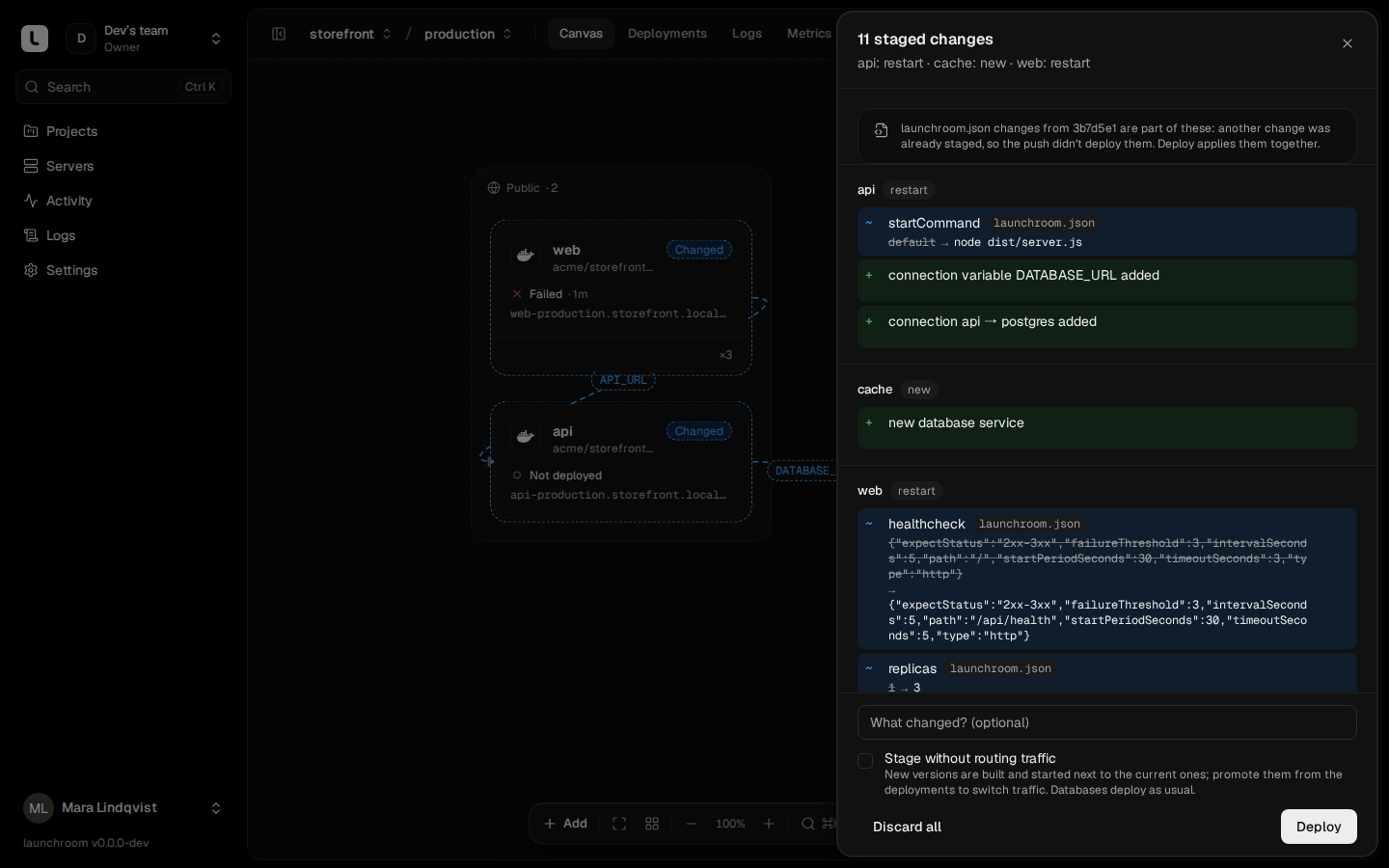
Most edits wait for a deploy. New services, settings, variables, connections and scaling collect as staged changes for the environment you're in. Staged services show a dashed outline and a New, Changed or Removed chip, and the canvas toolbar shows "4 changes · Review & deploy".
Review & deploy (or Shift+D on the canvas) opens the list of staged changes, grouped by service, with the effect of each change: a new service, a rebuild, a restart or no effect. Discard single items or everything, add a message for the activity feed, and press Deploy. Deploying creates one revision of the environment and starts the deployments it needs.
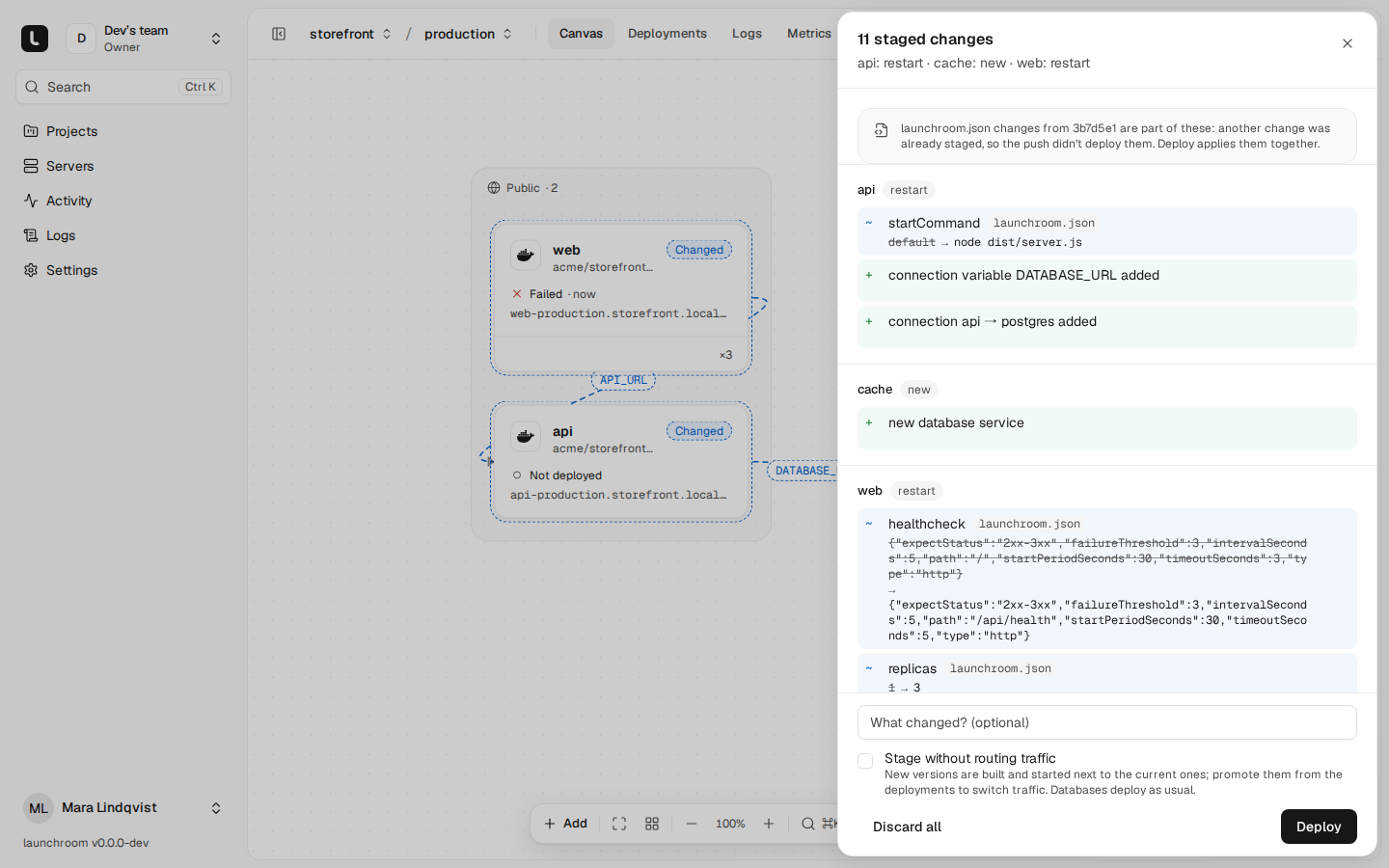
These changes apply right away: adding or removing a domain, renaming a service, canvas positions, rollbacks and git pushes (a push deploys the new commit with the configuration that is already live, never someone's unfinished edits). A deploy is refused while any reference points at something that doesn't exist, and the review says which one.
Command palette
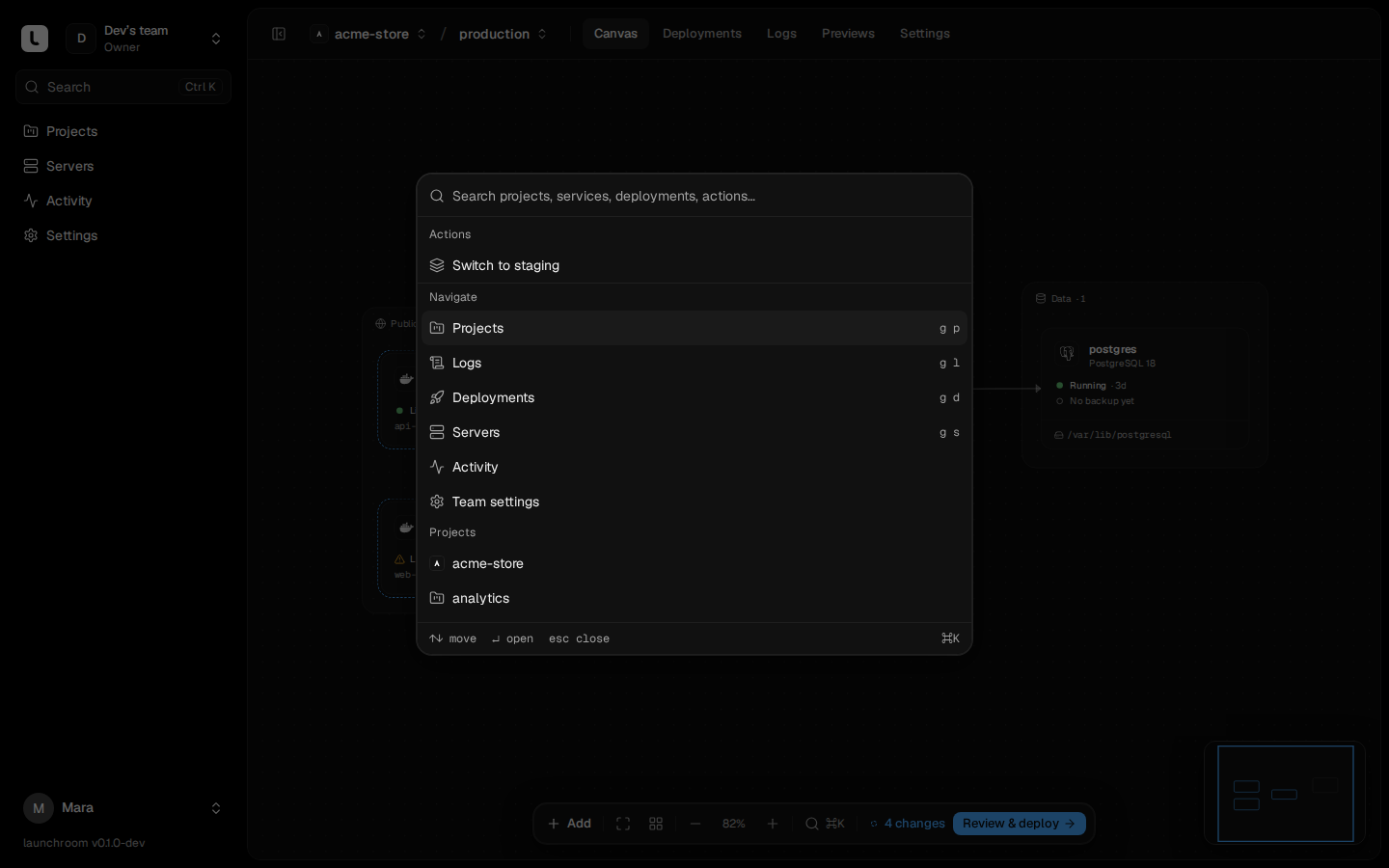
Press ⌘K (Ctrl+K on Linux and Windows) anywhere to open the command palette. It searches projects, environments, services, recent deployments and servers, and runs actions: redeploy a service (with an inline confirm), open its logs, add a variable or switch environment.
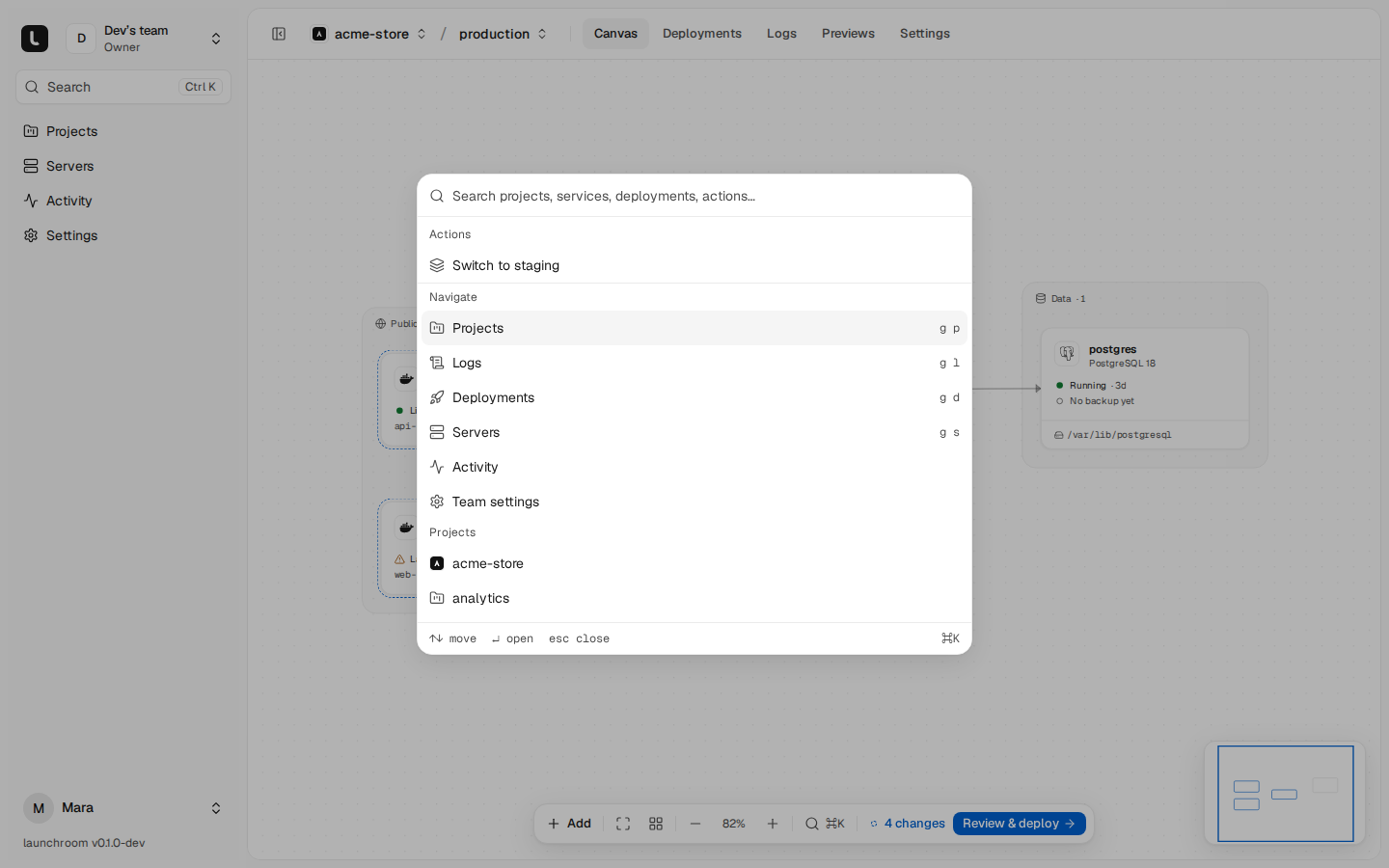
Keyboard shortcuts work outside text fields:
| Keys | Goes to |
|---|---|
g p | Projects |
g s | Servers |
g d | The project's deployments |
g l | The environment's logs |
g v | The open service's variables |
Next steps
Replace a server
When a server is gone for good, move its roles to another one, restore its databases and volumes from backups and re-place everything else.
Environments
Production, staging and as many more as you need, each a full copy of the project. Compare them and promote tested changes in one step.