Build problems
Fix failed builds by symptom, from undetected frameworks and stale lockfiles to memory limits, clone errors and builds that never leave the queue.
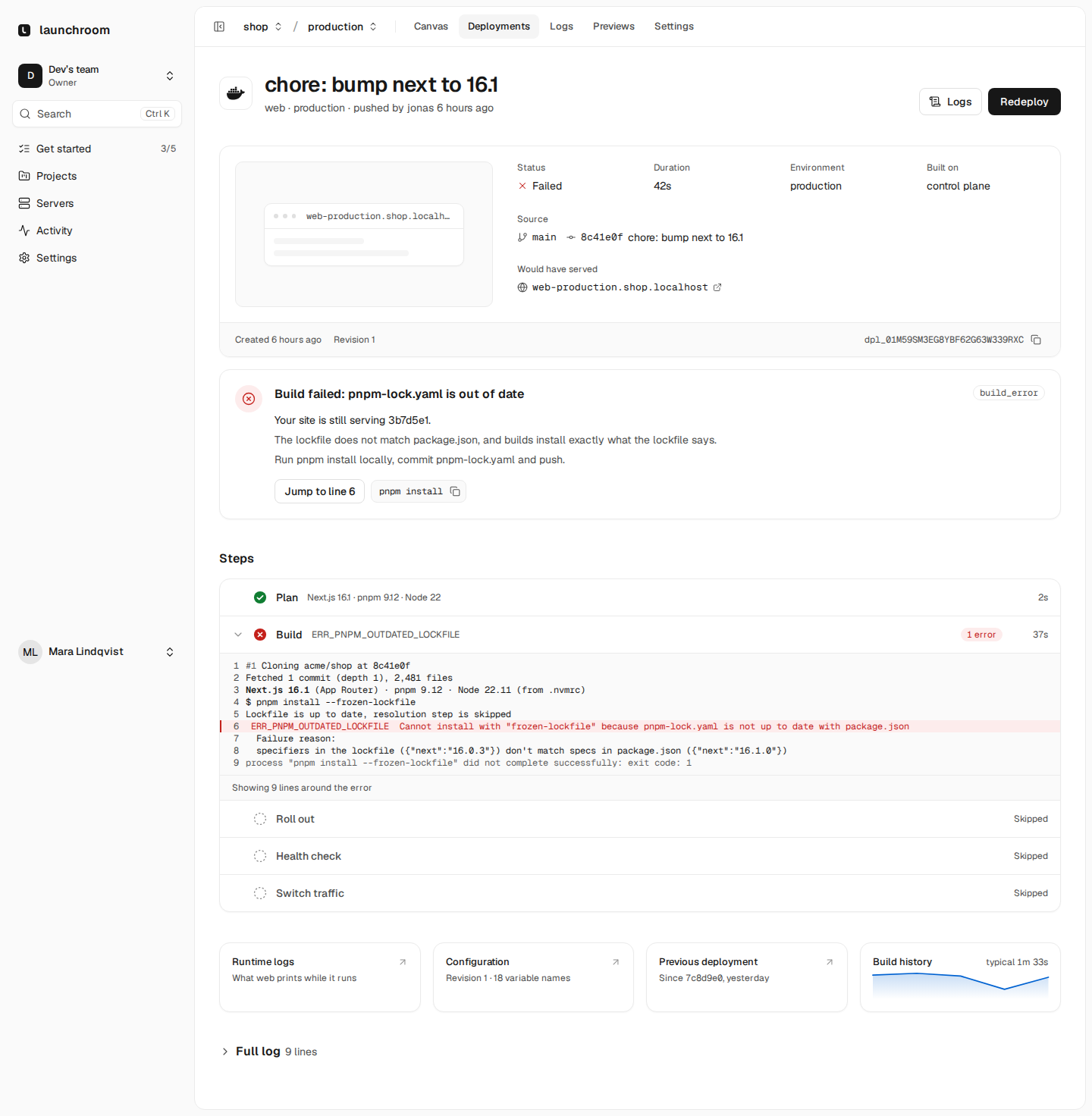
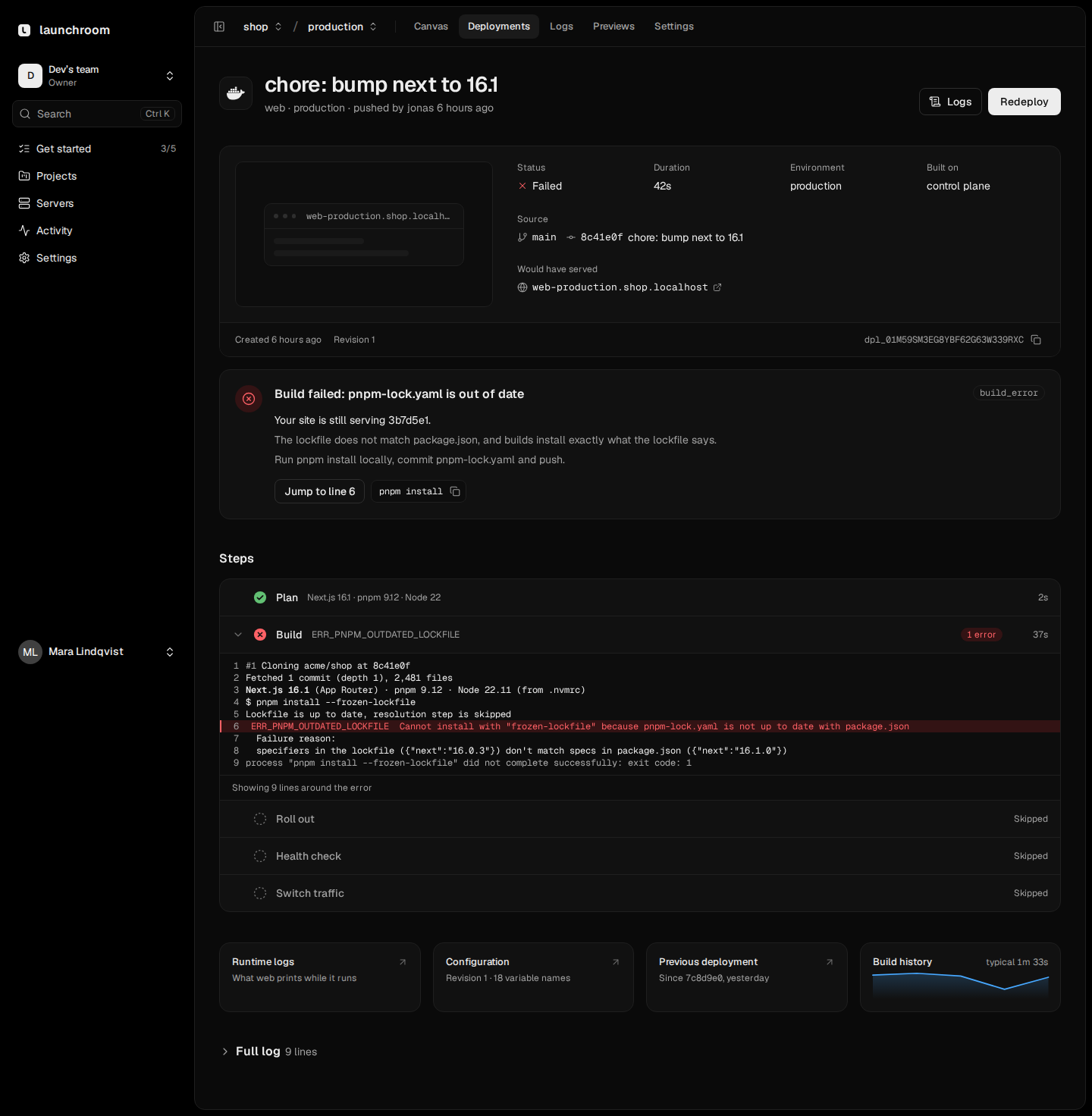
A failed build never takes your site down. The previous deployment keeps serving, and the deployment page says so ("Your site is still serving 3b7d5e1."). Above that line, an explanation card names the problem. For known errors it shows the fix as a button. This page lists common build failures with their causes and fixes.
Reading a failed build
- The card title starts with Build failed: followed by the explanation, for example "Build failed: pnpm-lock.yaml is out of date". When launchroom doesn't recognise the error, the title is "Build failed" and the card shows the first line of the error message.
- The label next to the title is the failure class:
plan_error(launchroom could not work out how to build the app),build_error(a build step exited with an error),config_error(a setting or the repository content is wrong),transient(registry or network trouble, retried once automatically). - The Build step opens on the lines around the first error. Jump to line opens the full log at that line.
- The service's Settings → Build page shows what launchroom detected: framework, package manager, versions and where each came from, and the install, build and start commands. Detect again re-reads the branch head after you push a fix.
Build failed: launchroom couldn't detect how to build this app
Cause. Railpack, the builder launchroom uses when there is no Dockerfile, found nothing that tells it which language or framework this is. Typical reasons: the app lives in a subfolder (see the root directory below), the repository has no package.json, requirements.txt, go.mod or similar at that folder, or it uses a stack Railpack doesn't support.
Fix. Pick one:
- Set the Root directory under Settings → Source if the app is in a subfolder.
- Set the install, build and start commands yourself under Settings → Build.
- Add a
Dockerfileto the repository. With the builder on automatic, launchroom uses it from the next build. - Use Generate a Dockerfile (the card's button). launchroom drafts one, builds it and starts the app once before offering it. This needs Dockerfile generation turned on for your team. See Generated Dockerfile.
launchroom never switches builders on its own. If you add a Dockerfile later, it takes over from the next build.
Nothing says how to start this app
Cause. The build succeeded, but there is no start script, Procfile or start command.
Fix. Add a start script (Node), a Procfile, or a start command under Settings → Deploy. Generating a Dockerfile also works, since launchroom verifies it by starting the app.
Build failed: pnpm-lock.yaml is out of date
The same card exists for package-lock.json (from npm ci) and yarn.lock.
Cause. Builds install what the lockfile specifies (pnpm install --frozen-lockfile, npm ci, the Yarn equivalent). Someone changed package.json without updating the lockfile, so the install refuses to guess.
Fix. Run the install command locally, commit the lockfile and push:
pnpm install   # or: npm install, yarn install
git add pnpm-lock.yaml
git commit -m "Update lockfile"
git push
The card has a copy button for the command. Make sure the package manager version you use locally matches the one the plan detected (it is shown with its source, for example packageManager in package.json).
Build failed: the build ran out of memory
The log usually shows JavaScript heap out of memory, exit code: 137 or signal: killed.
Cause. The build used more memory than the build server allows. BuildKit runs with a memory limit of 75% of the server's memory, and a Next.js or large TypeScript build on a 2 GB machine often goes past it.
Fix.
- For Node builds, click Add NODE_OPTIONS on the card. It opens the service's variables with
NODE_OPTIONS=--max-old-space-size=2048filled in, available at build time. Lower the number on small servers. - Add a server with more memory and give it the Build role. Builds then run there and your apps keep their memory. A laptop or desktop at home works well as a build server. See Roles and placement.
The same out-of-memory pattern after the build (the app itself exits with code 137) is a runtime limit instead: raise the memory limit under Settings → Scaling.
A native module or PHP extension is missing
- "A native module could not be compiled" (
gyp ERR!in the log): a dependency builds native code and the build image has no compiler. Click Add RAILPACK_BUILD_APT_PACKAGES to addpython3 make g++at build time, or switch to a package with prebuilt binaries. - "The PHP extension … is missing": a Composer package requires an extension that isn't installed. Add it to
composer.jsonas"ext-<name>": "*", or use the card's button, which setsRAILPACK_PHP_EXTENSIONS.
Root directory does not exist in the repository
The card says Configuration error and the message names the folder.
Cause. The service's root directory doesn't exist at the commit being built. This happens after moving an app inside a monorepo, renaming a folder or deploying a branch where it doesn't exist yet.
Fix. Update Root directory under Settings → Source (no leading slash, for example apps/web). In a monorepo the root directory points at the app. The build still sees the whole repository, so workspace packages resolve. A Dockerfile path is resolved inside the root directory too.
A variable is missing at build time
The card reads "The variable NEXT_PUBLIC_API_URL is missing" or the log shows import.meta.env.VITE_… is undefined, KeyError: '…' or "environment variable … is not set".
Cause. The app reads the variable while it is built, but the build did not get it. Variables are runtime-only unless launchroom detects otherwise from the name (NEXT_PUBLIC_*, VITE_* and similar browser prefixes are build-time automatically) or you say so.
Fix. Click Add NAME on the card, or open the variable in the service's Variables tab, then under Advanced → Available at choose Build only or Build and runtime. Build-time values reach the build as secrets, never as plain build arguments, and changing one rebuilds the service. See Variables.
Deploy is disabled because of a broken reference
The staged changes sheet says "Fix the broken references first" and lists entries such as "web: ${{analytics.URL}} refers to a service that doesn't exist in this environment".
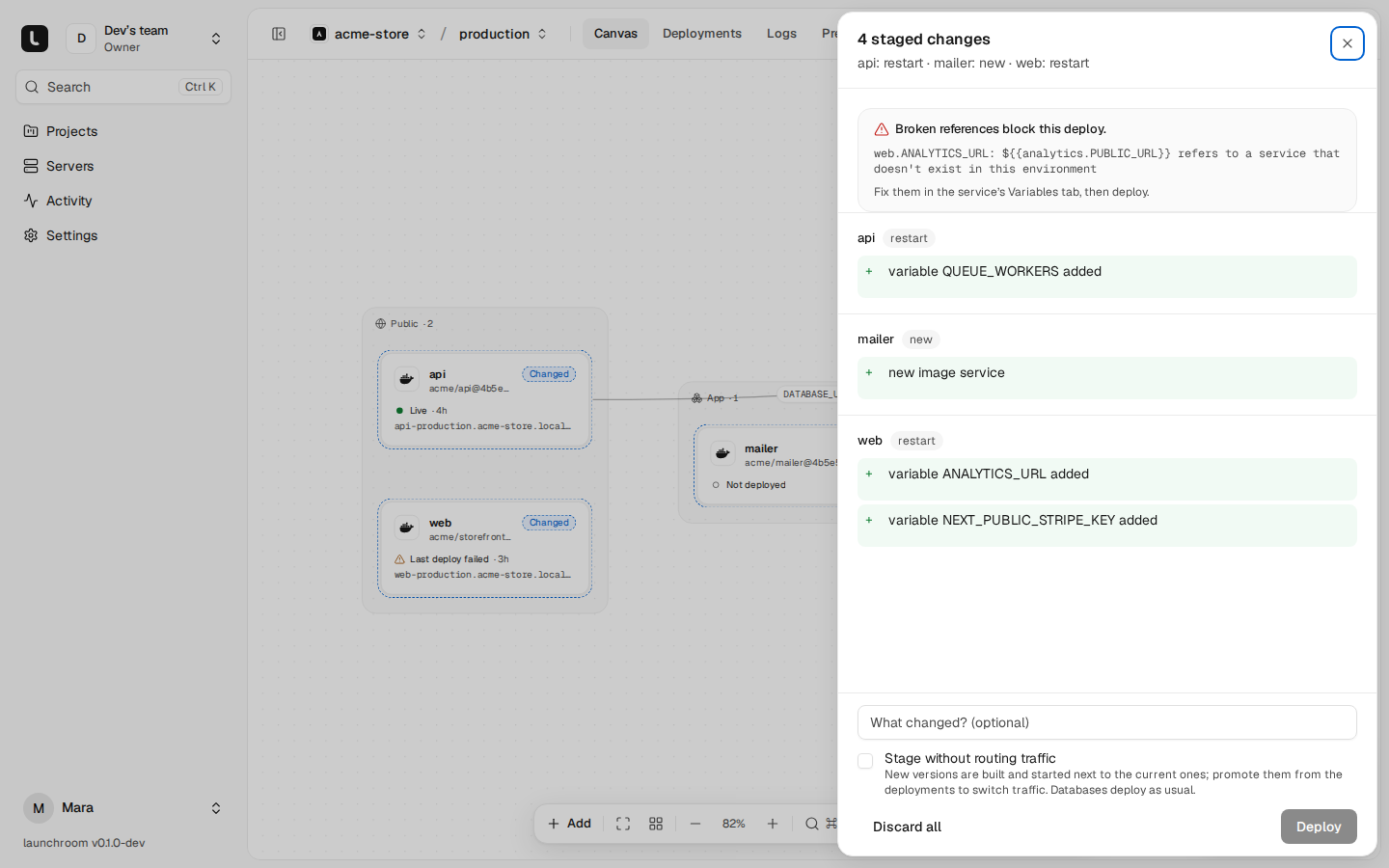
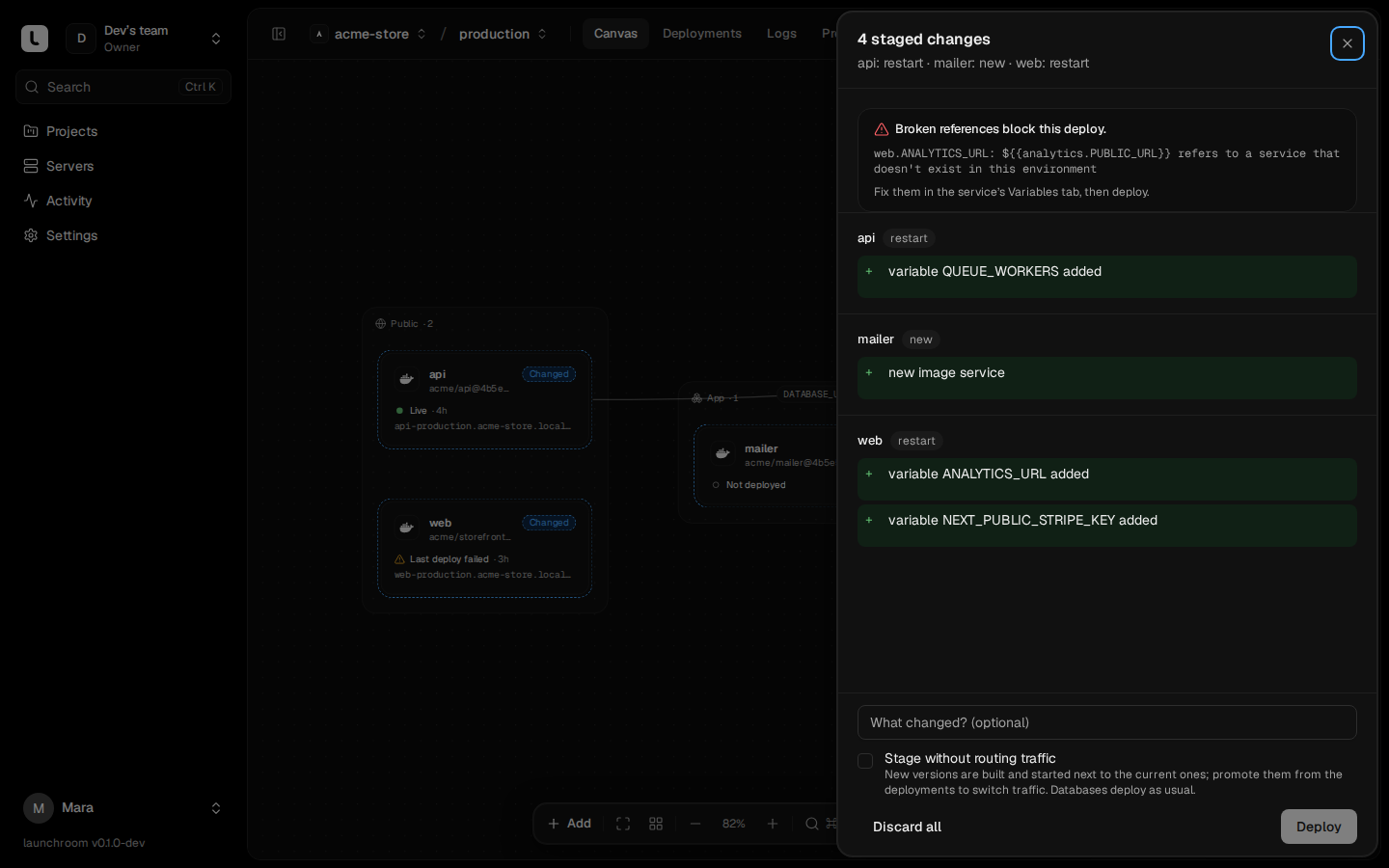
Cause. A variable references a service or variable that doesn't exist in this environment, often after renaming a service, removing one, or promoting from an environment that has a service this one lacks.
Fix. Open the service's Variables tab, where broken references are flagged. Point the reference at an existing service slug or variable, or add the missing service, then deploy. See Variables.
No online build server can build for linux/arm64
The full message ends with "Add a build server with that architecture, or restrict the service to servers of a platform you can build for (Settings → Scaling)."
Cause. launchroom builds one image per deployment, for the CPU architecture of the servers the service may run on. If your apps run on arm64 machines (a Raspberry Pi, an Ampere server) and your only build server is x86_64, or the other way round, nothing can build for them. launchroom does not emulate other architectures.
Fix. Give a server of the right architecture the Build role, or restrict the service to servers of an architecture you can build for under Settings → Scaling.
The build stays queued
The deployment sits on Build with nothing happening, or the plan preview says "Waiting for a build server".
Cause. No online server with the Build role has a free slot. Each build server runs a limited number of builds at once (one per four CPU cores, at least one), and others wait in the queue. If the server that built this service last went offline, the build is handed to another build server after about 90 seconds.
Fix.
- Check under Servers that a server with the Build role is online. A sleeping laptop counts as offline.
- If every build server is busy, wait, or cancel builds you don't need. A newer push to the same service replaces queued builds of older commits.
- Add a second build server to spread the load.
Builds stop after 30 minutes. A build that hits that limit fails like any other build error.
The clone fails
The Build step fails before any build output, with a message from the git server.
| Message | Cause | Fix |
|---|---|---|
| "Sign in to … again in Settings → Git" | The GitLab, Gitea or Forgejo sign-in expired or was revoked. The connection shows "Needs you to sign in again". | Sign in again under Settings → Git, then redeploy. |
| "The host key of … changed", "host key mismatch" | The SSH host key of a plain git server differs from the one you confirmed. launchroom never accepts a changed key silently. The connection shows "Host key changed: builds wait for you". | If you changed the server's keys on purpose, click Check host key again under Settings → Git and compare the fingerprint with ssh-keygen -lf /etc/ssh/ssh_host_ed25519_key.pub on the git server. If you didn't, find out why before confirming. |
| An authentication or permission error over SSH | The deploy key was removed from the repository or isn't allowed to read it. | Add the public deploy key shown under Settings → Git as a read-only deploy key again, then check access again from the connection's card. |
| The commit can't be fetched | GitHub App installation suspended or the repository removed from it, or a force-push removed the commit. | Check the app's repository access on GitHub, then push again or redeploy the branch head. |
See Git providers for how each connection authenticates.
Registry or network trouble
The class is transient. Pushing the image to launchroom's registry, pulling a base image or downloading a toolchain failed.
Cause. Usually temporary: an upstream registry error, a rate limit or a short network outage. launchroom retries a transient failure once automatically. When it keeps happening, the cause is usually on your side:
- The control-plane server's disk is full. The registry stores images there; check the server's Health section.
- A build server at home pushes over the private network. If its network status isn't Connected, the push can't reach the registry. See Private network problems.
Fix. Redeploy. If it fails the same way twice, look at the last lines of the Build step and at the server health of both the build server and the control-plane server.
Next steps
Troubleshooting
Where to look first when something goes wrong, how to collect what a bug report needs, and the guides for each kind of problem.
Health check problems
The build passed but the new version never went live. Fix wrong ports and hosts, slow starts, long first pulls, crash loops and failing release commands.