Environments
Production, staging and as many more as you need, each a full copy of the project. Compare them and promote tested changes in one step.
An environment is a complete copy of a project's services with its own settings, variables, domains, volumes and private network. Every project has production. Add staging, QA or any other environment as a copy of an existing one, test changes there, then bring them to production with compare & promote instead of making them twice.
What an environment holds
Each environment has its own:
- service settings (branch, build, commands, health check, replicas, placement)
- variables with their own values (a copied environment gets its own rows, so editing staging doesn't change production)
- databases with their own generated credentials and data
- domains, generated addresses and certificates
- private network:
postgresin staging is staging's database, never production's - staged changes, revisions and deployment history
You can also switch a service off in one environment, for example a webhook worker that should only run in production.
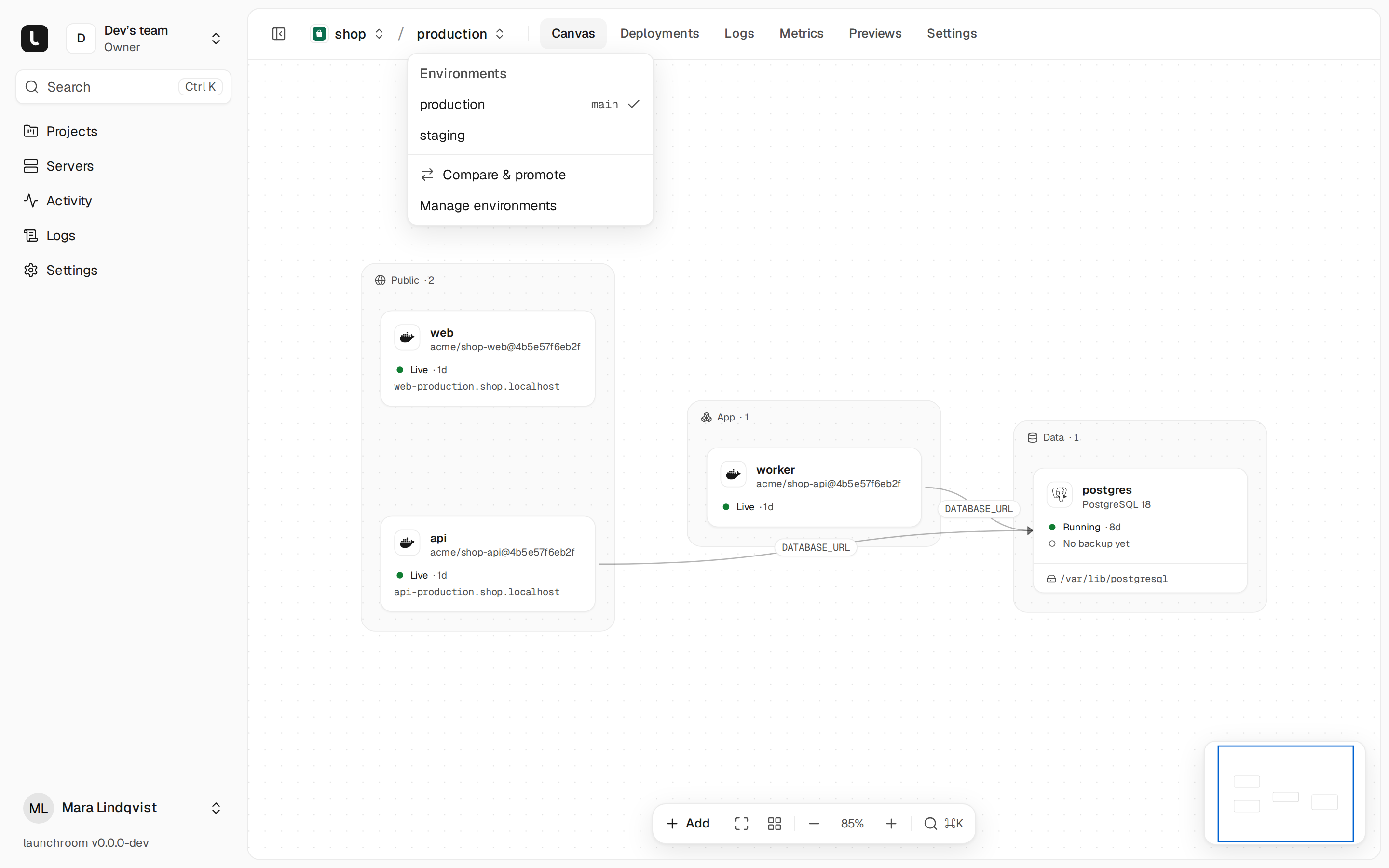
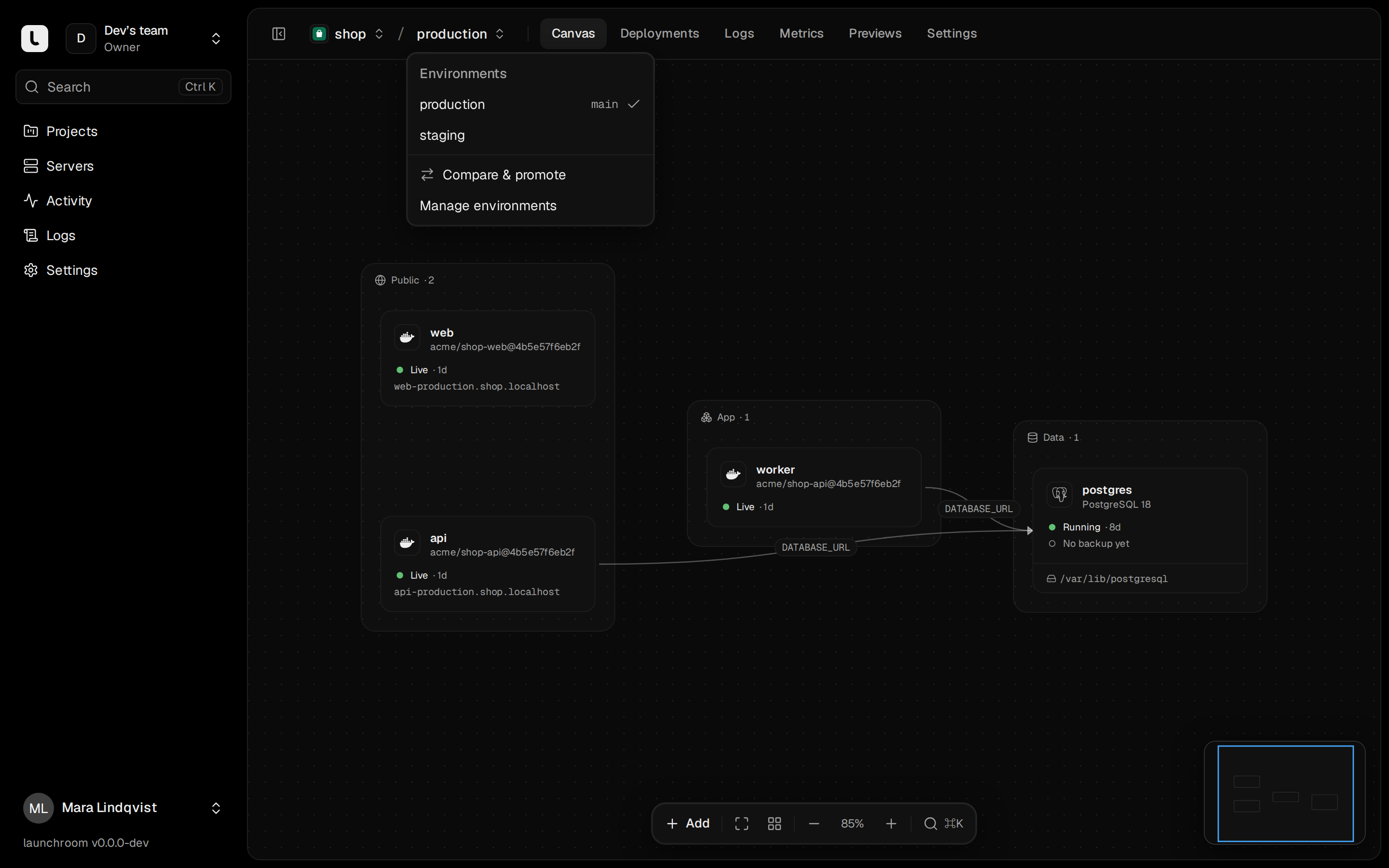
The environment switcher
The top bar shows project / environment. Open the environment part to switch between production, your persistent
environments (each with the branch or tags it deploys from) and previews (listed under their own heading). The menu
also links to Compare & promote and Manage environments. For a persistent environment it shows a hint such as
"staging has 3 changes not in production · Compare".
Create an environment
Open Manage environments (project Settings → Environments) and choose New environment. Give it a name, pick the environment to copy from and, optionally, the branch it deploys on.
The copy takes over every service of the source with its settings, volumes and canvas layout, plus the source's variables:
- Generated secrets (such as
${{ secret(32) }}) are generated again, so the new environment has its own. - Databases get fresh credentials and an empty volume. No data is copied.
- References like
${{postgres.DATABASE_URL}}are copied as they are and point at the new environment's own services.
With Production secrets must differ from preview switched on (project Settings → General), launchroom refuses any copy or edit that would give a preview the same secret value as production.
Deploy triggers
Set what deploys each environment in Settings → Environments → Rename and triggers:
- A branch (glob patterns like
release/*work): every push to a matching branch deploys this environment. - Tags (for example
v*): releases by tag. Production can track tags only, so branch pushes don't reach it. - Neither: the environment deploys only when someone presses Deploy (or uses the API or CLI). A new environment starts this way unless you give it a branch.
A push is matched against every environment of the project, so develop → staging and main → production work side by
side. Commits with [skip deploy] or [skip ci] in their message don't deploy.
After a rollback in production, auto-deploy is paused. New pushes don't go live until someone presses Resume auto-deploy in the banner under the project tabs.
Staged changes per environment
Staged changes belong to one environment. Editing staging stages a change in staging only, and Review & deploy deploys the environment you're looking at. Adding a service on the staging canvas creates it in staging only; production gets it when you promote it.
The staged changes page (Review & deploy, then the full page) also lists the environment's last ten revisions.
Each Deploy writes one. To undo a configuration change, use Revert to this: it stages the configuration of an older
revision again. A rollback of a deployment changes the running version and leaves the settings as they are.
For production you can tick Stage without routing traffic when deploying. The new version is built and started next to the live one but gets no traffic. It shows as Ready to promote, and Promote on the deployment page switches traffic to it without a rebuild.
Compare & promote
Compare & promote lists the changes in one environment that aren't in another yet and copies the ones you pick. Open it from the switcher or Settings → Environments, choose From and To (the arrow between them swaps the direction) and go through the list, grouped by service.
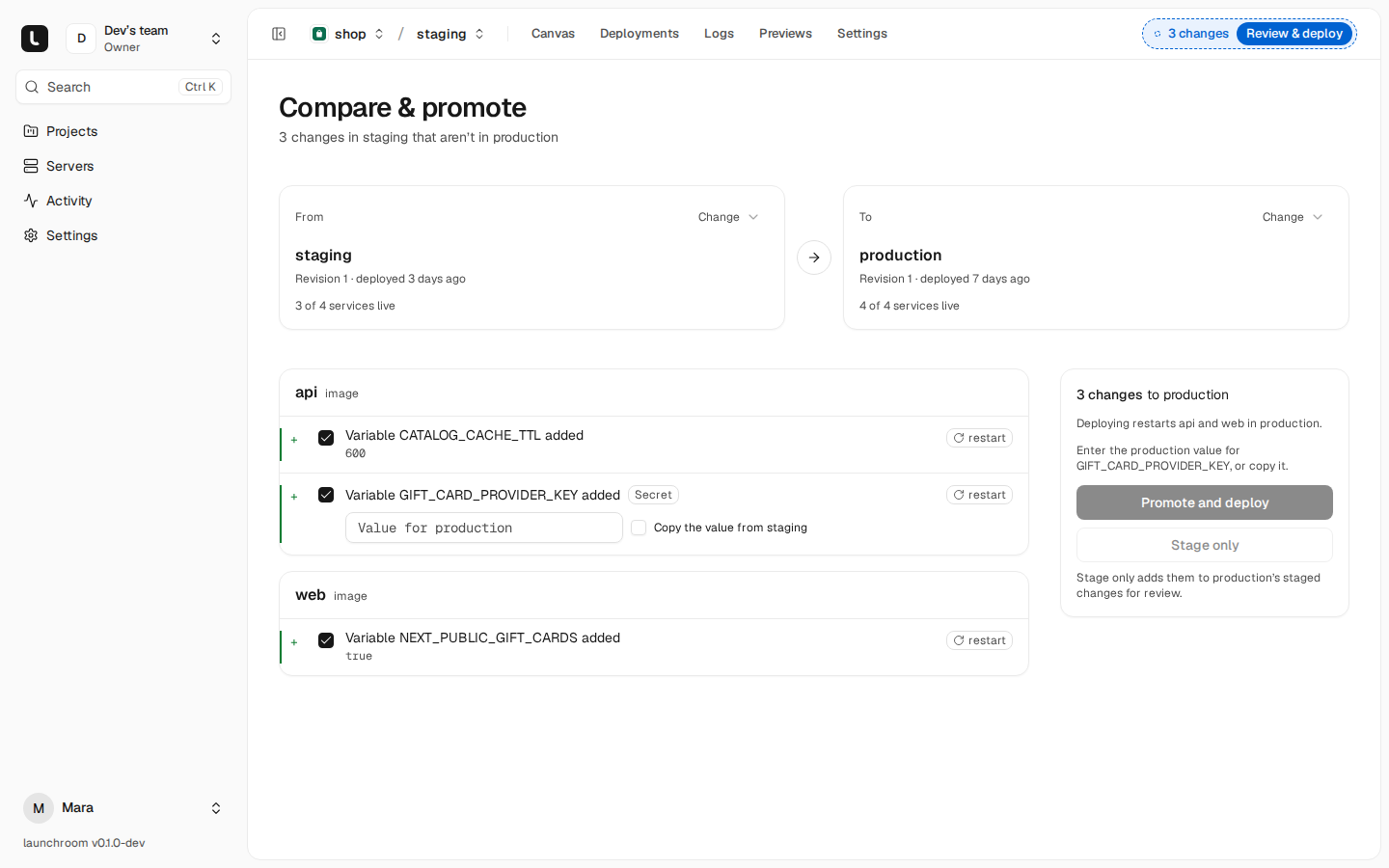
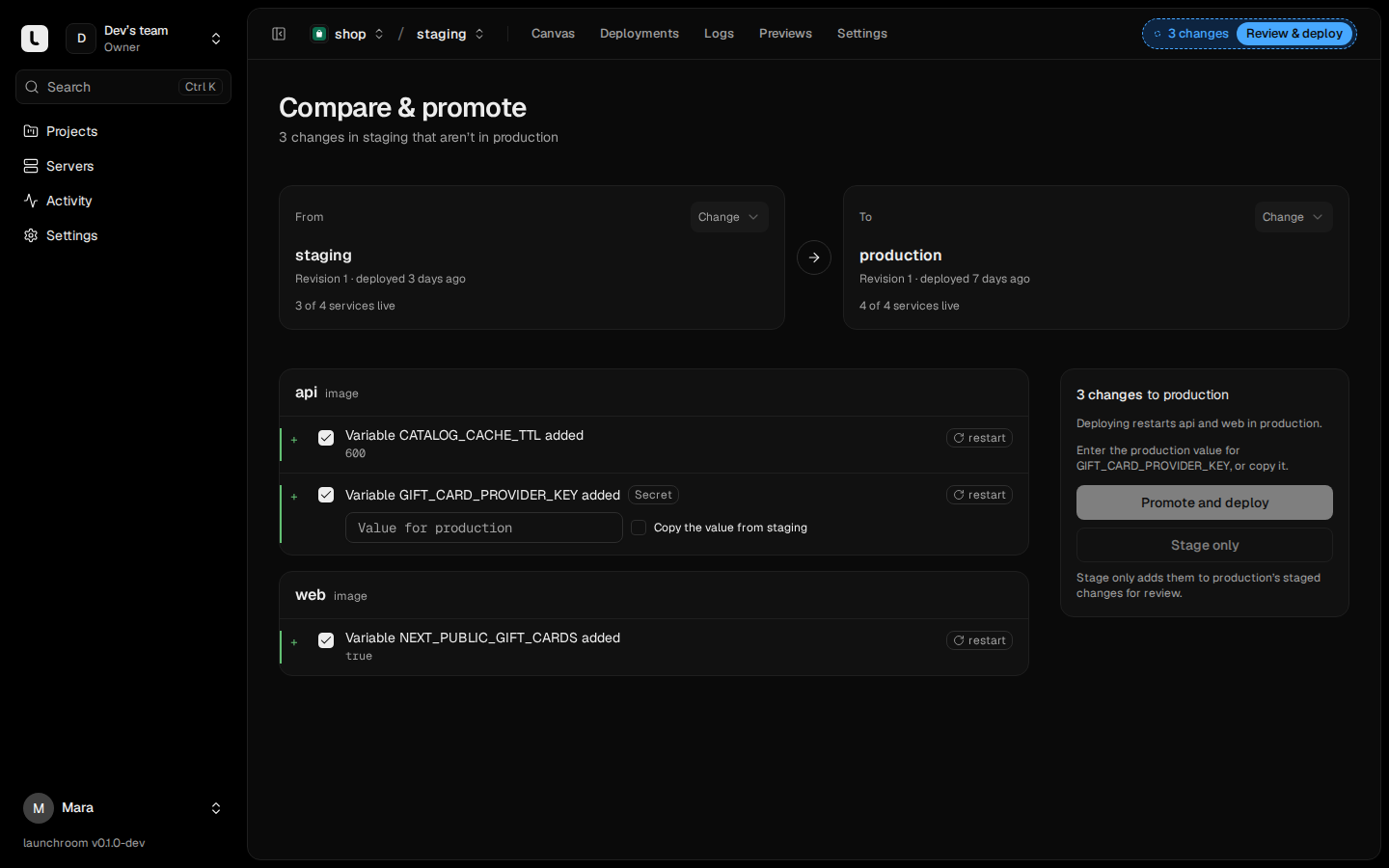
Each change is marked with + (added), ~ (changed) or − (removed), its old and new value and its effect on the
service. launchroom compares against the point the two environments last matched. The list holds only what changed in
the source since then and doesn't undo intentional differences in the target. When both sides changed the same setting, the
item is marked Conflict with both values and what it was before, and you pick one.
Each setting belongs to one class:
| Class | Examples | In the list |
|---|---|---|
| Structural | New services, connections, workers and cron jobs, build settings, start/release/seed commands, health checks, volume paths, which variables exist, config values | Checked |
| Environment-specific | Domains, replicas, CPU and memory, placement, triggers and branches, preview settings, values meant for one environment | Shown, unchecked |
| Never promoted | Secret values, generated credentials, volume data, deployment history | Not selectable |
A new secret appears with an input for the target's value. With the secrets policy off you can also choose Copy the value from staging. Removing a service is never pre-checked, and launchroom warns when that service holds data. Checking an item also checks what it depends on (a new service's variables need the service).
Also promote images reuses the image a service runs in the source when its build inputs match, so production
runs what you tested without a rebuild. When the inputs differ (for example a different NEXT_PUBLIC_API_URL), the service is
rebuilt from the same commit with the target's values, and the list says why.
Finish with:
- Promote and deploy: stages the selected changes in the target and deploys them in one step.
- Stage only: adds them to the target's staged changes so you can review them next to anything else, then deploy when ready.
The next comparison only shows newer changes, and the activity feed records "Promoted 5 changes from staging to production". Compare & promote works in any direction, for example production → staging to refresh staging's configuration.
Delete an environment
Production can't be deleted. For any other environment, use Delete environment in its ⋯ menu under
Settings → Environments, type its name and confirm your password. Its services are stopped, its rows removed and
its volumes kept on the servers for a retention period before they're deleted. If its databases have backups, you
confirm that separately. Deletion waits while a backup or restore of one of them runs.