Cron jobs
Run a command of your app on a schedule. Your servers keep the schedule, even while the dashboard is offline.
A cron job runs a command of one of your apps on a schedule, for example a nightly report or a cleanup every 15 minutes. It uses the same image as the app, so it runs the same code. The server that runs it keeps the schedule.
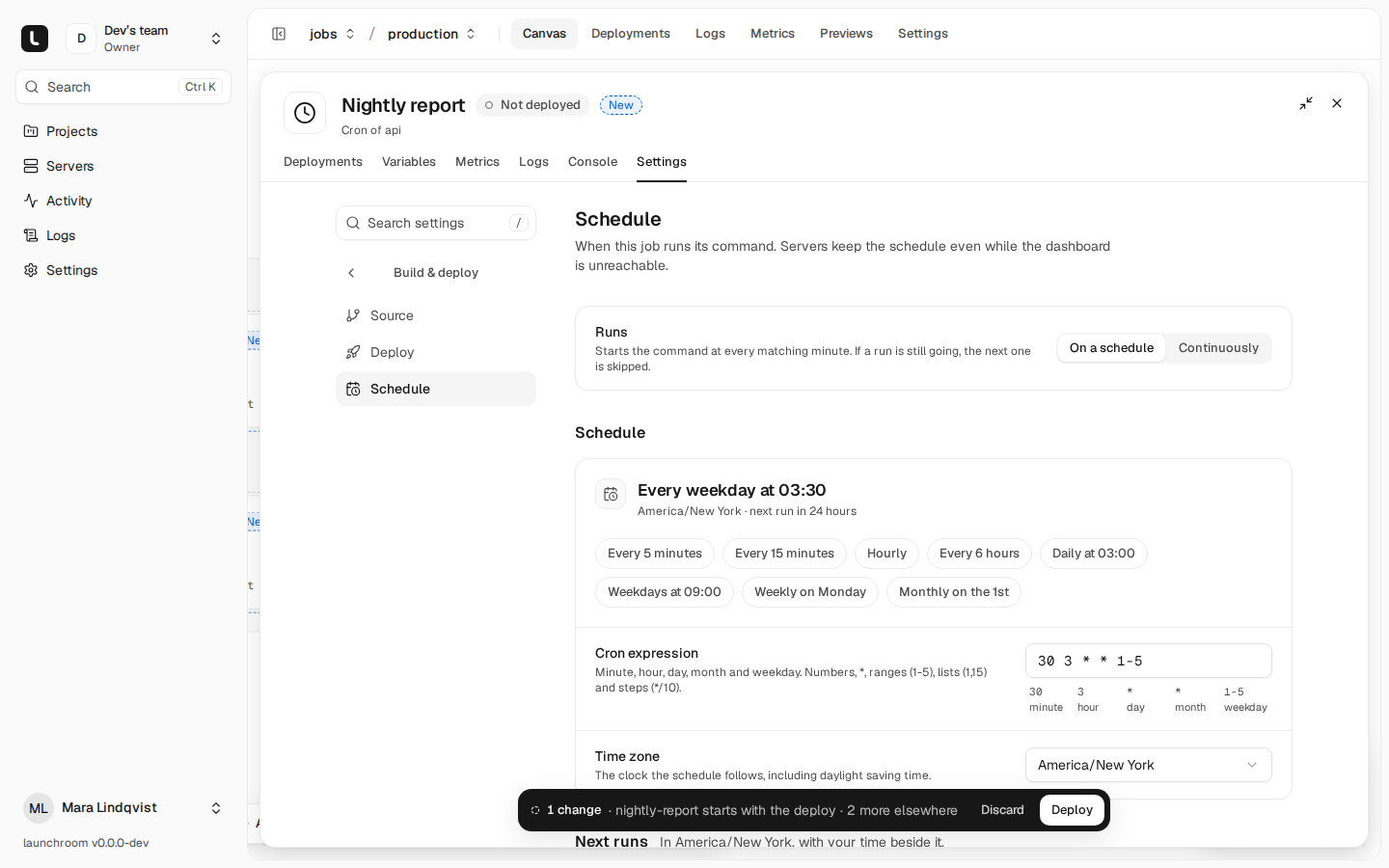
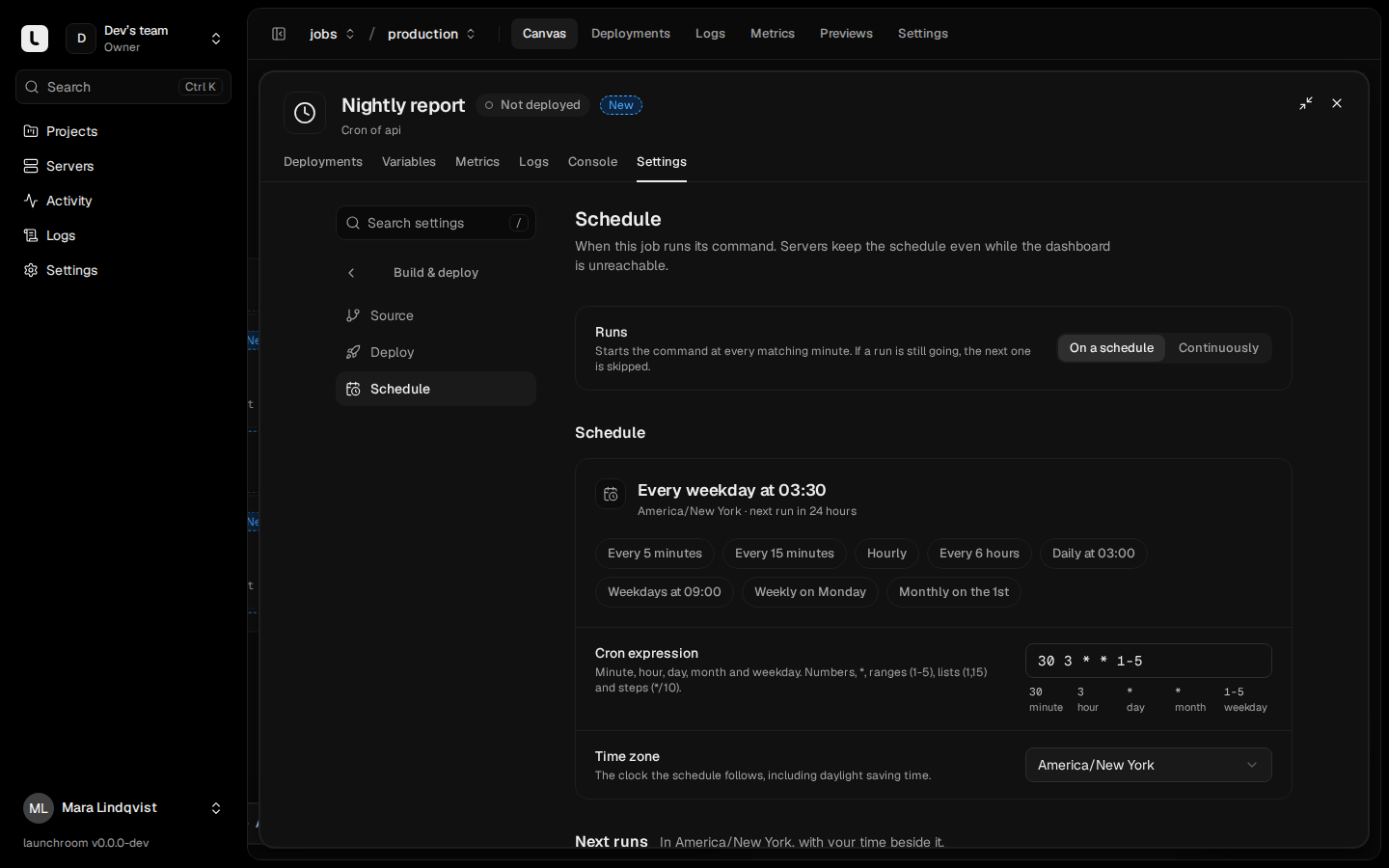
Add a cron job
- On the canvas, open Add and choose Cron ("Runs a schedule of one of your apps").
- Pick the App whose image it runs, a Service name and the Command, for example
php artisan reports:nightlyornode scripts/cleanup.js. launchroom splits it into arguments and never runs it through a shell. You can change it later under Settings → Build & deploy → Deploy. - Open the new service's Settings → Build & deploy → Schedule and set when it runs (below). Without a schedule, the command runs continuously.
- Review & deploy.
The cron job appears on the canvas as its own box, linked to its app. It has no build of its own. Every deploy of the app gives it the new image.
The schedule
Under Schedule, Runs has two options:
- On a schedule: starts the command at every matching minute.
- Continuously: runs the command all the time and restarts it when it exits, like a worker.
For a schedule, pick a preset (Every 5 minutes, Every 15 minutes, Hourly, Every 6 hours, Daily at 03:00, Weekdays at 09:00, Weekly on Monday, Monthly on the 1st) or write the cron expression yourself. The page shows the schedule as a sentence ("Every weekday at 03:30"), checks it as you type and lists the Next runs.
Cron expressions
An expression has five fields separated by single spaces:
┌───────── minute (0–59)
│ ┌─────── hour (0–23)
│ │ ┌───── day of month (1–31)
│ │ │ ┌─── month (1–12)
│ │ │ │ ┌─ day of week (0–7, 0 and 7 are Sunday)
│ │ │ │ │
30 3 * * 1-5
Each field takes numbers, *, ranges (1-5), lists (1,15) and steps (*/10). Names like MON or JAN and macros
like @daily aren't supported. When both the day-of-month and the day-of-week field are restricted, a day matching
either one runs, as in classic cron.
| Expression | Runs |
|---|---|
*/5 * * * * | Every 5 minutes |
0 * * * * | Every hour, on the hour |
0 3 * * * | Every day at 03:00 |
30 3 * * 1-5 | Weekdays at 03:30 |
0 9 * * 1 | Mondays at 09:00 |
0 0 1 * * | The first of every month at midnight |
Time zone
The schedule is read in the Time zone you pick (an IANA name such as Europe/Berlin or America/New_York), The default is
UTC. It follows that zone's clock, including daylight saving time:
- When clocks go back, a minute that happens twice runs once.
- When clocks go forward, a minute that doesn't exist doesn't run.
The Next runs list shows times in the schedule's zone, with your own time next to them when it differs.
How runs work
The schedule is kept on the server that runs the cron job. launchroom creates the job's container without starting
it, and launchroomd on that server starts it at every due minute. As a result:
- Runs continue while the dashboard is offline. A dashboard update, restart or outage doesn't skip a run.
- No catch-up. Runs missed while the server was down are not made up later.
- Overlapping runs skip. If a run is still going when the next one is due, the next one is skipped (and logged), so a slow job doesn't run twice at the same time.
- Between runs, the job counts as healthy. It has no port, no domain and no health check. A run ends when the command exits.
A schedule change is a staged change like any setting and takes effect with the next deploy.
Logs of runs
Each run's output is the container's output. Open the cron job's Logs tab, or the project's Logs page filtered to the service, to read it next to the rest of the project. To keep the output of runs while nobody has the logs open, turn on runtime log retention for the environment in the project's Settings → Logs. See Logs.
In launchroom.json
Cron jobs can live in launchroom.json next to your code:
{
  "$schema": "https://launchroom.vantezzen.io/schema/launchroom.v1.json",
  "version": 1,
  "services": {
    "nightly-report": {
      "kind": "cron",
      "of": "api",
      "deploy": {
        "startCommand": ["php", "artisan", "reports:nightly"],
        "schedule": { "cron": "30 3 * * 1-5", "timeZone": "America/New_York" }
      }
    }
  }
}
"schedule": null makes the job run continuously.