Health check problems
The build passed but the new version never went live. Fix wrong ports and hosts, slow starts, long first pulls, crash loops and failing release commands.
After a build, launchroom starts the new version next to the old one and switches traffic only once it answers its health check. If it never does, the deployment fails and the old version keeps serving. This page covers the reasons a new version doesn't become healthy and how to fix each.
How the health check works
launchroomd, the program launchroom runs on each server, checks every new replica from outside its container, so your image needs no curl or wget.
- HTTP (the default for web services): a
GETon the health path,/unless you set one (the Laravel preset uses/up). Any 2xx or 3xx answer counts as healthy. - TCP: a connection to the port is enough. Databases and other non-HTTP services use this.
- None: workers and cron jobs have no probe. A worker counts as healthy once it has run for a while without exiting.
The settings live in the service's Settings → Deploy → Health check: Path, Time to start (default 30 seconds), Check every (5 seconds), Answer within (3 seconds) and Unhealthy after (3 failed checks). A deployment fails with health_timeout when the new replica isn't healthy by the deadline: the time to start, plus the checks, plus two minutes of slack. The deadline doesn't run out while the server is still downloading the image.
A failed health check never touches the live version. If something goes wrong after the new version became healthy, launchroom keeps the new one rather than tearing down the only healthy copy.
Deploy stuck at Health check
Open the deployment. While the step runs, it says what it is waiting for:
- "Fetching image into the local registry (first deploy of this image)": launchroom's registry is copying a public image from its origin registry.
- "Downloading image (412 MB of 690 MB)": the server pulls the image. With several servers it shows the one furthest behind ("… on 2 servers").
- "Unpacking image": the download is done and Docker is extracting it.
- No progress message: the container is running and launchroomd is probing it. Open Runtime logs from the deployment page to see what the app prints.
Large images on a slow connection take longer the first time. Later deploys of the same service reuse unchanged layers, and servers keep the running image plus the previous two, so rollbacks need no download. A pull fails after 5 minutes without any progress or 45 minutes in total; the class is then transient. A redeploy usually succeeds, because launchroom's registry has copied the image by then.
Health check failed: your app listens on port 5173, not 3000
Cause. launchroomd checks which ports the process opened. The service is configured for one port, the app listens on another, so the health check never got an answer. Common with Vite dev servers, a hard-coded listen(3000) or a Dockerfile EXPOSE that doesn't match the app.
Fix. Click Use port 5173 and redeploy on the card, or start the app on the configured port. launchroom passes the configured port to the app in the PORT variable. Most frameworks read it. The best fix is to use PORT in your start command or code instead of a fixed number.
Health check failed: your app only accepts connections from itself
The card says the app "listens on 127.0.0.1:3000, which nothing outside its container can reach."
Cause. The app binds to localhost inside its container. Health checks and traffic come from outside the container, so they can't reach it.
launchroom already sets HOST=0.0.0.0 and HOSTNAME=0.0.0.0 for every service except databases (Next.js standalone servers read HOSTNAME, most other frameworks HOST). When an app still binds to 127.0.0.1, something overrides that: a variable you set yourself, a hard-coded address in the code or config, or a start command with --host 127.0.0.1 or --host localhost.
Fix. Remove the override, or bind to 0.0.0.0 explicitly on the command line (--host 0.0.0.0, --bind 0.0.0.0:$PORT for gunicorn). If a variable of yours sets HOST or HOSTNAME, check its value in the service's Variables tab.
Health check failed: nothing answered on port 3000
Cause. The container runs, but nothing accepts connections on the port the server checks. The app may still be starting, it may have failed after start without exiting, or it listens on a different interface.
Fix. Check Runtime logs for errors during startup. Make sure the app listens on that port on 0.0.0.0, or change the port under Settings → Deploy.
Health check failed: your app is not listening on any port
Cause. The process runs but opened no TCP port at all. Either the start command doesn't start the web server (it runs a script that keeps going, or a queue worker), or the service is meant to be a background process.
Fix. Check the start command under Settings → Deploy. If the service is a background process, turn it into a worker, which has no port and no HTTP health check.
Health check failed: your app took too long to become healthy
Cause. The app answered too late, or the health path never returned 2xx/3xx. Apps that run migrations, compile assets or warm caches on start often need longer than 30 seconds. A health path that redirects to a login page that then fails, or returns 404, never passes either.
Fix.
- Click Allow 60s to start and redeploy (the suggestion doubles the current time to start, at least 60 seconds).
- Point the health check at a cheap endpoint that answers without a database round trip or authentication, for example
/upor/healthz, under Settings → Deploy → Health check → Path. - Move one-off work like migrations out of the start command and into a release command (below), which runs once per deploy instead of in every replica.
Start failed: the app exited
The class is runtime_error, and the canvas may show the service as Crashed.
Cause. The container stopped while starting. The last runtime log lines usually say why: a missing variable, a database that isn't reachable, a syntax error, a missing file in the image. If the app exits with code 137, it ran out of memory instead (the card then says "Your app ran out of memory").
Fix. Open the deployment's Runtime logs and read the last lines before the exit. Typical fixes:
- "The variable … is missing": click Add NAME and set it for this environment.
- A connection error to a database: check the variable the app uses (
DATABASE_URLand similar) and that the database service is running on the canvas. - Out of memory: raise the memory limit under Settings → Scaling.
A running service crash-loops
When a service that was live starts crashing later, the canvas shows Crashed or Unhealthy on its node. Docker restarts crashed containers automatically, and the edge routes traffic only to replicas that pass their health check. Look at the service's Logs tab for the lines before each restart, and at the server's Health section: a server that is out of memory kills processes, which looks like random crashes.
Release command failed
Cause. The release command (migrations, for example php artisan migrate --force) exited with an error, so nothing was rolled out and the old version keeps serving. Release commands run once per deploy, before traffic switches, in a one-off container of the new image with the environment's variables. They stop after 15 minutes.
Fix. Open the Release command step in the deployment for its output. Common causes are a migration that fails against the current data, a database that isn't reachable from the new image, or a missing variable. Fix it and redeploy. Rolling back to an earlier deployment doesn't run the release command again, and it doesn't undo migrations either.
Canvas shows Last deploy failed, but the site works
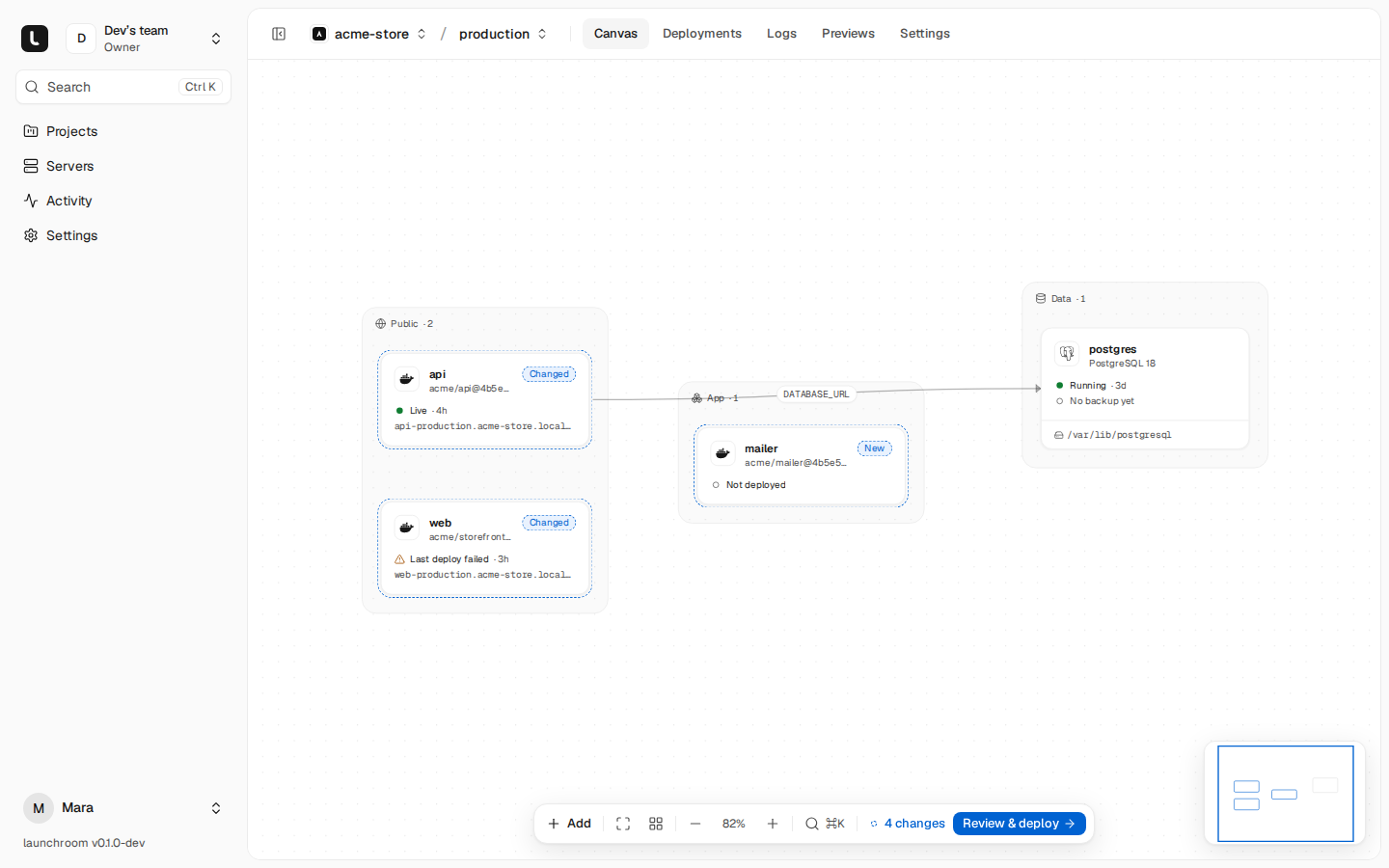
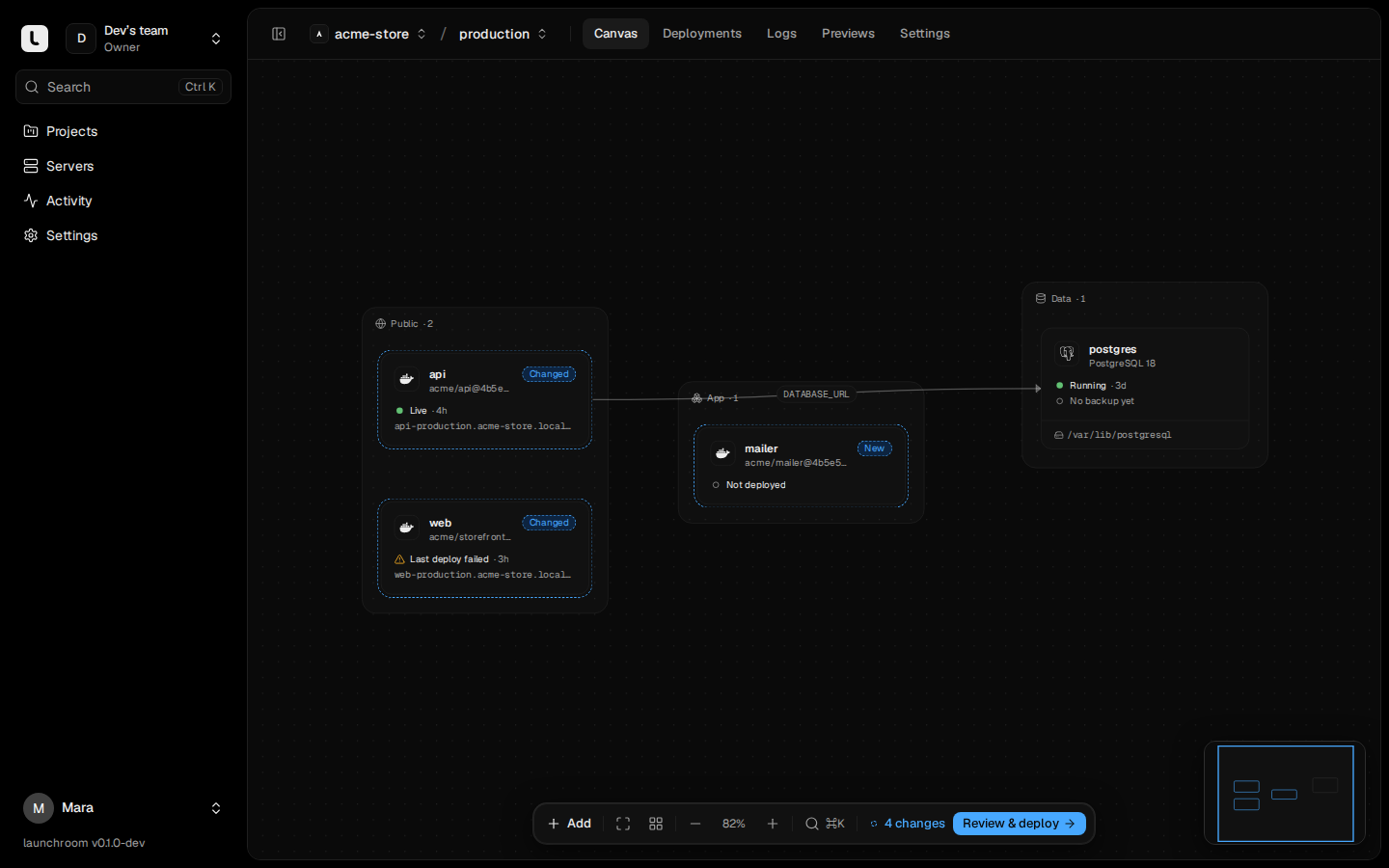
This is the normal outcome of a failed deploy: the newest deployment failed, and the previous one is still live and serving traffic. The canvas marks the node as a warning, not as failed, and the deployment page says "Your site is still serving 3b7d5e1." Fix the cause using the sections above and deploy again. Your visitors are not affected in the meantime.
A node that shows Failed without "Last" has never had a successful deployment in this environment, so nothing serves it yet.
Deploy failed: no server can run this service
The class is placement_error, during Roll out.
Cause. No online server is allowed to run the service: no server has the Run apps role, the service's placement rules exclude every online server, the servers lack the CPU or memory it asks for, or the server that holds its volume is offline.
Fix. Check the service's Settings → Scaling (replicas, limits and where it may run) and the Servers page. A database with a volume runs only where its volume is. If that server is gone for good, use Replace server on it (see Replace a server).
Next steps
Build problems
Fix failed builds by symptom, from undetected frameworks and stale lockfiles to memory limits, clone errors and builds that never leave the queue.
DNS and TLS problems
Read the DNS check, fix records that point elsewhere, and get certificates issued, including proxied DNS, wildcards and several edge servers.