Troubleshooting
Where to look first when something goes wrong, how to collect what a bug report needs, and the guides for each kind of problem.
The dashboard explains most problems before you need a terminal:
- A failed deployment names the failed step and shows the lines around the first error.
- A server lists its health checks.
- Activity records what changed and who changed it.
Start there, then use the guides below for the symptom you see.
Where to look first
The deployment page
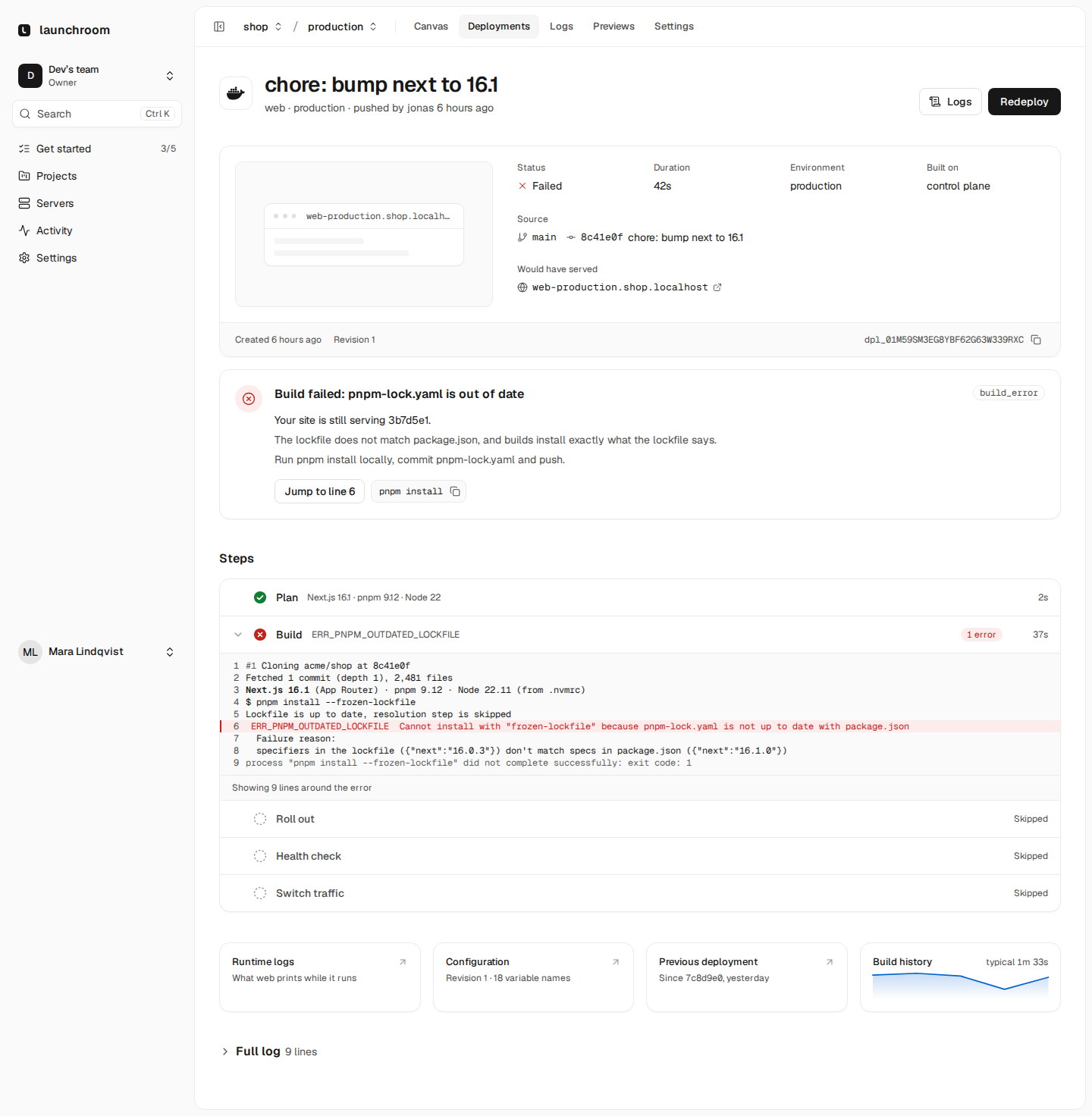
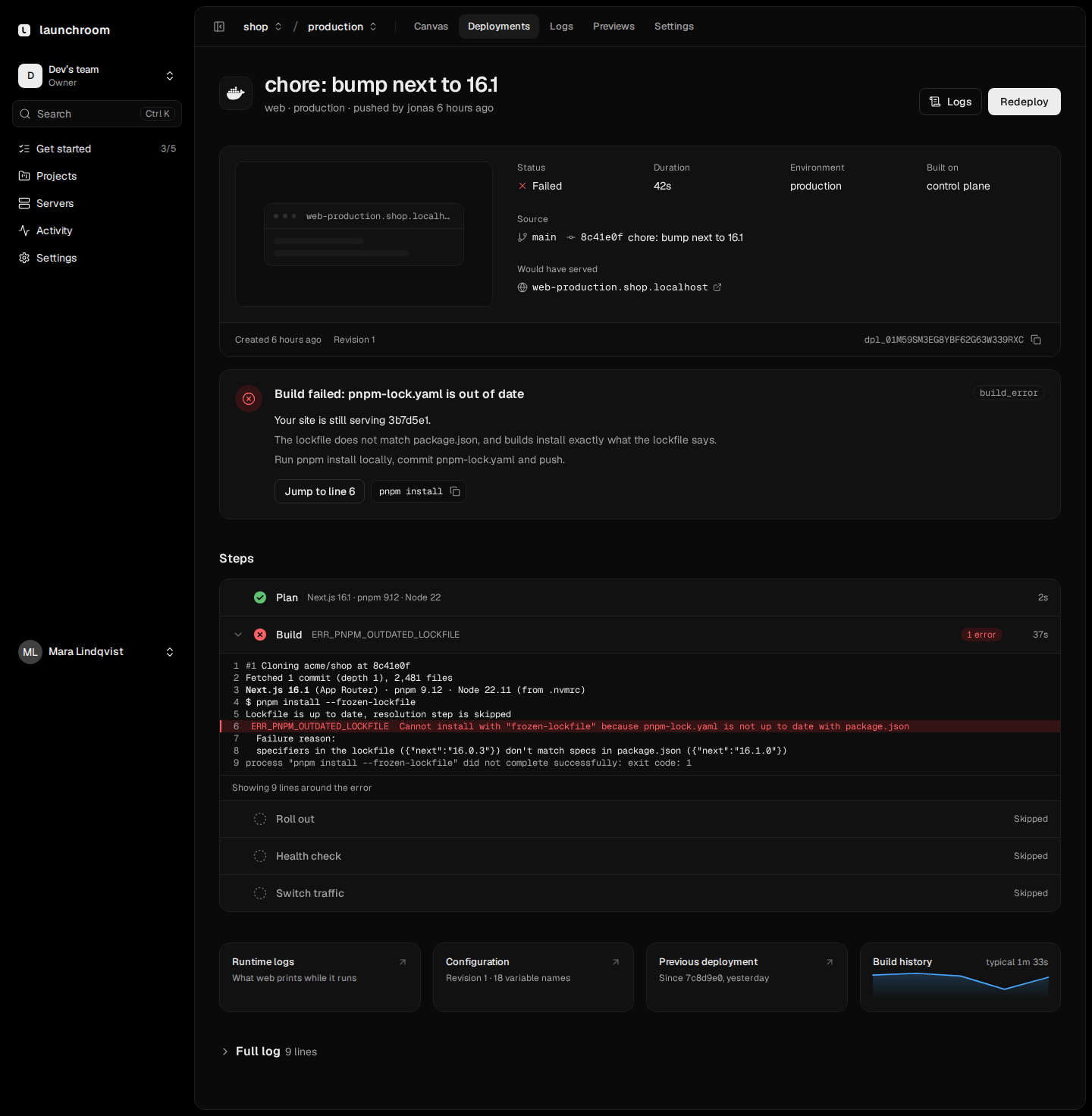
Open the failed deployment from the canvas (click the service, then its latest deployment) or from the project's Deployments tab. The page shows:
- An explanation card at the top, for example "Build failed: pnpm-lock.yaml is out of date", with the cause, the fix and often a one-click action such as Use port 5173 and redeploy or Add NODE_OPTIONS.
- A status line when the previous version is still live: "Your site is still serving 3b7d5e1."
- The step list (Plan, Build, Release command, Roll out, Health check, Switch traffic). The failed step opens on the lines around its first error, with Show all and Jump to line to see more.
- The full log, searchable, with links to individual lines.
The label next to the title (build_error, health_timeout, config_error and so on) is the failure class. The guides below are organised around these.
Logs
The project's Logs tab searches build lines and runtime lines of every service in the environment, with a histogram that marks errors and deploys. Live follows the output of running replicas. Owners and admins can search every project at once from Logs in the sidebar. See Logs for the query syntax.
The server page
When a whole server misbehaves, open it under Servers. The Overview tab has a Health section with one line per check: Health report, Disk, Memory, Load, File watch limits, Docker networks, Clock, Build cache, Disk cleanup and Desired state. Anything not green carries a sentence that says what to do. The Network tab shows the private network, its path to other servers and the server's capabilities.
Activity
Activity in the sidebar lists deploys, promotions, configuration changes, team changes and alerts in order. When something worked yesterday and fails today, use Activity to find what changed in between.
Collecting information for a bug report
If the guides don't solve the problem, open a bug report. Include:
-
Versions. Settings → Updates shows the launchroom version and the version of every server (instance owners). A server's page also shows its version in the at-a-glance summary.
-
What you did and what you saw. The exact status word (Failed, Unreachable, Last deploy failed), the explanation card's title and the failure class.
-
The relevant log lines. Copy the excerpt from the deployment page, not the whole log. launchroom masks secret values in build and deploy logs, but check what you paste: your own app may print tokens or connection strings.
-
Server-side logs, when the problem is with a server rather than an app. On the control-plane server, from the install folder (default
./launchroom):On the control-plane server ./launchroom status ./launchroom logs dashboard ./launchroom logs launchroomdOn any other server, from its install folder (default
./launchroomd):On another server docker compose logs --tail=200 launchroomdThe containers launchroomd starts for its roles are named
lr-system-caddy(serving traffic),lr-system-buildkit(builds),lr-system-tailscale(private network) andlr-system-ambassador(connections to services on other servers).docker logs --tail=200 lr-system-caddyshows one of them.
Never share these files
.env and data/keys/ in the install folder decrypt every secret launchroom stores. Don't attach them, the recovery kit or your recovery passphrase to an issue. Nobody needs them to debug a problem.
Guides by topic
Builds
No framework detected, lockfile mismatches, out of memory, clone and registry failures, builds stuck in the queue.
Health checks
Deploys stuck at Health check, wrong port or host, slow starts, large first pulls, crash loops, release commands.
DNS and TLS
DNS check states, records pointing elsewhere, proxied DNS, certificates that won't issue, wildcards.
Servers
Servers that never connect or show Unreachable, health warnings, rootless hosts, reboots, removing a stuck server.
Private network
Services on different servers can't reach each other, relayed links, NAT and your own Tailscale.
Backups
Failed backups and verifications, gaps in point-in-time recovery, a lost recovery kit or passphrase.
Installation
Ports 80 and 443 taken, Docker problems, signature checks, a dashboard that doesn't come up.
Getting help
launchroom is open source. Search the GitHub issues of vantezzen/launchroom for your error text first. If nobody has reported it, open a new issue with the information above. Don't post security problems in a public issue. Contact the maintainer privately through GitHub instead.
The private network
A WireGuard network between your servers that switches on with the second server, works behind NAT and keeps postgres:5432 working across machines.
Build problems
Fix failed builds by symptom, from undetected frameworks and stale lockfiles to memory limits, clone errors and builds that never leave the queue.