Server problems
Servers that never connect, show Unreachable or report health warnings. Causes and fixes, plus rootless hosts, reboots and removing a stuck server.
Every server runs launchroomd, a program that connects out to your dashboard over HTTPS, fetches what it should run and reports back. Servers expose no management port, so almost every server problem has one of these causes:
- launchroomd isn't running.
- launchroomd can't reach the dashboard.
- The dashboard refuses its requests.
This page helps you find which one and fix it.
Where to look
-
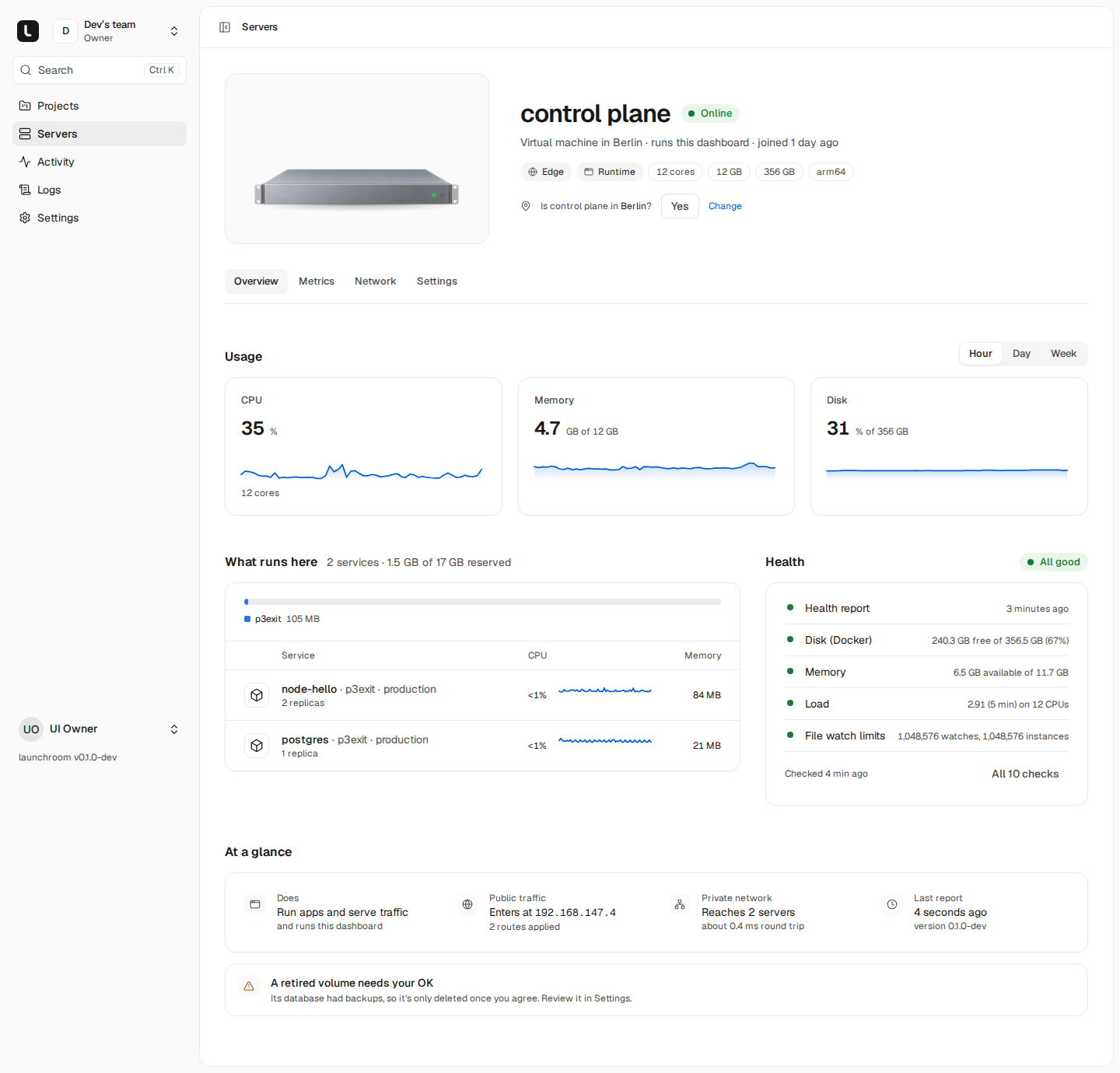
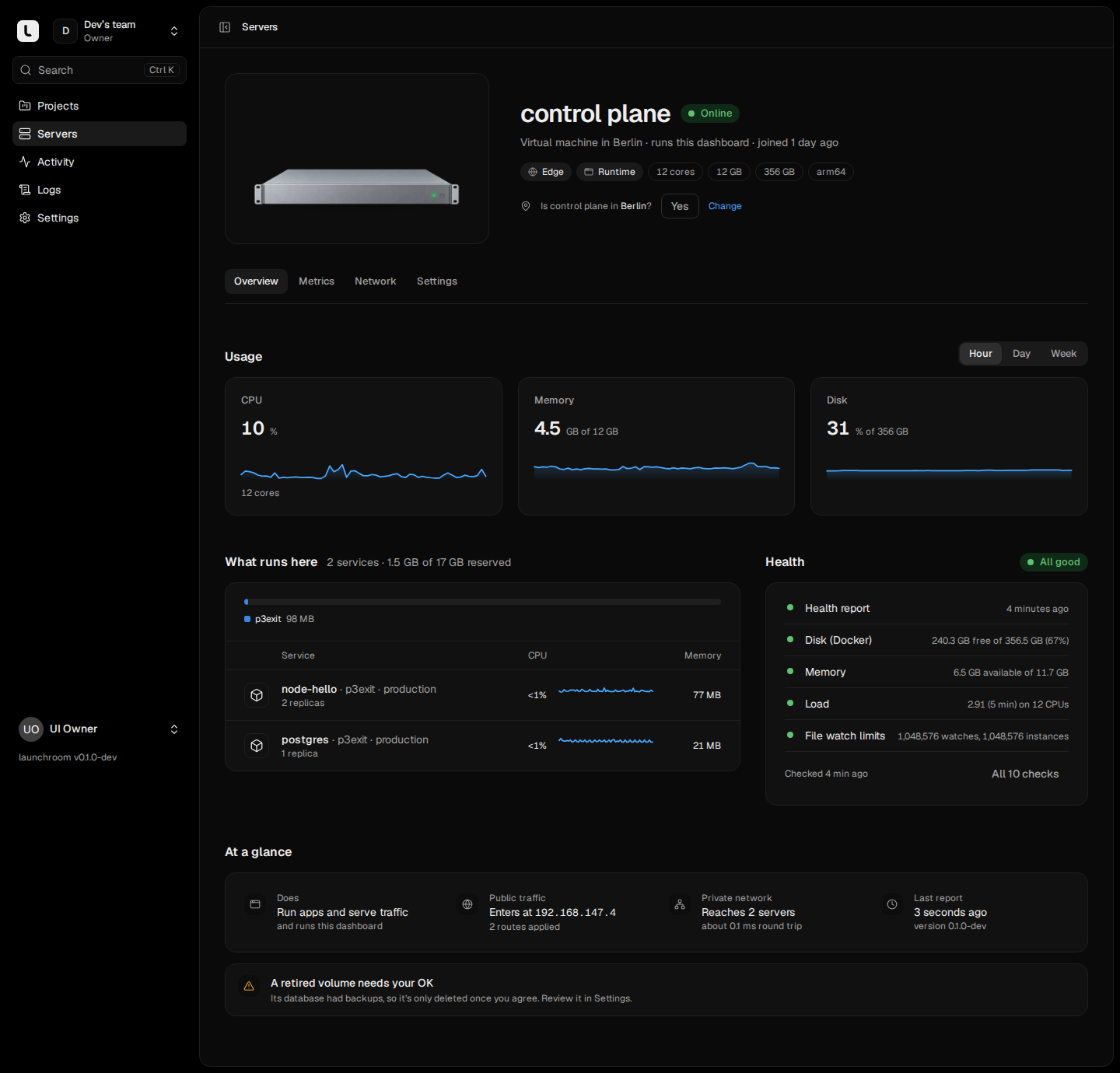
Servers shows each server's status: Online, Unreachable (no contact for over 75 seconds), Offline (no contact for 5 minutes), Pending approval or Revoked.
-
A server's Overview tab has the Health section: one line per check, with a sentence on what to do for anything that isn't fine.
-
On the server itself, launchroomd's log says what it is doing. In the install folder (
./launchroomdon added servers):On an added server cd launchroomd docker compose ps docker compose logs --tail=200 launchroomdOn the control-plane server, use
./launchroom statusand./launchroom logs launchroomdin thelaunchroomfolder.
The server never comes online after the install command
The Add a server page waits with "Waiting for your server…", usually 20 to 40 seconds after you run the command. If nothing happens, the installer itself stops after 3 minutes with "launchroomd did not enroll within 3 minutes" and prints the log command above.
Check these in order:
-
Check that the command ran to the end. Errors such as "Docker is not installed", "cannot talk to the Docker daemon" or "Docker Engine >= 24 is required" stop it before anything starts. The requirements are the same as for the control plane. See Installation problems.
-
Check that the server reaches the dashboard over HTTPS. The page says so under the wait: "Not connecting? The server needs to reach
https://…over HTTPS." Try it from the server:curl -sI https://dash.example.com/upA timeout means outbound HTTPS is blocked (a corporate network, an egress firewall) or the name doesn't resolve from there. Servers need outbound HTTPS only. Nothing has to be opened inbound for them to connect.
-
Check the dashboard URL. The command contains the dashboard's address. If you copied it from a dashboard you reach at
localhostor through an SSH tunnel, other machines can't use it. Move the dashboard to a public address first. See Dashboard domain. -
Check that the token was still valid. Join tokens work once and expire after 30 minutes. The page shows "This install link expired before a server used it." in that case. Click Get a new command and run the new one. Re-running the installer with a new token is safe as long as the server hasn't enrolled yet.
-
Check the server's clock. See the clock section below.
-
Check whether the team requires approval. If it does, the server shows up as Pending approval and waits until an owner or admin compares the key fingerprint and clicks Approve server.
Server shows Unreachable
Cause. The dashboard hasn't heard from launchroomd for more than 75 seconds. After 5 minutes the status becomes Offline. The apps on the server keep running the whole time. Only changes and reports stop. After about 90 seconds launchroom moves stateless replicas to other servers that may run them.
Fix. Work through these:
- Machine and Docker. Check
docker compose psin the install folder. Bothlaunchroomdanddockerd-guardshould be running. - launchroomd's log. Repeated connection errors point at the network.
401answers point at the clock or a revoked key. - A moved dashboard. Servers follow a new dashboard domain automatically once they can verify it, and fall back to the address they were installed with. If that old address no longer reaches the dashboard either, re-run the server's install command with the new address.
- Client certificates set to Require. Servers without a valid certificate can't reach the dashboard. Settings → Security lists each server's readiness. See Client certificates.
- A sleeping laptop or desktop. This is expected. It comes back Online when it wakes.
Clock out of sync
The Clock health check warns at 5 seconds of difference to the dashboard and turns critical at 30. Every request between launchroomd and the dashboard is signed with a timestamp, and requests more than 60 seconds off are refused, which makes the server Unreachable.
Fix. Turn on time synchronisation on the server:
timedatectl status
sudo timedatectl set-ntp true
Virtual machines restored from a snapshot and small boards without a real-time clock (a Raspberry Pi) are the most common cases.
Health warnings
Each check in the Health section explains itself. The most common ones:
| Check | What it means | What to do |
|---|---|---|
| Disk | Less than 20% free is a warning, less than 10% critical. Builds and pulls fail on a full disk. | launchroom removes unused images daily and when the disk is 85% full. It never deletes volumes, databases or anything it didn't create. Remove other data, or grow the disk. |
| Memory | Less than 15% available is a warning. | Services may be killed for lack of memory. Lower memory limits, move services to another server or add memory. |
| Load | Sustained load of 2 per CPU or more. | Builds and requests get slow. Move builds to another server with the Build role. |
| File watch limits | inotify limits below 65,536 watches or 256 instances. | Raise fs.inotify.max_user_watches and fs.inotify.max_user_instances in a file under /etc/sysctl.d/. |
| Docker networks | Many networks that other software created on this server. Docker's default address pools run out at about 30 networks. | Remove unused networks other tools left behind (docker network ls). launchroom's own networks use a separate range and don't count. |
| Health report | No fresh facts from the server for 15 minutes. | launchroomd isn't running or can't reach the dashboard. See Unreachable above. |
| Desired state | "Server refused v12; it keeps running v11", or "Not rendered: the previous version stays applied". | The new configuration for this server was refused, and the detail line says why. Deployments that caused it are failed and the server keeps running what it had. Fix the configuration named in the detail and deploy again. If the server runs an older launchroomd than the dashboard, update it under Settings → Updates. |
For the file watch limits, for example:
fs.inotify.max_user_watches = 524288
fs.inotify.max_user_instances = 512
Apply it with sudo sysctl --system.
Rootless Docker hosts
On a server with rootless Docker, install with --rootless (the installer refuses otherwise and tells you so). Two problems are common:
-
ports 80 and 443 need net.ipv4.ip_unprivileged_port_start <= 80: rootless Docker can't bind ports below 1024 by default, and a server that serves traffic needs 80 and 443. Run once as root, and keep it across reboots:sudo sysctl -w net.ipv4.ip_unprivileged_port_start=80 echo 'net.ipv4.ip_unprivileged_port_start=80' | sudo tee /etc/sysctl.d/90-unprivileged-ports.conf -
Some features run degraded. The server's Network tab lists its Capabilities: apps see an internal address instead of the visitor's, the firewall covers container traffic but not the server's own interfaces, and private network links are often relayed. Without
/dev/net/tunthe server can't join the private network at all, and without cgroup v2 delegation CPU and memory limits aren't enforced.
See Rootless Docker for the full list.
After a reboot
Normally there is nothing to do. The launchroomd containers restart with Docker, launchroomd re-applies its firewall table before it starts any app, and the server reports Online again within a minute. Make sure Docker itself starts at boot:
sudo systemctl enable dockerServices that other servers reach over the private network wait until the private network is up again, then start. If one stays stopped for more than a minute or two after boot, look at launchroomd's log.
The firewall table
launchroomd keeps network isolation in its own nftables table, inet launchroom. It stops apps from reaching other environments, the server's own ports, cloud metadata addresses and private network ranges, and it is checked and repaired continuously. It doesn't touch your other firewall rules, and Docker doesn't flush it. To look at it:
sudo nft list table inet launchroomApps can reach the internet. Reaching a machine on your local network (a NAS, a printer) or the server itself from inside an app is blocked by design.
Removing a server that is stuck
What you do depends on its state:
- Waiting for its first connection: on the Add a server page, under "Changed your mind?", click Remove server. The command stops working.
- Pending approval: open it and use Remove in its Settings tab. It never ran anything.
- Online, Unreachable or Offline, and you want it gone: Settings tab → Danger zone → Revoke. Its key is rejected at once and it needs a new install command to come back.
- Dead, and it ran apps or databases: use Replace server at the top of its page instead. launchroom moves its roles and labels to another server, restores its databases there from their latest backups and redeploys the rest. See Replace a server.
To clean up the machine afterwards, in its install folder:
cd launchroomd
docker compose down
docker compose run --rm launchroomd firewall remove
docker rm -f $(docker ps -aq --filter label=launchroom.managed=true)
cd .. && rm -rf launchroomd
Volumes are left in place. Remove them yourself once you are sure you don't need their data.
Next steps
DNS and TLS problems
Read the DNS check, fix records that point elsewhere, and get certificates issued, including proxied DNS, wildcards and several edge servers.
Private network problems
When services on different servers can't reach each other, links are relayed or slow, or the private network itself is unhealthy. Causes and fixes.